

<?xml version="1.0" encoding="UTF-8"?>
<?xml-stylesheet type="text/xsl" href="/rss/atom-styles.xsl"?>
<feed xmlns="http://www.w3.org/2005/Atom">
  <title>Mutter</title>
  <subtitle>朝生暮死 浮游一生</subtitle>
  <link href="https://www.mutter.cn/atom.xml" rel="self" type="application/atom+xml"/>
  <link href="https://www.mutter.cn" rel="alternate" type="text/html"/>
  <updated>2026-02-13T03:53:34.364Z</updated>
  <language>en</language>
  <id>https://www.mutter.cn/</id>
  <author>
    <name>Mutter</name>
    <uri>https://www.mutter.cn</uri>
  </author>
  <generator uri="https://github.com/Dnzzk2/Litos" version="5.0">Astro Litos Theme</generator>
  <rights>Copyright © 2026 Mutter</rights>
  
  <entry>
    <title>SSH2FA  ssh实现自定义API服务器二次登录验证</title>
    <link href="https://www.mutter.cn/posts/环境配置/ssh2fa-ssh实现自定义api服务器二次登录验证" rel="alternate" type="text/html"/>
    <id>https://www.mutter.cn/posts/环境配置/ssh2fa-ssh实现自定义api服务器二次登录验证</id>
    <updated>2026-01-23T13:32:05.000Z</updated>
    <published>2026-01-23T13:32:05.000Z</published>
    <author>
      <name>Mutter</name>
    </author>
    <summary type="text">SSH2FA 在保持双因素认证的安全性的同时，提供了类似扫码的便捷体验, 适用于个人/小团体使用</summary>
    <content type="html"><![CDATA[
<p>服务器 SSH 登录的安全性，我实现了 <strong>SSH2FA</strong>，在保持双因素认证的安全性的同时，提供了类似扫码的便捷体验, 适用于个人/小团体使用</p>
<h3>核心功能</h3>
<ol>
<li><strong>Web 审批</strong>：登录时终端输出一个链接，点击后在浏览器确认即可放行。</li>
<li><strong>断网降级</strong>：若无法连接认证服务器，自动回退到传统 TOTP 验证，确保不被锁在门外。</li>
</ol>
<p>url认证
<img src="https://pic.mutter.cn/row/sa/1/b/a/b/8aab1b3f8c4d0cad5b70a16690ce2fd4.png" alt="" /></p>
<img src="https://pic.mutter.cn/row/sa/0/5/0/2/f092051b53b7df08f8c1dbd3043f2dcb.png" alt="" />
<p>认证服务器失联TOPT
<img src="https://pic.mutter.cn/row/sa/0/c/1/b/318b0c74599eb7ac3bea4476034e8f2e.png" alt="" /></p>
<h3>实现思路</h3>
<ul>
<li>使用 <code>sshd_config</code> 的 <code>ForceCommand</code> 在登录成功后先运行自定义程序，验证通过后再启动用户的 Shell。</li>
<li>项目分为两部分：
<ul>
<li><strong>Auth Server (Python)</strong>：提供 <code>/start_login</code>、<code>/check_status</code>、<code>/approve</code> 接口，管理登录会话。</li>
<li><strong>Client (Go)</strong>：编译为单文件二进制，负责请求审批链接、轮询状态以及离线 TOTP 验证。</li>
</ul>
</li>
</ul>
<hr />
<h2>代码实现</h2>
<h3>1. Auth Server (Python)</h3>
<pre><code>#!/data/miniforge3/bin/python3
# 文件名: /usr/local/bin/auth_server.py

from flask import Flask, request, jsonify
import uuid
import time
import threading

app = Flask(__name__)

# 内存存储:
# tokens: {session_token: {"status": "pending/approved/rejected", "username": "root", "display_token": "xxx", "ts": 12345}}
# display_to_session: {display_token: session_token}
# 生产环境建议用 Redis
tokens = {}
display_to_session = {}

def cleanup_tokens():
    """定期清理过期 Token"""
    while True:
        now = time.time()
        expired = [t for t, v in tokens.items() if now - v['ts'] &gt; 300]
        for t in expired:
            # 清理 display_to_session 映射
            display_token = tokens[t].get('display_token')
            if display_token and display_token in display_to_session:
                del display_to_session[display_token]
            del tokens[t]
        time.sleep(60)

threading.Thread(target=cleanup_tokens, daemon=True).start()

@app.route('/start_login', methods=['POST'])
def start_login():
    data = request.json
    username = data.get('username')
    
    # 生成两个独立的 token
    session_token = str(uuid.uuid4())  # 客户端用于轮询 (私密)
    display_token = str(uuid.uuid4())  # 用户看到的批准链接 (公开)
    
    tokens[session_token] = {
        "status": "pending",
        "username": username,
        "display_token": display_token,
        "ts": time.time()
    }
    
    # 建立 display_token -&gt; session_token 的映射
    display_to_session[display_token] = session_token
    
    # 这里模拟把链接打印到服务器日志，实际场景你可以把这个链接发短信/钉钉给管理员
    print(f"\n[SERVER] New Login Request for {username}")
    print(f"[SERVER] Approve Link: http://192.168.10.10:5000/approve?token={display_token}")
    print(f"[SERVER] Session Token: {session_token} (kept secret)\n")
    
    return jsonify({
        "success": True, 
        "session_token": session_token,
        "display_token": display_token
    })

@app.route('/check_status', methods=['POST'])
def check_status():
    data = request.json
    token = data.get('token')
    if token not in tokens:
        return jsonify({"status": "expired"})
    return jsonify({"status": tokens[token]["status"]})

@app.route('/approve', methods=['GET'])
def approve():
    display_token = request.args.get('token')
    
    # 通过 display_token 找到对应的 session_token
    session_token = display_to_session.get(display_token)
    
    if session_token and session_token in tokens:
        tokens[session_token]['status'] = 'approved'
        username = tokens[session_token]['username']
        print(f"[SERVER] ✅ Login APPROVED for {username}")
        return "&lt;h1&gt;Login APPROVED! You can close this window.&lt;/h1&gt;"
    
    return "&lt;h1&gt;Token Invalid or Expired&lt;/h1&gt;", 404

@app.route('/reject', methods=['GET'])
def reject():
    display_token = request.args.get('token')
    
    # 通过 display_token 找到对应的 session_token
    session_token = display_to_session.get(display_token)
    
    if session_token and session_token in tokens:
        tokens[session_token]['status'] = 'rejected'
        username = tokens[session_token]['username']
        print(f"[SERVER] ❌ Login REJECTED for {username}")
        return "&lt;h1&gt;Login REJECTED.&lt;/h1&gt;"
    
    return "&lt;h1&gt;Token Invalid or Expired&lt;/h1&gt;", 404

if __name__ == '__main__':
    # 监听 0.0.0.0 方便你从手机/浏览器访问
    app.run(host='0.0.0.0', port=5000)


</code></pre>
<h3>2. Client (Go)</h3>
<pre><code>package main

import (
	"bufio"
	"bytes"
	"encoding/json"
	"flag"
	"fmt"
	"io"
	"net/http"
	"os"
	"os/exec"
	"strings"
	"syscall"
	"time"

	"github.com/pquerna/otp/totp"
)

// ================= Configuration =================

// const (
// 	// Backend API address
// 	APIHost = "http://127.0.0.1:5000"

// 	// Enable 2FA for non-interactive connections (SCP, SFTP, Git, rsync, etc.)
// 	// true  = These commands must also perform 2FA authentication
// 	// false = These commands bypass authentication (recommended for better UX)
// 	EnableNonInteractive2FA = true

// 	// Authentication timeout (seconds)
// 	AuthTimeout = 60

// 	// Status polling interval (seconds)
// 	PollInterval = 2
// )

// =================================================

// SessionType represents the type of SSH session
type SessionType string

const (
	Interactive    SessionType = "interactive"
	NonInteractive SessionType = "non-interactive"
)

// StartLoginRequest represents the request to start login
type StartLoginRequest struct {
	Username string `json:"username"`
}

// StartLoginResponse represents the response from start_login
type StartLoginResponse struct {
	Success      bool   `json:"success"`
	SessionToken string `json:"session_token"` // 私密,用于轮询
	DisplayToken string `json:"display_token"` // 公开,显示给用户
}

// CheckStatusRequest represents the request to check status
type CheckStatusRequest struct {
	Token string `json:"token"`
}

// CheckStatusResponse represents the response from check_status
type CheckStatusResponse struct {
	Status string `json:"status"` // "pending", "approved", "rejected"
}

// getSessionType determines if this is an interactive or non-interactive session
func getSessionType() (SessionType, string) {
	cmd := os.Getenv("SSH_ORIGINAL_COMMAND")
	if cmd != "" {
		return NonInteractive, cmd
	}
	return Interactive, ""
}

// getUsername retrieves the current username from environment
func getUsername() string {
	if user := os.Getenv("PAM_USER"); user != "" {
		return user
	}
	if user := os.Getenv("USER"); user != "" {
		return user
	}
	return "unknown"
}

// httpPost sends a POST request with JSON data
func httpPost(url string, data interface{}) (map[string]interface{}, error) {
	jsonData, err := json.Marshal(data)
	if err != nil {
		return nil, err
	}

	client := &amp;http.Client{Timeout: 5 * time.Second}
	resp, err := client.Post(url, "application/json", bytes.NewBuffer(jsonData))
	if err != nil {
		return nil, err
	}
	defer resp.Body.Close()

	body, err := io.ReadAll(resp.Body)
	if err != nil {
		return nil, err
	}

	var result map[string]interface{}
	if err := json.Unmarshal(body, &amp;result); err != nil {
		return nil, err
	}

	return result, nil
}

// readTOTPSecret reads the TOTP secret for a given username from the secrets file
func readTOTPSecret(username, secretsFile string) (string, error) {
	file, err := os.Open(secretsFile)
	if err != nil {
		return "", fmt.Errorf("cannot open TOTP secrets file: %w", err)
	}
	defer file.Close()

	scanner := bufio.NewScanner(file)
	for scanner.Scan() {
		line := strings.TrimSpace(scanner.Text())
		if line == "" || strings.HasPrefix(line, "#") {
			continue
		}

		parts := strings.SplitN(line, ":", 2)
		if len(parts) == 2 &amp;&amp; parts[0] == username {
			return strings.TrimSpace(parts[1]), nil
		}
	}

	if err := scanner.Err(); err != nil {
		return "", fmt.Errorf("error reading secrets file: %w", err)
	}

	return "", fmt.Errorf("no TOTP secret found for user: %s", username)
}

// promptTOTPCode prompts the user to enter their TOTP code
func promptTOTPCode(username string) (string, error) {
	fmt.Println()
	fmt.Println("---------------------------------------------")
	fmt.Printf("SERVER UNREACHABLE - OFFLINE MODE\n")
	fmt.Printf("TOTP VERIFICATION FOR: %s\n", username)
	fmt.Println("---------------------------------------------")
	fmt.Print("Enter TOTP code from your authenticator app: ")

	reader := bufio.NewReader(os.Stdin)
	code, err := reader.ReadString('\n')
	if err != nil {
		return "", err
	}

	return strings.TrimSpace(code), nil
}

// performTOTPAuth handles offline TOTP authentication
func performTOTPAuth(username, secretsFile string, sessionType SessionType) (bool, error) {
	// Read TOTP secret for user
	secret, err := readTOTPSecret(username, secretsFile)
	if err != nil {
		return false, err
	}

	// For non-interactive sessions, we cannot prompt for TOTP
	if sessionType == NonInteractive {
		return false, fmt.Errorf("TOTP authentication not available for non-interactive sessions")
	}

	// Prompt user for TOTP code
	code, err := promptTOTPCode(username)
	if err != nil {
		return false, fmt.Errorf("failed to read TOTP code: %w", err)
	}

	// Validate TOTP code with time skew tolerance
	valid := totp.Validate(code, secret)
	if !valid {
		return false, fmt.Errorf("invalid TOTP code")
	}

	fmt.Println("Access Granted.")
	return true, nil
}

// performAuth handles the complete 2FA authentication flow with TOTP fallback
func performAuth(username string, sessionType SessionType, pollInterval int, timeout int, apiHost string, enableTOTPFallback bool, totpSecretsFile string) (bool, error) {
	startURL := fmt.Sprintf("%s/start_login", apiHost)
	checkURL := fmt.Sprintf("%s/check_status", apiHost)

	// 1. Request login tokens
	resp, err := httpPost(startURL, StartLoginRequest{Username: username})
	if err != nil {
		// Server unreachable - try TOTP fallback if enabled
		if enableTOTPFallback {
			fmt.Fprintf(os.Stderr, "Warning: 2FA server unreachable, falling back to TOTP authentication\n")
			return performTOTPAuth(username, totpSecretsFile, sessionType)
		}
		return false, fmt.Errorf("2FA Service Unreachable: %w", err)
	}

	success, ok := resp["success"].(bool)
	if !ok || !success {
		return false, fmt.Errorf("failed to start login session")
	}

	// 提取两个 token
	sessionToken, ok := resp["session_token"].(string)
	if !ok || sessionToken == "" {
		return false, fmt.Errorf("invalid session_token received")
	}

	displayToken, ok := resp["display_token"].(string)
	if !ok || displayToken == "" {
		return false, fmt.Errorf("invalid display_token received")
	}

	// 使用 display_token 构建批准链接 (公开给用户)
	authLink := fmt.Sprintf("%s/approve?token=%s", apiHost, displayToken)

	// 2. Display prompt based on session type
	if sessionType == Interactive {
		// Interactive SSH: Display formatted prompt
		fmt.Println()
		fmt.Println("---------------------------------------------")
		fmt.Printf("SECURITY CHECK FOR: %s\n", username)
		fmt.Println("---------------------------------------------")
		fmt.Print("Waiting for approval..\n\n")
	} else {
		// Non-interactive: Minimal output to stderr
		fmt.Fprintf(os.Stderr, "2FA Required. Approve at: %s\n", authLink)
	}

	// 3. Poll for approval status (使用 session_token,私密)
	maxAttempts := timeout / pollInterval
	for i := 0; i &lt; maxAttempts; i++ {
		statusResp, err := httpPost(checkURL, CheckStatusRequest{Token: sessionToken})
		if err == nil {
			if status, ok := statusResp["status"].(string); ok {
				switch status {
				case "approved":
					if sessionType == Interactive {
						fmt.Println("Access Granted.")
					}
					return true, nil
				case "rejected":
					return false, fmt.Errorf("access denied")
				}
			}
		}
		time.Sleep(time.Duration(pollInterval) * time.Second)
	}

	return false, fmt.Errorf("2FA timeout")
}

// executeCommand executes the original SSH command or starts a shell
func executeCommand(originalCmd string) error {
	if originalCmd != "" {
		// Execute the original command
		cmd := exec.Command("sh", "-c", originalCmd)
		cmd.Stdin = os.Stdin
		cmd.Stdout = os.Stdout
		cmd.Stderr = os.Stderr
		return cmd.Run()
	}

	// Start interactive shell
	shell := os.Getenv("SHELL")
	if shell == "" {
		shell = "/bin/bash"
	}

	// Use syscall.Exec to replace current process with shell
	return syscall.Exec(shell, []string{"-l"}, os.Environ())
}

func main() {


	apiHost := flag.String("apiHost", "http://127.0.0.1:5000", "API host")
	timeout := flag.Int("timeout", 30, "Timeout in seconds")
	pollInterval := flag.Int("pollInterval", 1, "Poll interval in seconds")
	enableNonInteractive2FA := flag.Bool("enableNonInteractive2FA", false, "Enable 2FA for non-interactive sessions")
	totpSecretsFile := flag.String("totpSecretsFile", "/etc/ssh2fa/totp_secrets", "Path to TOTP secrets file")
	enableTOTPFallback := flag.Bool("enableTOTPFallback", true, "Enable TOTP fallback when server is unreachable")
	flag.Parse()

	// Ensure we exit with error code on any panic (security-first)
	defer func() {
		if r := recover(); r != nil {
			fmt.Fprintf(os.Stderr, "Error: %v\n", r)
			os.Exit(1)
		}
	}()

	username := getUsername()
	sessionType, originalCmd := getSessionType()

	// === Policy Decision ===
	if sessionType == NonInteractive &amp;&amp; !*enableNonInteractive2FA {
		// Bypass 2FA for non-interactive sessions if disabled
		// Uncomment for debugging:
		// fmt.Fprintf(os.Stderr, "DEBUG: Skipping 2FA for command: %s\n", originalCmd)
		if err := executeCommand(originalCmd); err != nil {
			os.Exit(1)
		}
		os.Exit(0)
	}

	// === Perform Authentication ===
	success, err := performAuth(username, sessionType, *pollInterval, *timeout, *apiHost, *enableTOTPFallback, *totpSecretsFile)
	if !success {
		if err != nil {
			fmt.Fprintf(os.Stderr, "\n❌ %s\n", err.Error())
		} else {
			fmt.Fprintf(os.Stderr, "\n❌ Authentication failed\n")
		}
		os.Exit(1)
	}

	// === Execute Command After Successful Auth ===
	if err := executeCommand(originalCmd); err != nil {
		fmt.Fprintf(os.Stderr, "Error executing command: %v\n", err)
		os.Exit(1)
	}
}

</code></pre>
<hr />
<h2>使用指南</h2>
<ol>
<li><strong>编译客户端</strong>
<pre><code>go mod init ssh2fa
go get github.com/pquerna/otp/totp
go build -o ssh2fa ssh2fa.go
sudo mv ssh2fa /usr/local/bin/
</code></pre>
</li>
<li><strong>配置离线 TOTP 密钥</strong>
<pre><code>sudo mkdir -p /etc/ssh2fa
echo "root:JBSWY3DPEHPK3PXP" | sudo tee /etc/ssh2fa/totp_secrets
sudo chmod 600 /etc/ssh2fa/totp_secrets
</code></pre>
</li>
<li><strong>修改 <code>sshd_config</code></strong></li>
</ol>
<pre><code>+ ForceCommand /root/project/ssh2fa/ssh2fa   -apiHost http://127.0.0.1:5000 -enableNonInteractive2FA true  -pollInterval 1 -timeout 240
</code></pre>
<p>重启 SSH 服务：<code>systemctl restart sshd</code>。</p>
<hr />
<h2>实际体验</h2>
<ul>
<li>登录时终端输出审批链接，点击后即放行。</li>
<li>若 Auth Server 不可用，系统提示离线模式并要求输入 TOTP，仍可正常登录。</li>
</ul>
<p>这套方案在实际使用中提升了体验，同时保持了安全性，欢迎自行部署并根据需求改进。
<code>⚠️ 无法连接认证服务器 - 启用离线模式</code>
这时候输入之前的 TOTP 码，照样能进。</p>]]></content>
    <category term="Linux" />
  </entry>
  <entry>
    <title>[开源项目] Obsidian 图片上传插件，基于 upgit</title>
    <link href="https://www.mutter.cn/posts/项目/obsidian-upgit" rel="alternate" type="text/html"/>
    <id>https://www.mutter.cn/posts/项目/obsidian-upgit</id>
    <updated>2026-01-23T10:19:32.000Z</updated>
    <published>2026-01-23T10:19:32.000Z</published>
    <author>
      <name>Mutter</name>
    </author>
    <summary type="text">之前一直使用 Typora，最近切换到了 Obsidian。然而，我发现现有的 Obsidian 图片上传插件体验都不太理想，于是和 Antigravity 老师一起搓了这个插件。它的主要功能是拦截 Obsidian 的图片粘贴事件，将图片自动上传到配置的图床，并替换为远程链接。</summary>
    <content type="html"><![CDATA[
<h1>obsidian-upgit</h1>
<p>项目地址: <a href="https://github.com/kiusnax/obsidian-upgit" rel="noopener noreferrer" target="_blank">https://github.com/kiusnax/obsidian-upgit</a></p>
<p>一个简单的 Obsidian 图片上传插件，基于 <code>upgit</code>。</p>
<h2>简介</h2>
<p>之前一直使用 Typora，最近切换到了 Obsidian。然而，我发现现有的 Obsidian 图片上传插件体验都不太理想，于是和 Antigravity 老师一起搓了这个插件。</p>
<p>它的主要功能是拦截 Obsidian 的图片粘贴事件，将图片自动上传到配置的图床，并替换为远程链接。</p>
<h2>演示</h2>
<img src="https://pic.mutter.cn/row/sa/1/3/e/7/fe171310f3c8244d011d9c7892b91cf2.webp" alt="2026-01-23_17-10-45.webp" />
<h2>功能特点</h2>
<ul>
<li><strong>无缝体验</strong>：直接粘贴图片，插件会自动处理上传。</li>
<li><strong>即时反馈</strong>：粘贴后立即显示本地预览，后台静默上传，上传成功后自动替换为远程链接。</li>
<li><strong>灵活配置</strong>：基于强大的 <code>upgit</code> CLI 工具，支持多种图床配置。</li>
</ul>
<h2>前置要求</h2>
<p>本插件依赖于 <code>upgit</code> 命令行工具。在使用前，请确保你已经下载并配置好了 <code>upgit</code>。</p>
<ul>
<li><strong>upgit</strong>: <a href="https://github.com/pluveto/upgit" rel="noopener noreferrer" target="_blank">https://github.com/pluveto/upgit</a></li>
</ul>
<p>确保 <code>upgit</code> 在你的终端中可以通过命令正常上传图片。</p>
<h2>配置指南</h2>
<ol>
<li><strong>安装插件</strong>：将本仓库代码编译后的 <code>main.js</code>, <code>manifest.json</code> 文件放入 Obsidian 仓库的 <code>.obsidian/plugins/obsidian-upgit/</code> 目录下。</li>
<li><strong>启用插件</strong>：在 Obsidian 设置 -&gt; 第三方插件中启用 <code>obsidian-upgit</code>。</li>
<li><strong>插件设置</strong>：
<ul>
<li>打开插件设置页面。</li>
<li><strong>Upgit Executable Path</strong>: 填写 <code>upgit</code> 可执行文件的<strong>绝对路径</strong> (例如: <code>C:\Tools\upgit.exe</code> 或 <code>/usr/local/bin/upgit</code>)。</li>
<li><strong>Local Assets Folder</strong>: (可选) 设置临时图片的存储目录，默认为 <code>assets</code>。</li>
</ul>
</li>
</ol>
<h2>使用方法</h2>
<p>配置完成后，只需在 Obsidian 编辑器中粘贴图片（Ctrl+V / Cmd+V），插件即可自动工作。</p>
<h2>开发</h2>
<pre><code>npm install
npm run dev
</code></pre>]]></content>
    <category term="obsidian" />
  </entry>
  <entry>
    <title>Windows oh-my-posh 配置</title>
    <link href="https://www.mutter.cn/posts/环境配置/oh-my-posh" rel="alternate" type="text/html"/>
    <id>https://www.mutter.cn/posts/环境配置/oh-my-posh</id>
    <updated>2025-11-04T13:32:05.000Z</updated>
    <published>2025-11-04T13:32:05.000Z</published>
    <author>
      <name>Mutter</name>
    </author>
    <summary type="text">Windows oh-my-posh 配置</summary>
    <content type="html"><![CDATA[
<h2>环境</h2>
<p><code>tabby</code> + <code>powershell core</code></p>
<pre><code>Tabby: https://tabby.sh/
Pwsh: https://github.com/PowerShell/PowerShell
</code></pre>
<h2>oh-my-posh 安装</h2>
<blockquote><p>官方文档 <code>https://ohmyposh.dev/docs/installation/windows</code></p></blockquote>
<pre><code>iwr https://ohmyposh.dev/install.ps1 -useb | iex
</code></pre>
<h2>Cascadia字体</h2>
<p>下载安装</p>
<blockquote><p><a href="https://www.programmingfonts.org/#cascadia-code" rel="noopener noreferrer" target="_blank">https://www.programmingfonts.org/#cascadia-code</a></p></blockquote>
<p>装一个就行我这里选的是<code>CaskaydiaCoveNerdFont-Light.ttf</code></p>
<h2>配置文件</h2>
<pre><code>code $PROFILE   


oh-my-posh init pwsh --config C:\Users\user\App\poweshell.omp.json | Invoke-Expression

Set-PSReadLineKeyHandler -Key Ctrl+d -ScriptBlock {
    [Microsoft.PowerShell.PSConsoleReadLine]::RevertLine()
    [Microsoft.PowerShell.PSConsoleReadLine]::Insert('exit')
    [Microsoft.PowerShell.PSConsoleReadLine]::AcceptLine()
}

Set-Alias ll ls
Set-Alias open ii
Set-Alias type Get-Command
Set-Alias wind windsurf.cmd
</code></pre>
<p>:)</p>]]></content>
    <category term="Windows" />
  </entry>
  <entry>
    <title>My家里云, 异地k3s集群搭建</title>
    <link href="https://www.mutter.cn/posts/部署文档/my_cloud" rel="alternate" type="text/html"/>
    <id>https://www.mutter.cn/posts/部署文档/my_cloud</id>
    <updated>2025-06-15T19:02:00.000Z</updated>
    <published>2025-06-15T19:02:00.000Z</published>
    <author>
      <name>Mutter</name>
    </author>
    <summary type="text">本文档记录了如何在跨地域  环境下使用 K3s 搭建轻量级 Kubernetes 集  群。通过 Tailscale 实现异地组网，结  合 NFS 提供共享存储，并通过命名  空间调度策略实现资源隔离。</summary>
    <content type="html"><![CDATA[
<h2>🏗️ 部署k3s</h2>
<h3>节点规划表</h3>


<table><thead><tr><th>节点</th><th>网络</th><th>身份</th><th>位置</th><th>备注</th></tr></thead><tbody><tr><td>k3s-bj-home-master</td><td>192.168.1.10</td><td>控制节点, NFS服务器</td><td>北京</td><td></td></tr><tr><td>k3s-sh-aliyun-work1</td><td>192.168.1.10</td><td>work节点</td><td>上海</td><td></td></tr><tr><td>k3s-usa-oracle-work2</td><td>192.168.1.10</td><td>work节点</td><td>美国</td><td></td></tr><tr><td>k3s-bj-home-work3</td><td>192.168.1.10</td><td>work节点</td><td>北京</td><td></td></tr><tr><td>k3s-bj-home-work4</td><td>192.168.1.10</td><td>work节点</td><td>北京</td><td></td></tr></tbody></table>
<blockquote><p>✅ <strong>建议</strong>：实际部署中请为每个节点分配不同的 IP 地址以避免冲突。</p></blockquote>
<hr />
<h3>下载软件包</h3>
<p><strong>所有节点执行</strong></p>
<pre><code>mkdir -p /opt/k3s &amp;&amp; cd /opt/k3s

curl https://get.k3s.io  -SsL &gt; install.sh
wget https://github.com/k3s-io/k3s/releases/download/v1.29.15%2Bk3s1/k3s
wget https://github.com/k3s-io/k3s/releases/download/v1.29.15%2Bk3s1/k3s-airgap-images-amd64.tar 

mkdir -p /var/lib/rancher/k3s/agent/images/
chmod +x k3s
chmod +x install.sh
cp -a k3s-airgap-images-*  /var/lib/rancher/k3s/agent/images/
cp -a k3s /usr/local/bin/

# 卸载脚本（可选）
# /usr/local/bin/k3s-uninstall.sh
# /usr/local/bin/k3s-agent-uninstall.sh
</code></pre>
<blockquote><p>📌 <strong>说明</strong>：</p><ul>
<li>使用 <code>proxychains</code> 是为了在代理环境下下载资源。</li>
<li>安装完成后记得验证 <code>/usr/local/bin/k3s</code> 的权限是否正确。</li>
<li>如果是离线环境，请确保提前准备好安装包。</li>
</ul></blockquote>
<hr />
<h3>异地组网</h3>
<p>异地组网的方案很多，比如 ZeroTier、Tailscale、Netbird 等等。这里我们选择 <strong>Netbird</strong>，因为它简单易用且支持多种平台。</p>
<h4>安装 Netbird</h4>
<pre><code># 安装文档 https://docs.netbird.io/how-to/getting-started#installation
curl -fsSL https://pkgs.netbird.io/install.sh | sh

</code></pre>
<blockquote><p>📌 <strong>注意</strong>：如果你使用的是非 Ubuntu 系统，请参考官方文档进行适配安装。</p></blockquote>
<h4>启动并配置 Netbird</h4>
<pre><code>netbird up  --setup-key  xxxxxxxxxxxxx
# 正常完成, 会有一个es0的网卡, 我们的异地k3s就用这个网卡通讯
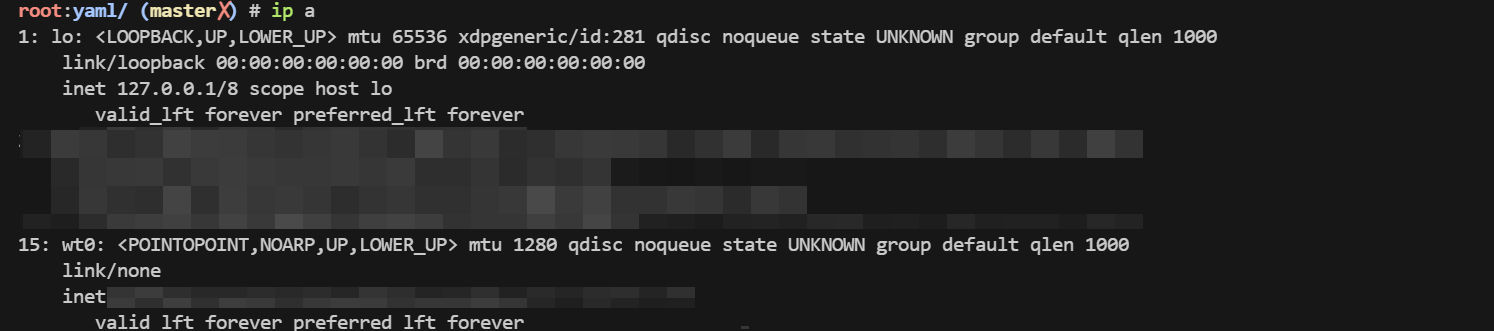
</code></pre>
<img src="https://pic.mutter.cn/row/sa/2025/06/15/b3eafe669209c33e9552951ab04c8486.png" alt="b3eafe669209c33e9552951ab04c8486.png" />
<blockquote><p>📌 <strong>说明</strong>：</p><ul>
<li><code>--auth-key</code> 是你从 netbird 控制台获取的密钥。</li>
<li>成功连接后会生成一个 <code>es0</code> 网卡，用于节点间的通信。</li>
</ul></blockquote>
<hr />
<h3>系统优化</h3>
<h4>参数优化</h4>
<pre><code>cat &gt; /etc/sysctl.d/99-k3s.conf &lt;&lt;EOF
# 启用桥接流量处理
net.bridge.bridge-nf-call-iptables = 1
net.bridge.bridge-nf-call-ip6tables = 1

# 允许更多连接
net.core.somaxconn = 65535
net.ipv4.ip_forward = 1
net.ipv4.tcp_tw_reuse = 1
net.ipv4.tcp_fin_timeout = 30

# 文件句柄数
fs.file-max = 1000000
fs.inotify.max_user_watches = 524288

# 避免 OOM killer 杀掉关键进程
vm.swappiness = 10


net.ipv4.tcp_keepalive_time = 30  # 降低保活时间，快速检测断连
net.ipv4.tcp_keepalive_intvl = 10
net.ipv4.tcp_keepalive_probes = 3
net.ipv4.tcp_retries2 = 5  # 减少重试次数，适应高延迟
net.ipv4.tcp_syn_retries = 3
net.core.somaxconn = 1024  # 增加连接队列
net.ipv4.ip_forward = 1  # 启用转发（ZeroTier需要）
vm.overcommit_memory = 1  # 允许内存过分配
EOF


sysctl -p /etc/sysctl.d/99-k3s.conf

cat &gt; /etc/security/limits.conf &lt;&lt;EOF
* soft nofile 65536
* hard nofile 65536
* soft nproc 65536
* hard nproc 65536
root soft nofile 65536
root hard nofile 65536

EOF
</code></pre>
<h4>ipvs</h4>
<pre><code>apt-get update &amp;&amp; apt-get install -y ipset ipvsadm conntrack

cat &gt; /etc/modules-load.d/ipvs.conf &lt;&lt;EOF
ip_vs
ip_vs_rr
ip_vs_wrr
ip_vs_sh
nf_conntrack
EOF
modprobe ip_vs
modprobe ip_vs_rr
modprobe ip_vs_wrr
modprobe ip_vs_sh
modprobe nf_conntrack

lsmod | grep ip_vs
</code></pre>
<h3>MASTER节点安装</h3>
<pre><code>EASYTIER_ETH=es0
EASYTIER_IP=$(ip a  | grep $EASYTIER_ETH | grep -Eo "([0-9]{1,3}\.){3}[0-9]{1,3}"| head -n 1 )

# INSTALL_K3S_DEBUG=true INSTALL_K3S_SKIP_DOWNLOAD=true INSTALL_K3S_EXEC="--disable traefik --node-ip $EASYTIER_IP --flannel-iface $EASYTIER_ETH --flannel-backend=vxlan" ./install.sh 

INSTALL_K3S_DEBUG=true INSTALL_K3S_SKIP_DOWNLOAD=true  INSTALL_K3S_EXEC=" \
  server \
  --flannel-iface=${EASYTIER_ETH} \
  --node-external-ip=${EASYTIER_IP} \
  --node-ip=${EASYTIER_IP} \
  --bind-address=${EASYTIER_IP} \
  --advertise-address=${EASYTIER_IP} \
  --tls-san=${EASYTIER_IP} \
  --data-dir=/var/lib/rancher/k3s \
  --disable=traefik,servicelb \
  --cluster-cidr=10.42.0.0/16 \
  --service-cidr=10.43.0.0/16 \
  --disable-network-policy \
  --write-kubeconfig-mode=644 \
  --kube-proxy-arg=proxy-mode=ipvs \
  --kube-proxy-arg=ipvs-scheduler=rr \
" ./install.sh
</code></pre>
<h4>获取 node-token</h4>
<pre><code>cat /var/lib/rancher/k3s/server/node-token
K106521xxxxxxxxxxxxxxxxxxxxxxxxxxxx::server:e47b4ef911d727671a79cdb6469682b1

</code></pre>
<img src="https://pic.mutter.cn/row/sa/2025/06/14/73e855314d46c2414ac86ff8a0ccb38a.png" alt="image-20250614182931096" />
<hr />
<h3>WORK节点安装</h3>
<pre><code>EASYTIER_ETH=es0
EASYTIER_IP=$(ip a  | grep $EASYTIER_ETH | grep -Eo "([0-9]{1,3}\.){3}[0-9]{1,3}"| head -n 1 )

K3S_TOKEN="K10111631cd06c9e2b19cd3c6477cb74aa5fda54473bb19fbf7b1356e0ac78659f4::server:0319830013db1e32beced4c05aae8098"

# INSTALL_K3S_SKIP_DOWNLOAD=true INSTALL_K3S_EXEC="--node-ip $EASYTIER_IP --flannel-iface $EASYTIER_ETH" K3S_URL=https://k3s-apiserver.internal.xyz:6443 K3S_TOKEN=$K3S_TOKEN ./install.sh

INSTALL_K3S_SKIP_DOWNLOAD=true INSTALL_K3S_EXEC="--node-external-ip=$EASYTIER_IP  \
--node-ip=$EASYTIER_IP     \
--flannel-iface=${EASYTIER_ETH} \
--kube-proxy-arg=proxy-mode=ipvs \
--kube-proxy-arg=ipvs-scheduler=rr" \
K3S_URL=https://k3s-apiserver.internal.0197011.xyz:6443 K3S_TOKEN=$K3S_TOKEN ./install.sh
</code></pre>
<blockquote><p>📌 <strong>参数说明</strong>：</p><ul>
<li><code>K3S_URL</code>：指向 master 节点的 API Server 地址,我这里内部使用了 <code>k3s-apiserver.internal.xyz:6443</code> 这是本地解析的一个域名</li>
<li><code>K3S_TOKEN</code>：master 节点提供的 token。</li>
</ul></blockquote>
<h4>修改工作节点标签（可选）</h4>
<pre><code>kubectl get node --selector='!node-role.kubernetes.io/master' | grep '&lt;none&gt;' | awk '{print "kubectl label node " $1 " node-role.kubernetes.io/worker= --overwrite" }' | bash
</code></pre>
<blockquote><p>✅ <strong>建议</strong>：该步骤可以自动为未标记的节点添加 <code>worker</code> 标签。</p></blockquote>
<hr />
<h3>下载 Helm</h3>
<pre><code>wget https://get.helm.sh/helm-v3.18.2-linux-amd64.tar.gz
tar -xf helm-v3.18.2-linux-amd64.tar.gz
mv linux-amd64/helm /usr/local/bin/
chmod +x /usr/local/bin/helm
</code></pre>
<blockquote><p>✅ <strong>建议</strong>：Helm 是 Kubernetes 的包管理工具，推荐在生产环境中使用。</p></blockquote>
<hr />
<h3>部署 Ingress</h3>
<pre><code>helm repo add ingress-nginx https://kubernetes.github.io/ingress-nginx
helm repo update
helm search repo ingress-nginx
helm pull ingress-nginx/ingress-nginx --untar --version 4.12.3    
cd ingress-nginx/

# 可选：修改为国内镜像源
# cp -a values.yaml values.yaml_bak
# sed -i 's/registry: registry.k8s.io/registry: k8s.m.daocloud.io/g'  values.yaml

helm upgrade --install ingress-nginx ./ --set controller.service.type=NodePort --namespace kube-system --create-namespace 
</code></pre>
<blockquote><p>✅ <strong>建议</strong>：部署完成后请检查服务状态，确保 Ingress Controller 正常运行。<code>kubectl get pods -n kube-system</code></p></blockquote>
<hr />
<h3>配置 HAProxy 作为四层代理</h3>
<pre><code>apt install haproxy -y 
</code></pre>
<pre><code>vim haproxy.cfg
global
  log 127.0.0.1 local0
  log 127.0.0.1 local1 notice
  tune.ssl.default-dh-param 2048

defaults
  log global
  mode http
  option dontlognull
  timeout connect 5000ms
  timeout client 600000ms
  timeout server 600000ms

backend ingress-http
    mode tcp
    balance roundrobin
    stick-table type ip size 200k expire 30m
    stick on src
    server ingress-http 127.0.0.1:31041 check

frontend ingress_http_80
    mode tcp
    bind *:80
    default_backend ingress-http

backend ingress-https
    mode tcp
    balance roundrobin
    stick-table type ip size 200k expire 30m
    stick on src
    server ingress-https 127.0.0.1:32475 check

frontend ingress_https_443
    mode tcp
    bind *:443
    default_backend ingress-https
</code></pre>
<pre><code>systemctl enable haproxy --now
systemctl restart haproxy
</code></pre>
<blockquote><p>✅ <strong>建议</strong>：根据实际负载情况调整超时时间和负载均衡策略。</p></blockquote>
<h3>部署 Dashboard</h3>
<pre><code>helm repo add kubernetes-dashboard https://kubernetes.github.io/dashboard/
helm search repo kubernetes-dashboard 
helm pull kubernetes-dashboard/kubernetes-dashboard --untar --version 7.13.0  

# 调整一些配置
cd kubernetes-dashboard
sed -i 's/docker.io/docker.m.daocloud.io/g' values.yaml
# dashboard自带了一个 Kong，也需要调整一下国内源
cd charts/kong
sed -i 's#repository: kong#repository: docker.m.daocloud.io/library/kong#g' values.yaml

helm upgrade --install kubernetes-dashboard ./ --namespace kube-dashboard --create-namespace
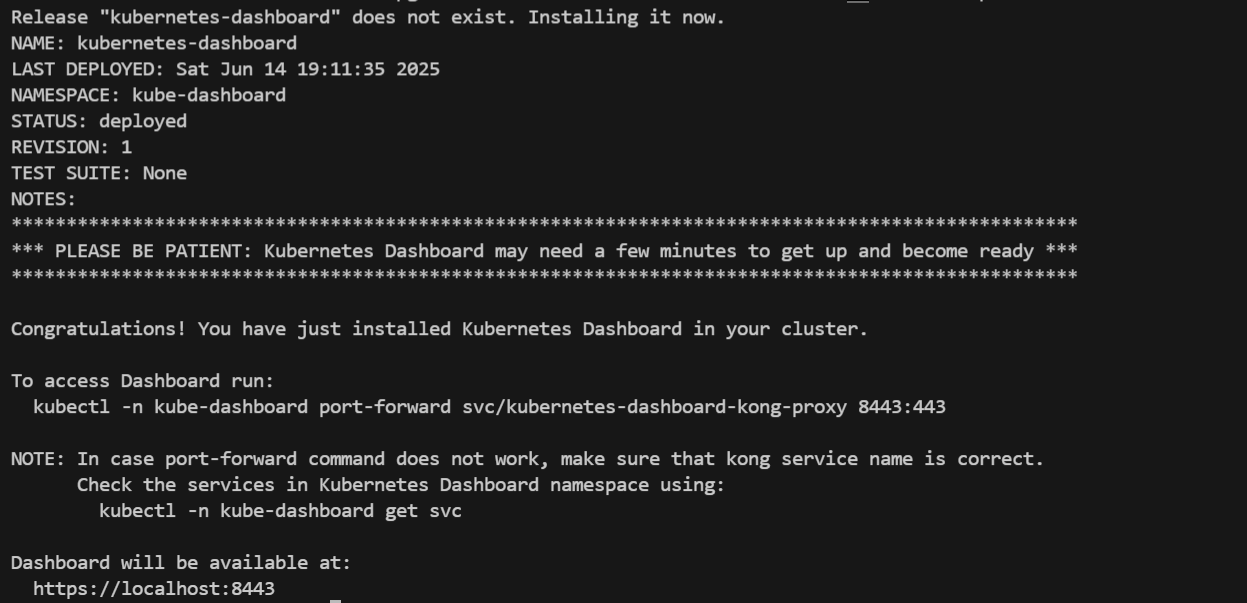
</code></pre>
<img src="https://pic.mutter.cn/row/sa/2025/06/14/e73e2e6f3e49a87c393fd15c9dbc2209.png" alt="image-20250614191156205" />
<h4>配置 Ingress 访问</h4>
<pre><code># kubectl create secret tls       domain-cn-tls   --key  /etc/ssl/domain.cn.key        --cert /etc/ssl/domain.cn.pem -n  kube-dashboard
 
kubectl apply -f - &lt;&lt;EOF
apiVersion: networking.k8s.io/v1
kind: Ingress
metadata:
  annotations:
    nginx.ingress.kubernetes.io/backend-protocol: HTTPS
  name: dashboard-ingress
  namespace: kube-dashboard
spec:
  ingressClassName: nginx
  rules:
  - host: dh.domain.com
    http:
      paths:
      - backend:
          service:
            name: kubernetes-dashboard-kong-proxy
            port:
              number: 443
        path: /
        pathType: Prefix
  tls:
  - hosts:
    - dh.domain.com
    secretName: domain-cn-tls
EOF
</code></pre>
<h4>创建访问 Token</h4>
<pre><code>kubectl apply -f - &lt;&lt;EOF
apiVersion: v1
kind: ServiceAccount
metadata:
  name: admin-user
  namespace: kube-dashboard
---
apiVersion: rbac.authorization.k8s.io/v1
kind: ClusterRoleBinding
metadata:
  name: admin-user
roleRef:
  apiGroup: rbac.authorization.k8s.io
  kind: ClusterRole
  name: cluster-admin
subjects:
- kind: ServiceAccount
  name: admin-user
  namespace: kube-dashboard
EOF

# 生成有效期为 10 年的 Token
kubectl create token admin-user -n kube-dashboard --duration 87600h 
</code></pre>
<hr />
<h3>配置 NFS 网络存储</h3>
<h4>NFS Server 搭建</h4>
<pre><code>apt install nfs-kernel-server -y 

vim /etc/exports
/mnt/m2disk  *(rw,sync,no_subtree_check,no_root_squash)

systemctl enable nfs-kernel-server --now
systemctl restart nfs-kernel-server
</code></pre>
<h4>所有节点安装 NFS 客户端</h4>
<pre><code>apt update &amp;&amp; apt install -y nfs-common
# sudo yum install -y nfs-utils
</code></pre>
<h4>NFS Provisoner 配置</h4>
<pre><code>helm repo add nfs-subdir-external-provisioner https://kubernetes-sigs.github.io/nfs-subdir-external-provisioner/
helm search repo nfs-subdir-external-provisioner 
helm pull nfs-subdir-external-provisioner/nfs-subdir-external-provisioner --untar --version 4.0.18

# 调整一些配置
cd nfs-subdir-external-provisioner
sed -i 's/registry.k8s.io/k8s.m.daocloud.io/g' values.yaml
vim values.yaml

helm upgrade --install nfs-subdir-external-provisioner ./ --namespace kube-system --create-namespace
</code></pre>
<blockquote><p>✅ <strong>建议</strong>：确保 NFS 共享目录权限设置合理，避免权限问题导致挂载失败。</p></blockquote>
<hr />
<h3>异地优化</h3>
<h4>使用命名空间划分资源区域</h4>
<p>目标是：</p>
<ol>
<li>需要运行在 home 环境下的服务，创建在 <code>ser-home</code> 命名空间下。</li>
<li>需要运行在 aliyun 环境下的服务，创建在 <code>ser-aliyun</code> 命名空间下。</li>
</ol>
<h5>开启 PodNodeSelector 准入控制器</h5>
<pre><code># 划分资源的ns
kubectl create ns ser-usa
kubectl create ns ser-home
kubectl create ns ser-aliyun


mkdir -p /etc/rancher/k3s/config.yaml.d
cat &gt; apiserver.yaml &lt;&lt;EOF
kube-apiserver-arg:
  - "--enable-admission-plugins=PodNodeSelector"
EOF

systemctl restart k3s
</code></pre>
<h5>给节点打标签</h5>
<pre><code>kubectl label nodes k3s-bj-home-xxx location=home
kubectl label nodes k3s-usa-oracle-xxx location=usa
kubectl label nodes k3s-sh-aliyun-xxx location=aliyun
</code></pre>
<h5>配置命名空间注解</h5>
<pre><code># 配置命名空间注解
kubectl edit ns ser-aliyun

apiVersion: v1
kind: Namespace
metadata:
  annotations:
    scheduler.alpha.kubernetes.io/node-selector: location=aliyun
  labels:
    kubernetes.io/metadata.name: ser-aliyun
  name: ser-aliyun
</code></pre>
<h5>测试调度</h5>
<pre><code># 测试调度
kubectl -n ser-aliyun run test-pod-$RANDOM --image=m.daocloud.io/docker.io/library/nginx --restart=Never
kubectl -n ser-aliyun run test-pod$RANDOM --image=m.daocloud.io/docker.io/library/nginx --restart=Never
</code></pre>
<blockquote><p>🔍 <strong>注意</strong>：如果你在 Deployment 上额外指定了 <code>nodeSelector</code> 和 <code>scheduler.alpha.kubernetes.io/node-selector</code>，后者的优先级更高。</p></blockquote>
<hr />
<h3>补充</h3>
<h4>k3s 使用Docker</h4>
<pre><code># 网络插件
mkdir /opt/cni/bin -p
wget https://github.com/flannel-io/cni-plugin/releases/download/v1.7.1-flannel1/flannel-amd64
mv flannel-amd64 /opt/cni/bin/flannel

curl -L https://github.com/containernetworking/plugins/releases/download/v1.7.1/cni-plugins-linux-amd64-v1.7.1.tgz | tar -C /opt/cni/bin -xz


mkdir -p /etc/cni/net.d
cat &gt; /etc/cni/net.d/10-flannel.conflist &lt;&lt;EOF
{
  "name": "cbr0",
  "cniVersion": "0.4.0",
  "plugins": [
    {
      "type": "flannel",
      "delegate": {
        "hairpinMode": true,
        "isDefaultGateway": true
      }
    },
    {
      "type": "portmap",
      "capabilities": {
        "portMappings": true
      }
    }
  ]
}
EOF
</code></pre>
<pre><code># cri-dockerd
wget https://github.com/Mirantis/cri-dockerd/releases/download/v0.3.16/cri-dockerd-0.3.16.amd64.tgz
tar -xf cri-dockerd-0.3.16.amd64.tgz 
mv cri-dockerd/cri-dockerd /usr/local/bin/


wget https://raw.githubusercontent.com/Mirantis/cri-dockerd/master/packaging/systemd/cri-docker.socket
wget  https://raw.githubusercontent.com/Mirantis/cri-dockerd/master/packaging/systemd/cri-docker.service
mv cri-docker.socket cri-docker.service /etc/systemd/system/

sed -i -e 's,/usr/bin/cri-dockerd,/usr/local/bin/cri-dockerd,' /etc/systemd/system/cri-docker.service

systemctl enable cri-docker.service
systemctl enable --now cri-docker.socket
systemctl restart  cri-docker.socket
</code></pre>
<pre><code># 安装命令
INSTALL_K3S_DEBUG=true INSTALL_K3S_SKIP_DOWNLOAD=true INSTALL_K3S_EXEC="\
--container-runtime-endpoint unix:///run/cri-dockerd.sock \
--disable traefik \
--node-ip $EASYTIER_IP \
--flannel-iface $EASYTIER_ETH \
--flannel-backend=vxlan" ./install.sh
</code></pre>
<h3>相关文档</h3>
<ul>
<li><a href="https://docs.k3s.io/security/hardening-guide" rel="noopener noreferrer" target="_blank">K3s 安全加固指南</a></li>
<li><a href="https://docs.k3s.io/cli/server#advanced-options" rel="noopener noreferrer" target="_blank">K3s CLI 参数说明</a></li>
</ul>
<hr />]]></content>
    <category term="k3s" />
  </entry>
  <entry>
    <title>zerotier vs netbird vs tailscale 性能对比</title>
    <link href="https://www.mutter.cn/posts/环境配置/组网对比" rel="alternate" type="text/html"/>
    <id>https://www.mutter.cn/posts/环境配置/组网对比</id>
    <updated>2025-06-15T00:00:00.000Z</updated>
    <published>2025-06-15T00:00:00.000Z</published>
    <author>
      <name>Mutter</name>
    </author>
    <summary type="text">组网性能对比</summary>
    <content type="html"><![CDATA[
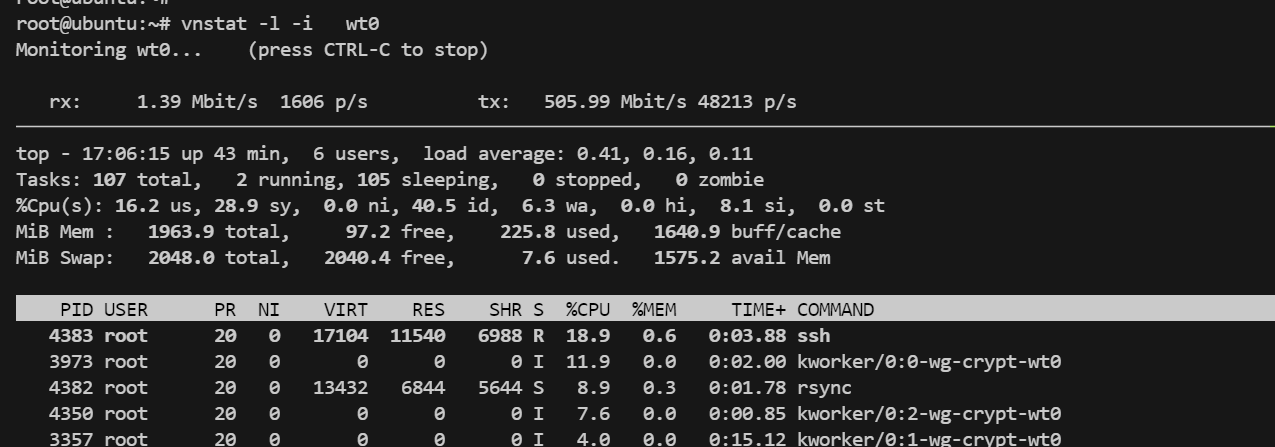
<h2>结论</h2>
<blockquote><p>直接线上结论</p></blockquote>
<ol>
<li>
<p><strong>性能</strong></p>
<ol>
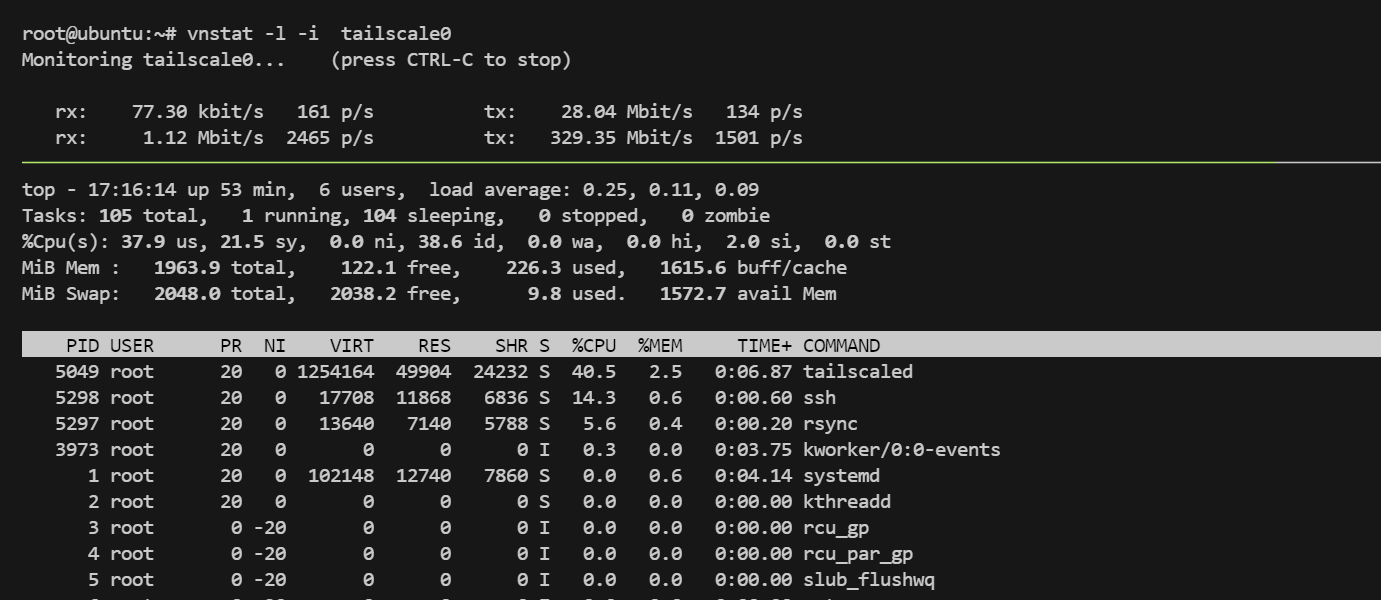
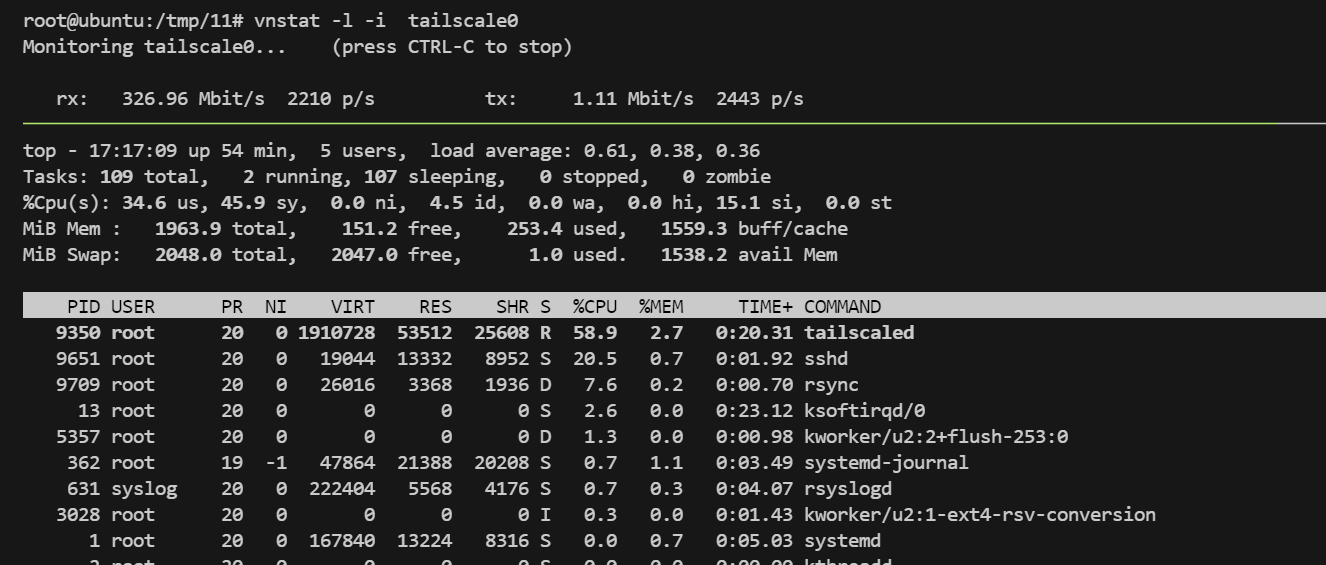
<li>Zerotier 和 Tailscale 都会有一个对应的进程负责组网。它们的运行方式都是在用户空间实现加密和中继，因此需要消耗额外的 CPU 资源。

</li>
<li>NetBird 是纯粹内核空间的 Wireguard，不需要消耗额外的资源。

</li>
</ol>
</li>
<li>
<p><strong>组网</strong></p>
<ol>
<li>这个就主要取决于网络环境，整体来说，NetBird 和 Tailscale 好于 Zerotier。

</li>
</ol>
</li>
</ol>
<br />
<h2>测试</h2>
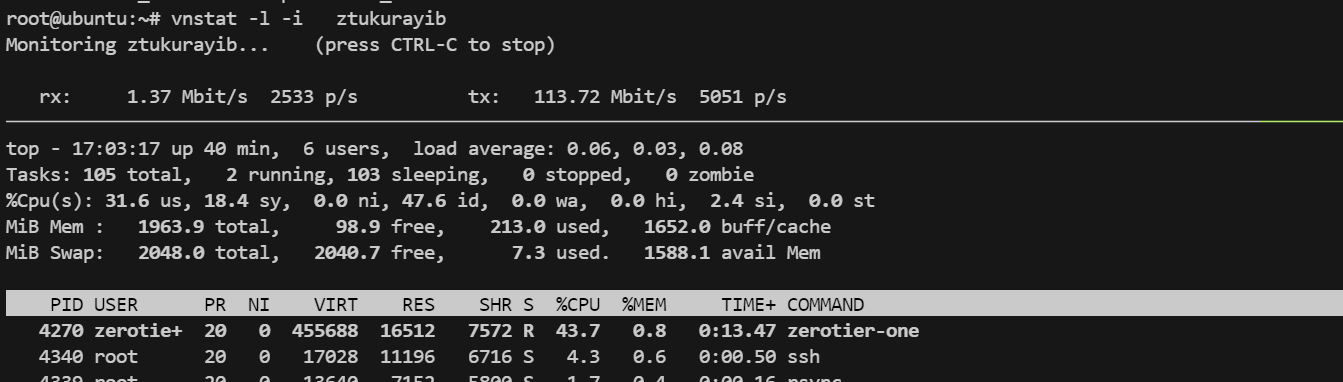
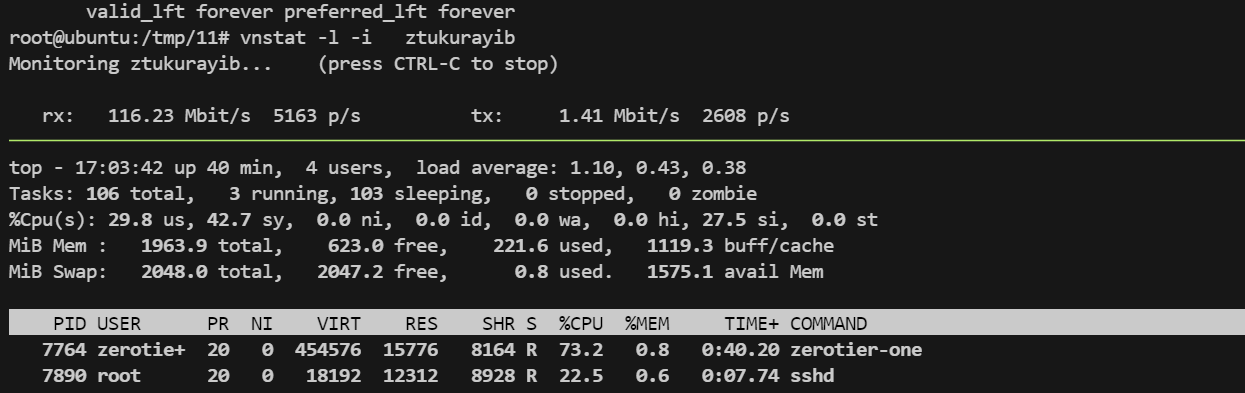
<blockquote><p>我同时测了大文件, 小文件的传输效率,但发现其实差不多, 并没有什么出入, 所以本文就不区分大小文件</p></blockquote>
<h3>测试服务器</h3>


<table><thead><tr><th>角色</th><th>配置</th><th>网络</th></tr></thead><tbody><tr><td>serverA</td><td>1c2g</td><td>192.168.2.100</td></tr><tr><td>serverB</td><td>1c2g</td><td>192.168.2.101</td></tr></tbody></table>
<h3>测试命令</h3>
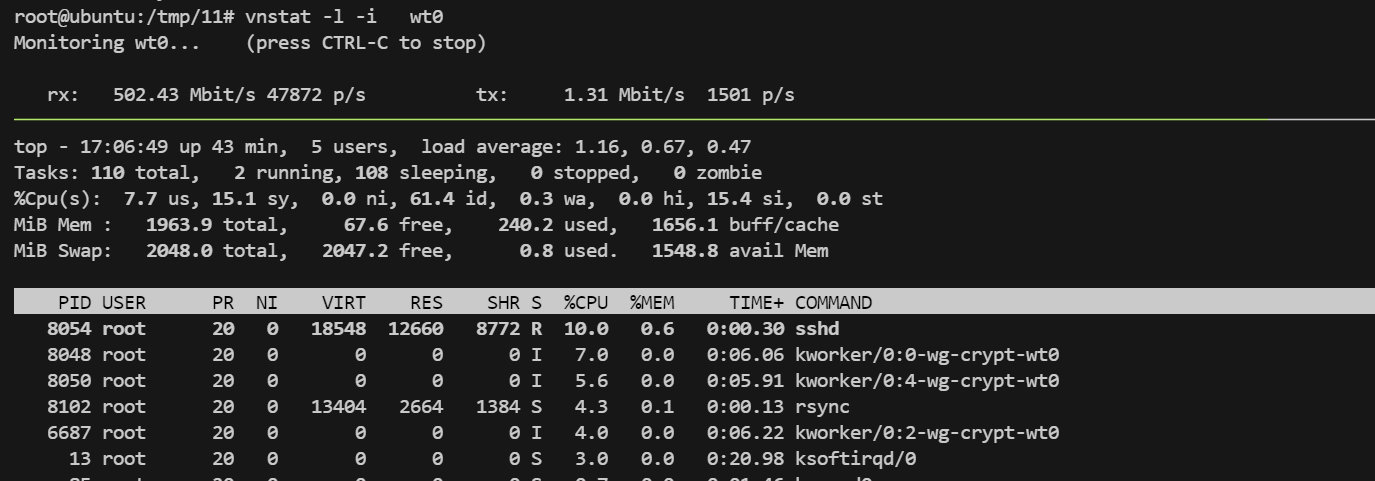
<pre><code># 传输测试：使用 rsync 同步一个压缩包到远程服务器
rsync -av ./1.zip root@serverb:/tmp/11
</code></pre>
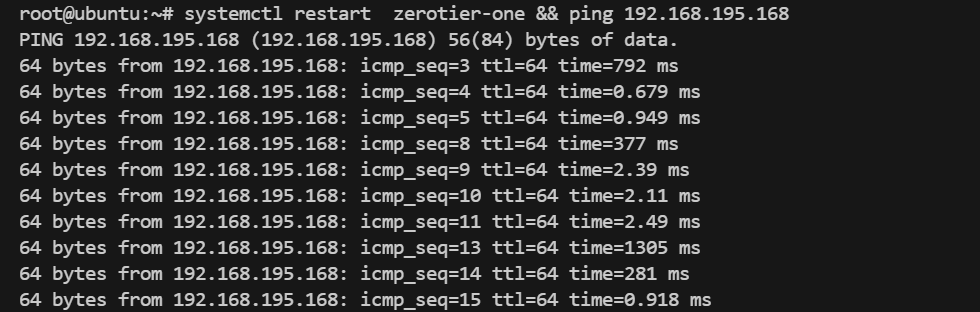
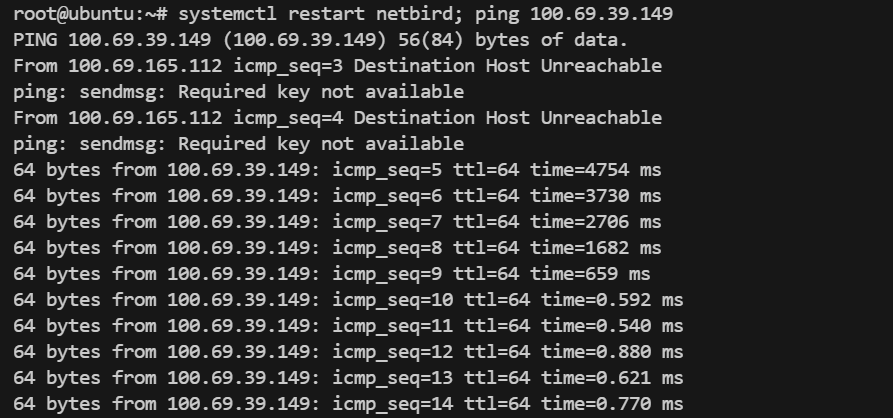
<pre><code># 重启测试：模拟服务中断后恢复的情况
server A -&gt; restart
server b -&gt; restart -&gt; ping
</code></pre>
<h3>zerotier-one</h3>
<p><strong>传输测试</strong></p>
<p><code>&gt;出栈</code></p>
<img src="https://pic.mutter.cn/row/sa/2025/06/15/217ebe6a102996729dd2d31d6b839540.png" alt="image-20250615010342396" />
<img src="https://pic.mutter.cn/row/sa/2025/06/15/0ea2366bf0a313b4bd3ec582495ad22e.png" alt="image-20250615003417189" />
<p><code>入栈&lt;</code></p>
<img src="https://pic.mutter.cn/row/sa/2025/06/15/3c9e0f590071fcc409badce02942099b.png" alt="image-20250615010352710" />
<img src="https://pic.mutter.cn/row/sa/2025/06/15/15f4a0e66e7ce32008b25c84e45c2624.png" alt="image-20250615003509681" />
<p><strong>重启测试</strong></p>
<img src="https://pic.mutter.cn/row/sa/2025/06/15/1fb7b03a5d138e4c99a66ded60ae4fd7.png" alt="image-20250615010103170" />
<h3>netbird</h3>
<p><strong>传输测试</strong></p>
<p><code>&gt;出栈</code></p>
<img src="https://pic.mutter.cn/row/sa/2025/06/15/caefcf9f10d3deec897681322ee2ebe2.png" alt="image-20250615010630724" />
<p><code>入栈</code></p>
<img src="https://pic.mutter.cn/row/sa/2025/06/15/bf2edd5041652a4164af27a9b6c22b3e.png" alt="image-20250615010701351" />
<p><strong>重启测试</strong></p>
<img src="https://pic.mutter.cn/row/sa/2025/06/15/3f228565c607460eec3654d247bd9907.png" alt="image-20250615005751529" />
<h3>tailscale</h3>
<p><strong>传输测试</strong></p>
<p><code>&gt;出栈</code></p>
<img src="https://pic.mutter.cn/row/sa/2025/06/15/1655d0cec1ab99a833692b5ed8390dba.png" alt="image-20250615011623414" />
<p><code>入栈</code></p>
<img src="https://pic.mutter.cn/row/sa/2025/06/15/90365d8073a1ee664bc05656515ab287.png" alt="image-20250615011718395" />
<p><strong>重启测试</strong></p>
<img src="https://pic.mutter.cn/row/sa/2025/06/15/be88b0f458a9432e09357147d0ec1569.png" alt="image-20250615011934302" />]]></content>
    <category term="Linux" />
  </entry>
  <entry>
    <title>Windows11 关闭开始菜单搜索联网and右  键菜单恢复win10</title>
    <link href="https://www.mutter.cn/posts/环境配置/windows11" rel="alternate" type="text/html"/>
    <id>https://www.mutter.cn/posts/环境配置/windows11</id>
    <updated>2025-06-11T13:32:05.000Z</updated>
    <published>2025-06-11T13:32:05.000Z</published>
    <author>
      <name>Mutter</name>
    </author>
    <summary type="text">Windows11 优化, 通过注册表关闭开  始菜单搜索联网and右键菜单恢复  win10</summary>
    <content type="html"><![CDATA[
<hr />
<h2>右键菜单恢复win10</h2>
<blockquote><p><strong>说明：</strong> 此操作将添加一个注册表项，以恢复传统的 Windows 10 风格右键菜单。</p></blockquote>
<pre><code>reg add "HKCU\Software\Classes\CLSID\{86ca1aa0-34aa-4e8b-a509-50c905bae2a2}\InprocServer32" /f
taskkill /F /IM explorer.exe
explorer.exe
</code></pre>
<h3>注释说明：</h3>
<ul>
<li><code>reg add</code> 命令用于添加指定的注册表项。</li>
<li><code>taskkill</code> 和 <code>explorer.exe</code> 用于重启资源管理器以使更改生效。</li>
<li>此方法适用于希望恢复经典右键菜单样式的用户。</li>
</ul>
<hr />
<h2>关闭开始菜单搜索联网</h2>
<blockquote><p><strong>说明：</strong> 此操作将禁用开始菜单中的搜索建议（包括网络内容）。</p></blockquote>
<pre><code>reg add "HKEY_LOCAL_MACHINE\SOFTWARE\Policies\Microsoft\Windows\Explorer" /v DisableSearchBoxSuggestions /t REG_DWORD /d 1 /f

taskkill /F /IM explorer.exe
explorer.exe
</code></pre>
<h3>注释说明：</h3>
<ul>
<li><code>DisableSearchBoxSuggestions</code> 是一个注册表值，用于控制是否显示搜索建议。</li>
<li><code>/t REG_DWORD /d 1</code> 表示将其设置为启用状态（即禁用搜索建议）。</li>
<li>修改后需要重启资源管理器或系统才能生效。</li>
</ul>
<h3>注意事项：</h3>
<ul>
<li>操作注册表前请确保备份相关设置，避免误操作导致系统异常。</li>
<li>如果不确定某些步骤，请先查阅相关文档或咨询专业人士。</li>
</ul>
<h2>使用组策略关闭 Windows 11 小组件</h2>
<ol>
<li>使用<code>Windows + R</code>打开「运行」- 执行<code>gpedit.msc</code>打开「本地组策略编辑器</li>
<li>导航到：计算机设置 - 管理模板 - Windows 组件 - 小组件</li>
<li>双击「允许小组件」策略，将其设置为「已禁用」</li>
<li>在「命令提示符」中执行<code>gpupdate /force</code>强制刷新组策略或重启计算机让配置生效</li>
</ol>]]></content>
    <category term="Linux" />
  </entry>
  <entry>
    <title>安卓配置ADB TCP调试开启自启</title>
    <link href="https://www.mutter.cn/posts/玩机/安卓手机上开启tcp模式" rel="alternate" type="text/html"/>
    <id>https://www.mutter.cn/posts/玩机/安卓手机上开启tcp模式</id>
    <updated>2025-06-06T12:50:12.000Z</updated>
    <published>2025-06-06T12:50:12.000Z</published>
    <author>
      <name>Mutter</name>
    </author>
    <summary type="text">本文介绍了如何在安卓手机  上配置ADB通过TCP/IP模式进行调试，  并实现开机自动启动ADB服务。内  容包括通过USB线初始设置、启用  USB调试、连接电脑并授权、检查  设备连接、切换到TCP/IP模式以及使  用脚本文件实现开机自动启动ADB服  务。</summary>
    <content type="html"><![CDATA[
<h1>安卓配置ADB TCP调试开启自启</h1>
<h2>通过USB线初始设置</h2>
<h3>电脑安装adb</h3>
<p>adb是Android手机调试工具，用于在手机和电脑之间进行数据传输和调试, 可以直接安装Android Studio或者下载scrcpy</p>
<blockquote><p>scrcpy: This application mirrors Android devices (video and audio) connected via USB or TCP/IP and allows control using the computer’s keyboard and mouse. It does not require root access or an app installed on the device. It works on Linux, Windows, and macOS.</p></blockquote>
<p>下载地址: <code>https://github.com/Genymobile/scrcpy</code>
本站网盘: <a href="https://pan.0197011.xyz/down/2025/scrcpy-win64-v3.2.zip" rel="noopener noreferrer" target="_blank">https://pan.0197011.xyz/down/2025/scrcpy-win64-v3.2.zip</a></p>
<h3>启用USB调试</h3>
<ol>
<li>进入<code>设置 &gt; 关于手机</code>，连续点击<code>版本号</code>7次启用开发者模式。</li>
<li>返回<code>设置 &gt; 系统 &gt; 开发者选项</code>，开启<strong>USB调试</strong>。</li>
</ol>
<blockquote><p><strong>注意</strong>：确保已勾选<code>USB调试</code>选项，否则无法连接电脑。</p></blockquote>
<h3>连接电脑并授权</h3>
<ol>
<li>使用USB线连接手机和电脑。</li>
<li>在手机弹出的提示中勾选<code>始终允许</code>并确认。</li>
</ol>
<h3>检查设备连接</h3>
<ol>
<li>
<p>打开终端（CMD/PowerShell/终端），输入以下命令确认设备已连接：</p>
<pre><code>adb devices
</code></pre>
</li>
</ol>
<hr />
<h3><strong>切换到TCP/IP模式</strong></h3>
<ol>
<li>
<p><strong>设置端口监听</strong></p>
<pre><code># 在电脑终端执行
adb tcpip 5555
</code></pre>
</li>
<li>
<p><strong>断开USB线</strong></p>
<ul>
<li>拔掉USB线，此时ADB将通过网络连接。</li>
</ul>
</li>
<li>
<p><strong>获取手机IP地址</strong></p>
<ul>
<li>
<p>在手机的 设置 &gt; 关于手机 &gt; 状态信息 中查看IP，或运行：</p>
<pre><code>adb shell ifconfig | grep "inet addr"
</code></pre>
<p>部分设备需使用</p>
<pre><code>ip addr
</code></pre>
<p>命令）</p>
</li>
</ul>
</li>
<li>
<p><strong>通过IP连接设备</strong></p>
<ul>
<li>在电脑终端输入：
<pre><code>adb connect 手机IP:5555
# adb connect 192.168.1.100:5555

adb disconnect  # 断开全部连接
</code></pre>
</li>
</ul>
</li>
</ol>
<hr />
<h2>开机自动启动TCP ADB（需Root)</h2>
<ol>
<li><strong>使用脚本文件</strong></li>
</ol>
<ul>
<li>
<p>创建脚本</p>
<pre><code>adb shell
su # 切换到root
cd  /data/adb/service.d/
vi /data/adb/service.d/adb_tcp.sh
</code></pre>
<p>（路径可能因设备而异），内容如下：</p>
<pre><code>#!/system/bin/sh
setprop service.adb.tcp.port 5555
stop adbd
start adbd
</code></pre>
</li>
<li>
<p>赋予执行权限：</p>
<pre><code>chmod +x /data/adb/service.d/adb_tcp.sh
</code></pre>
</li>
</ul>]]></content>
    <category term="玩机" />
  </entry>
  <entry>
    <title>Debian 配置 zsh 和 oh-my-zsh 指南</title>
    <link href="https://www.mutter.cn/posts/环境配置/zsh" rel="alternate" type="text/html"/>
    <id>https://www.mutter.cn/posts/环境配置/zsh</id>
    <updated>2025-06-06T11:22:12.000Z</updated>
    <published>2025-06-06T11:22:12.000Z</published>
    <author>
      <name>Mutter</name>
    </author>
    <summary type="text">本文详细介绍了如何在 Debian   系统上配置 zsh 和 oh-my-zsh，包括安装   zsh、设置为默认 Shell、安装 oh-my-zsh 以  及推荐的插件列表。通过本文，  您可以轻松地将 zsh 配置为强大的  命令行工具，并利用 oh-my-zsh 提供的  丰富功能和插件提升工作效率.</summary>
    <content type="html"><![CDATA[
<h2>安装 zsh</h2>
<p><strong>zsh</strong> 是一个强大的 Shell，提供了许多增强功能和更好的用户体验。首先，我们需要更新包列表并安装 zsh：</p>
<pre><code>sudo apt update
sudo apt install zsh

# 验证安装版本：
zsh --version

## 2. 设置 zsh 为默认 Shell

chsh -s $(which zsh)
</code></pre>
<pre><code>echo $SHELL  # 应显示xxx/zsh
</code></pre>
<h2>安装 oh-my-zsh</h2>
<p>通过官方脚本安装（任选一种）：</p>
<pre><code># 使用 curl
sh -c "$(curl -fsSL https://raw.githubusercontent.com/ohmyzsh/ohmyzsh/master/tools/install.sh)"

# 或使用 wget
sh -c "$(wget -O- https://raw.githubusercontent.com/ohmyzsh/ohmyzsh/master/tools/install.sh)"
</code></pre>
<h3>插件</h3>
<p><strong>效率增强</strong></p>


<table><thead><tr><th>插件名称</th><th>功能描述</th><th>安装命令</th></tr></thead><tbody><tr><td><code>zsh-autosuggestions</code></td><td>历史命令自动提示</td><td><code>git clone https://github.com/zsh-users/zsh-autosuggestions ${ZSH_CUSTOM}/plugins/zsh-autosuggestions</code></td></tr><tr><td><code>zsh-syntax-highlighting</code></td><td>实时语法高亮</td><td><code>git clone https://github.com/zsh-users/zsh-syntax-highlighting ${ZSH_CUSTOM}/plugins/zsh-syntax-highlighting</code></td></tr><tr><td><code>fzf</code></td><td>模糊搜索文件/命令</td><td><code>sudo apt install fzf &amp;&amp; git clone --depth 1 https://github.com/junegunn/fzf.git ~/.fzf &amp;&amp; ~/.fzf/install</code></td></tr></tbody></table>
<p>** Git 工具**</p>


<table><thead><tr><th>插件名称</th><th>功能描述</th><th>备注</th></tr></thead><tbody><tr><td><code>git</code></td><td>内置 Git 快捷命令</td><td>如 <code>gst</code>=<code>git status</code></td></tr><tr><td><code>git-extras</code></td><td>扩展 Git 命令</td><td>需额外安装：<code>sudo apt install git-extras</code></td></tr><tr><td><code>gitfast</code></td><td>快速 Git 补全</td><td>适合大型仓库</td></tr></tbody></table>
<p><strong>开发工具</strong></p>


<table><thead><tr><th>插件名称</th><th>支持工具</th></tr></thead><tbody><tr><td><code>docker</code></td><td>Docker 命令补全</td></tr><tr><td><code>npm</code></td><td>npm 包管理补全</td></tr><tr><td><code>python</code></td><td>Python 相关工具补全</td></tr></tbody></table>
<p><strong>系统管理</strong></p>


<table><thead><tr><th>插件名称</th><th>功能描述</th></tr></thead><tbody><tr><td><code>systemd</code></td><td><code>systemctl</code> 命令补全</td></tr><tr><td><code>sudo</code></td><td>按两次 <code>ESC</code> 快速添加 sudo</td></tr><tr><td><code>tmux</code></td><td>Tmux 会话管理</td></tr></tbody></table>
<p><strong>趣味插件</strong></p>
<pre><code>plugins=(... emoji cowsay)
</code></pre>
<p>需先安装 <code>cowsay</code>：</p>
<pre><code>sudo apt install cowsay
</code></pre>
<p><strong>完整配置示例</strong></p>
<p><code>.zshrc</code> 片段：</p>
<pre><code>plugins=(
  git
  zsh-autosuggestions
  zsh-syntax-highlighting
  fzf
  docker
  systemd
  sudo
  emoji
)
</code></pre>
<h2>补充</h2>
<h3>Tmux</h3>
<pre><code>apt install tmux -y || yum install tmux -y
curl -SsL  https://pan.0197011.xyz/down/s/tmux.sh | bash 
</code></pre>
<h3>命令替代</h3>
<pre><code>apt install btop  -y  || yum install btop -y
</code></pre>]]></content>
    <category term="Linux" />
  </entry>
  <entry>
    <title>hexo-theme-icarus黑色主题分享</title>
    <link href="https://www.mutter.cn/posts/环境配置/hexo-theme-icarus黑色主题分享" rel="alternate" type="text/html"/>
    <id>https://www.mutter.cn/posts/环境配置/hexo-theme-icarus黑色主题分享</id>
    <updated>2025-06-04T11:22:12.000Z</updated>
    <published>2025-06-04T11:22:12.000Z</published>
    <author>
      <name>Mutter</name>
    </author>
    <summary type="text">Icarus黑色主题分享, 附源码文  件</summary>
    <content type="html"><![CDATA[
<h2>黑色主题</h2>
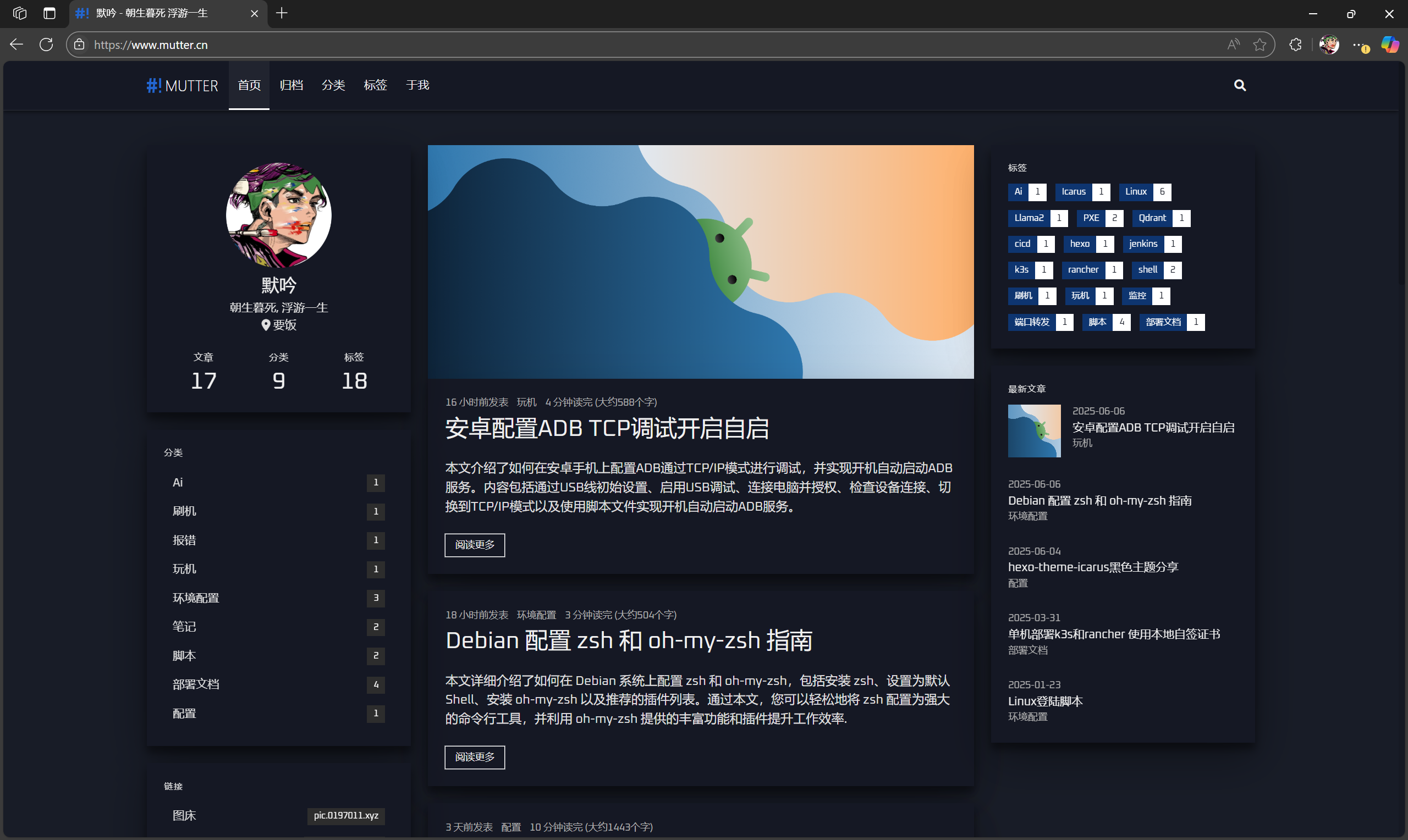
<p>效果参考本站</p>
<img src="https://pic.mutter.cn/row/sa/2025/06/07/64198060657865977059a7b856c34bb9.png" alt="64198060657865977059a7b856c34bb9" />
<h3>black.styl</h3>
<blockquote><p>black主题参考官方的<code>cyberpunk.styl</code> 样式修改</p></blockquote>
<p>再<code> themes/icarus/source/css/</code> 目录下添加一个<code>black.styl</code> 文件, 然后把下面的样式添加进去</p>
<pre><code>
/* themes/icarus/source/css/black.styl */
/* DARK THEME DESIGN SYSTEM - WCAG 2.1 AA Compliant */

$theme-black ?= #1E222A
$theme-dark-gray ?= #080E1D
$theme-mid-gray ?= #2D2D2D
$theme-light-gray ?= #3D3D3D

$theme-white ?= #FFFFFF
$theme-light ?= #F0F0F0
$theme-text ?= #E0E0E0
$theme-dim ?= #B0B0B0

$accent-blue ?=rgb(255, 255, 255)
$accent-purple ?= #BD8FE8
$accent-green ?= #4AE58C
$accent-yellow ?=rgba(0, 106, 255, 0.35)
$accent-red ?= #FF5A76

$accent-blue-dark ?= #2A6D99
$accent-purple-dark ?= #7A5E99
$accent-green-dark ?= #287D4D
$accent-yellow-dark ?= #B38F3F
$accent-red-dark ?= #B23A4D

$primary ?= $accent-yellow
$info ?= $accent-blue
$success ?= $accent-green
$warning ?= $accent-yellow
$danger ?= $accent-red

$family-sans-serif ?= 'Oxanium', Ubuntu, Roboto, 'Open Sans', 'Microsoft YaHei', sans-serif
$family-code ?= 'Roboto Mono', monospace, 'Microsoft YaHei'

$shadow-small ?= 0 2px 5px rgba(0, 0, 0, 0.5)
$shadow-medium ?= 0 4px 10px rgba(0, 0, 0, 0.5)
$shadow-large ?= 0 8px 20px rgba(0, 0, 0, 0.5)
$shadow-card ?= 0 0 8px rgba(0, 0, 0, 0)

$radius ?= 0
$radius-small ?= 0
$radius-medium ?= 0
$radius-large ?= 0

$white ?= $theme-black
$white-bis ?= $theme-dark-gray
$grey ?= $theme-dim
$black ?= $theme-white
$black-bis ?= $theme-light

$orange ?= $accent-yellow
$yellow ?= $accent-yellow
$green ?= $accent-green
$blue ?= $accent-blue
$purple ?= $accent-purple
$red ?= $accent-red

$orange-invert ?= $theme-black
$yellow-invert ?= $theme-black
$green-invert ?= $theme-black
$blue-invert ?= $theme-black
$purple-invert ?= $theme-black
$red-invert ?= $theme-black

$primary-invert ?= $theme-white
$info-invert ?= $theme-black
$success-invert ?= $theme-black
$warning-invert ?= $theme-black
$danger-invert ?= $theme-black

$scheme-main ?= $theme-black
$link ?= $accent-blue
$link-hover ?= lighten($accent-blue, 15%)
$link-active ?= darken($accent-blue, 10%)
$link-focus ?= $accent-blue
$text ?= $theme-text
$text-strong ?= $theme-light
$text-light ?= $theme-dim

$body-background-color ?= $theme-black

$input-color ?= $theme-text
$input-background-color ?= lighten($theme-black, 5%)
$input-border-color ?= $theme-light-gray
$input-placeholder-color ?= rgba($theme-dim, 0.8)
$input-hover-border-color ?= $accent-blue
$input-focus-border-color ?= $accent-blue

$footer-color ?= $theme-light
$footer-background-color ?= #181C24

$navbar-background-color ?= #151824
$navbar-item-color ?= $theme-light
$navbar-item-active-color ?= $accent-blue
$navbar-item-hover-color ?= $accent-blue
$navbar-item-hover-background-color ?= rgba($theme-white, 0.05)

$card-background-color ?= transparent

$menu-label-color ?= $accent-white
$menu-item-hover-color ?= $theme-white
$menu-item-hover-background-color ?= $accent-yellow
$menu-item-active-color ?= $theme-white
$menu-item-active-background-color ?= $accent-yellow
$menu-list-border-left ?= 1px solid $theme-light-gray

$tag-color ?= $theme-white
$tag-background-color ?= $theme-mid-gray

$timeline-fg-line ?= $accent-yellow
$timeline-bg-line ?= $body-background-color

$post-navigation-fg ?= $theme-text

$searchbox-bg-container ?= lighten($theme-black, 5%)
$searchbox-border ?= $accent-blue
$searchbox-bg-input ?= $theme-black
$searchbox-bg-close-hover ?= $theme-mid-gray
$searchbox-bg-close-active ?= lighten($theme-mid-gray, 10%)
$searchbox-bg-result-item-hover ?= $theme-mid-gray

@import 'style'

undercover-before()
    position: relative

    &amp;:before
        content: ''
        position: absolute
        z-index: -1
        top: 0
        left: 0
        right: 0
        bottom: 0

body
    counter-reset: card
    background: $theme-black

::selection
    color: $theme-black
    background: $accent-blue

.card:not(#back-to-top)
    position: relative
    counter-increment: card
    transition: transform 0.2s ease, box-shadow 0.3s ease


    &amp;, .card-content
        background: $theme-dark-gray
        position: relative
        box-shadow: $shadow-card
        transition: box-shadow 0.3s ease
        
        &amp;:before
            z-index: -1
            top: 0
            left: 0
            right: 0
            bottom: 0
            transition: all 0.3s ease

    &amp;:before
        top: -1.2px
        left: -1.2px
        right: -1.2px
        bottom: -1.2px
        background-color: $accent-blue

    &amp;:after
        position: absolute
        color: $accent-blue
        right: 2rem
        bottom: -.6em
        font-size: .75rem
        padding: 0 .25em
        background: $body-background-color

    .card-content:before
        background-color: $body-background-color


clip-button($color, $color-invert)
    position: relative
    transition: transform 0.2s ease
    
    &amp;:before
        background-color: $color
        color: $color-invert
        transition: background-color 0.2s ease, transform 0.2s ease

    &amp;:hover, &amp;.is-hovered
        transform: translateY(-1px)
        
        &amp;:before
            background-color: lighten($color, 10%)
            color: $color-invert

    &amp;:focus, &amp;.is-focused
        &amp;:before
            box-shadow: 0 0 0 2px rgba($color, 0.5)
            color: $color-invert

    &amp;:active, &amp;.is-active
        transform: translateY(1px)
        
        &amp;:before
            background-color: darken($color, 5%)
            color: $color-invert

    &amp;[disabled], fieldset[disabled] &amp;
        opacity: 0.65
        
        &amp;:before
            background-color: desaturate($color, 20%)

    &amp;.is-inverted
        &amp;:before
            background-color: $color-invert
            color: $color

            &amp;:hover, &amp;.is-hovered
                background-color: darken($color-invert, 5%)

            &amp;[disabled], fieldset[disabled] &amp;
                background-color: $color-invert
                border-color: transparent
                box-shadow: none
                color: $color

.button:not(input)
    border: none
    outline: none
    background: transparent !important
    transition: transform 0.2s ease, box-shadow 0.2s ease


    &amp;:focus:not(:active)
        box-shadow: 0 0 0 2px rgba($accent-blue, 0.5)

    for $name, $pair in $colors
        $color = $pair['1']
        $color-invert = $pair['2']

        &amp;.is-{$name}
            clip-button($color, $color-invert)


.menu-list a
    transition: background-color 0.2s ease, color 0.2s ease
    
    &amp;:hover
        transform: translateX(2px)

.tags.has-addons
    .tag:first-child
        background: $accent-yellow !important
        color: $theme-white !important

    .tag:last-child
        background: $accent-blue !important
        color: $theme-black !important

.pagination-previous, .pagination-next, .pagination-link
    outline: 1px solid $theme-light-gray
    outline-offset: -2px
    transition: background-color 0.2s ease, color 0.2s ease, transform 0.2s ease
    
    &amp;:hover
        background-color: $accent-blue
        transform: translateY(-1px)

        &amp;, a
            color: $theme-black

    &amp;:focus
        box-shadow: 0 0 0 2px rgba($accent-blue, 0.5)

    &amp;.is-current
        background-color: $accent-blue
        border-color: $accent-blue
        color: $theme-black

.navbar-main
    min-height: 4.25rem
    box-shadow: $shadow-small
    border-bottom: 1px solid rgba($theme-white, 0.1)

    &amp;:after
        content: ''
        position: absolute
        left: 0
        right: 0

    .navbar-menu
        .navbar-item
            margin: 0 1px
            transition: color 0.2s ease, background-color 0.2s ease
            position: relative
            
            &amp;:after
                content: ''
                position: absolute
                bottom: 0
                left: 50%
                width: 0
                height: 2px
                background: $accent-blue
                transition: width 0.3s ease, left 0.3s ease
            
            &amp;:hover, &amp;.is-active
                color: $theme-white
                background-color: rgba($theme-white, 0.05) !important
                
                &amp;:after
                    width: 100%
                    left: 0

article.article, article.media

    .title a
        background-image: linear-gradient(transparent calc(100% - 2px), $accent-yellow 2px)
        background-repeat: no-repeat
        background-size: 0 100%
        transition: background-size 0.3s ease-in-out, color 0.2s ease

    .title:hover a
        background-size: 100% 100%
        color: $theme-white

article.article
    .article-more
        box-shadow: 0 0 0 1px $accent-blue
        color: $theme-light
        transition: background-color 0.2s ease, color 0.2s ease, box-shadow 0.2s ease
        
    .article-more:hover
        color: $theme-white
        background-color: $accent-blue
        box-shadow: 0 0 0 1px $accent-blue, 0 4px 8px rgba($accent-blue, 0.3)
        
    .article-more:active
        transform: translateY(1px)
        box-shadow: 0 0 0 1px $accent-blue

.article-licensing
    background: $theme-mid-gray
    border-left: 3px solid $accent-blue

.content
    blockquote
        background: rgba($accent-blue, 0.05)
        border: none
        border-left: 4px solid $accent-blue
        padding: 1rem
        margin: 1.5rem 0
        border-radius: 0 4px 4px 0

.footer
    position: relative
    border-top: 1px solid rgba($theme-light, 0.1)

    &amp;:before
        content: ''
        position: absolute
        left: 0
        right: 0
        top: -1px
        height: 39px
        opacity: 0.5
.timeline .media:last-child:after 
    background: $theme-dark-gray 

.timeline .media
    &amp;:before
        clip-path: polygon(50% 0, 100% 50%, 50% 100%, 0 50%)
        background: $accent-blue
        transition: transform 0.3s ease, background-color 0.3s ease
        
    &amp;:hover:before
        transform: scale(1.2)
        background: lighten($accent-blue, 10%)

.searchbox 
    background:rgba(255, 255, 255, 0.33)

.searchbox .searchbox-container
    border: 1px solid $accent-blue
    box-shadow: $shadow-medium
    transition: box-shadow 0.3s ease

    &amp;:focus-within
        box-shadow: $shadow-large

    .searchbox-body
        border-bottom: 1px solid $theme-light-gray

        li:last-child .searchbox-result-section
            border-bottom: none

    .searchbox-result-item
        transition: background-color 0.2s ease
        
        &amp;:hover
            background-color: $theme-mid-gray
            
        em
            color: $theme-white
            font-weight: bold
            text-decoration: underline
            text-decoration-color: $accent-yellow
            text-decoration-thickness: 2px

#back-to-top
    color: $theme-black
    background: $accent-blue
    margin-top: 45px
    transition: background-color 0.2s ease, transform 0.3s ease
    box-shadow: $shadow-medium
    
    &amp;:hover
        background: lighten($accent-blue, 10%)
        transform: translateY(-3px)
        box-shadow: $shadow-large

    &amp;:active
        transform: translateY(0)
        box-shadow: $shadow-small

.cc-window, .cc-revoke
    border-radius: 0 !important
    box-shadow: $shadow-large

.cc-window
    &amp;:not(.cc-banner)
        border: 1px solid $accent-blue

    &amp;.cc-theme-classic, &amp;.cc-theme-block
        .cc-compliance &gt; .cc-btn
            border-radius: 0
            transition: background-color 0.2s ease, transform 0.2s ease
            
            &amp;:hover
                transform: translateY(-1px)

    &amp;.cc-banner
        .cc-compliance &gt; .cc-btn
            background-color: $accent-blue

            &amp;:hover, &amp;:focus
                background-color: lighten($accent-blue, 10%)
                
            &amp;:active
                background-color: darken($accent-blue, 5%)
                transform: translateY(1px)


.tabs.is-boxed a:hover
    background-color:rgba(239, 239, 239, 0.45)

.message.is-primary
    background-color: #FFFFFF
    .message-body
        color:rgb(0, 0, 0)
</code></pre>
<h3>主题文件配置</h3>
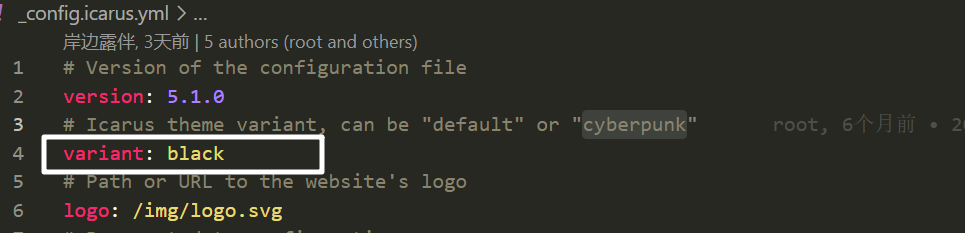
<p>在你的主题文件中把<code>variant</code> 修改为<code>black</code></p>
<img src="https://pic.mutter.cn/row/sa/2025/06/04/0550149f712fce8373b90d2b26c6ab96.png" alt="image-20250604112053295" />
<h3>字体配置</h3>
<blockquote><p>可加可不加</p></blockquote>
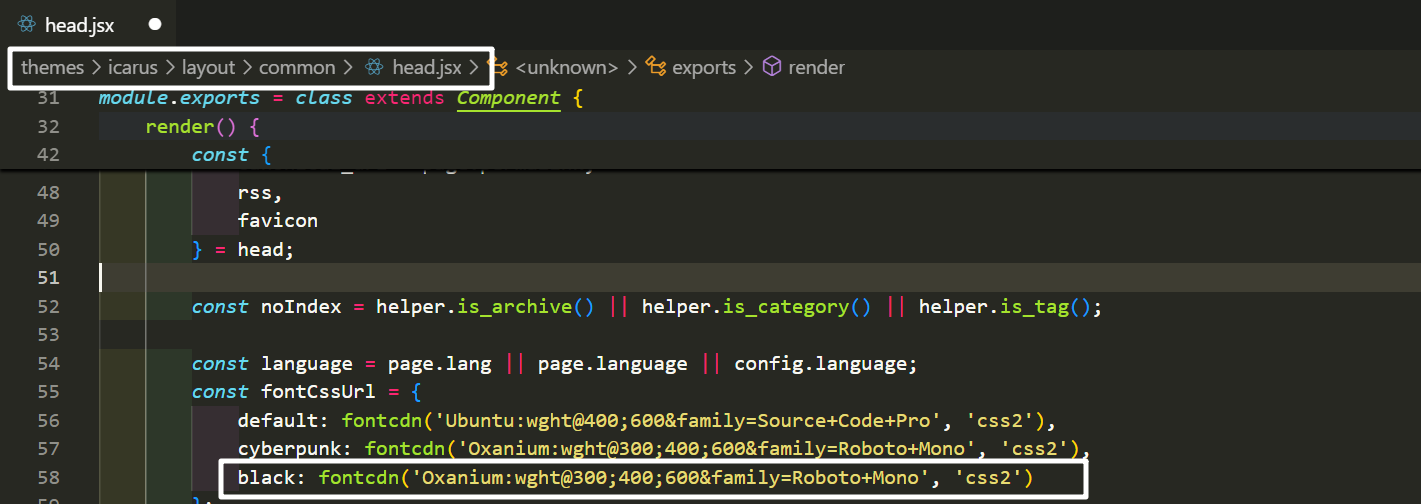
<pre><code># 我这里直接用的cyberpunk的字体文件
+  black: fontcdn('Oxanium:wght@300;400;600&amp;family=Roboto+Mono', 'css2')
</code></pre>
<img src="https://pic.mutter.cn/row/sa/2025/06/04/d69e08a9548665b2fd5b7654563cb4d7.png" alt="img" />]]></content>
    <category term="hexo" />
    <category term="Icarus" />
  </entry>
  <entry>
    <title>单机部署k3s和rancher 使用本地自签  证书</title>
    <link href="https://www.mutter.cn/posts/部署文档/部署k3s_rancher" rel="alternate" type="text/html"/>
    <id>https://www.mutter.cn/posts/部署文档/部署k3s_rancher</id>
    <updated>2025-03-31T15:40:00.000Z</updated>
    <published>2025-03-31T15:40:00.000Z</published>
    <author>
      <name>Mutter</name>
    </author>
    <summary type="text">本文档提供k3s和Rancher的部署指  南，包括自签证书、Helm配置、私  有镜像仓库设置等操作步骤。</summary>
    <content type="html"><![CDATA[
<h2>部署k3s</h2>
<p>这部分文档官网非常详尽 <code>https://docs.rancher.cn/docs/k3s/installation/airgap/_index/</code></p>
<h2>部署rancher</h2>
<p>如何自签证书, 我有写文章, 站内搜索 <a href="https://www.mutter.cn/%E8%84%9A%E6%9C%AC/self-built-ca-issue-certificate-with-san/" rel="noopener noreferrer" target="_blank">自建CA使用SAN签发证书</a></p>
<h3>配置helm</h3>
<pre><code>helm repo add rancher-latest https://releases.rancher.com/server-charts/latest
helm repo update
</code></pre>
<h3>创建证书</h3>
<pre><code>kubectl create namespace cattle-system
kubectl create secret tls tls-rancher-ingress --cert=domain.dev.crt \
 --key=domain.dev.key -n cattle-system
kubectl -n cattle-system create secret generic tls-ca   --from-file=cacerts.pem
</code></pre>
<h3>部署rancher</h3>
<p>把helm pull下来, 然后解压, 使用本地的安装, 方便维护</p>
<pre><code>helm  pull rancher-latest/rancher
tar -xf  rancher-2.10.3.tgz
# systemDefaultRegistry:

helm install   rancher ./  \
  --namespace cattle-system \
  --set hostname=rancher.domain.dev \
  --set bootstrapPassword=domain \
  --set ingress.tls.source=secret \
  --set privateCA=true
</code></pre>
<p>私有镜像仓库配置参考 <a href="https://docs.rancher.cn/docs/k3s/installation/private-registry/_index" rel="noopener noreferrer" target="_blank">https://docs.rancher.cn/docs/k3s/installation/private-registry/_index</a></p>
<pre><code>mirrors:
  docker.io:
    endpoint:
      - "https://harbor.com"
configs:
  "harbor.com:443":
    auth:
      username: domain
      password: "Aa123123"
    tls:
      cert_file: /opt/certs.d/harbor.com/harbor.com.cert
      key_file:  /opt/certs.d/harbor.com/harbor.com.key
      ca_file:   /opt/certs.d/harbor.com/ca.crt
</code></pre>]]></content>
    <category term="k3s" />
    <category term="rancher" />
  </entry>
  <entry>
    <title>Linux登陆脚本</title>
    <link href="https://www.mutter.cn/posts/环境配置/linux登陆脚本" rel="alternate" type="text/html"/>
    <id>https://www.mutter.cn/posts/环境配置/linux登陆脚本</id>
    <updated>2025-01-23T14:22:12.000Z</updated>
    <published>2025-01-23T14:22:12.000Z</published>
    <author>
      <name>Mutter</name>
    </author>
    <summary type="text">该脚本用于生成系统状态报  告，包含操作系统、内核、CPU、  内存、磁盘、网络等硬件信息，  以及运行时间、用户数、进程数  等实时状态数据。</summary>
    <content type="html"><![CDATA[
<img src="https://pic.mutter.cn/row/sa/2025/05/30/6f9da61e8fb008c0daaaf4bb5e297b4e.png" alt="89160ec3efa6faa7ab44356845df4d9b.webp" />
<pre><code>#!/bin/sh

export PATH=/usr/local/sbin:/usr/local/bin:/usr/sbin:/usr/bin
shopt -q login_shell &amp;&amp; : || return 0


# os
upSeconds="$(cut -d. -f1 /proc/uptime)"
secs=$((${upSeconds}%60))
mins=$((${upSeconds}/60%60))
hours=$((${upSeconds}/3600%24))
days=$((${upSeconds}/86400))
UPTIME_INFO=$(printf "%d days, %02dh %02dm %02ds" "$days" "$hours" "$mins" "$secs")

if [ -f /etc/redhat-release ] ; then
    PRETTY_NAME=$(&lt; /etc/redhat-release)

elif [ -f /etc/debian_version ]; then
   DIST_VER=$(&lt;/etc/debian_version)
   PRETTY_NAME="$(grep PRETTY_NAME /etc/os-release | sed -e 's/PRETTY_NAME=//g' -e  's/"//g') ($DIST_VER)"

else
    PRETTY_NAME=$(cat /etc/*-release | grep "PRETTY_NAME" | sed -e 's/PRETTY_NAME=//g' -e 's/"//g')
fi

if [[ -d "/system/app/" &amp;&amp; -d "/system/priv-app" ]]; then
    model="$(getprop ro.product.brand) $(getprop ro.product.model)"

elif [[ -f /sys/devices/virtual/dmi/id/product_name ||
        -f /sys/devices/virtual/dmi/id/product_version ]]; then
    model="$(&lt; /sys/devices/virtual/dmi/id/product_name)"
    model+=" $(&lt; /sys/devices/virtual/dmi/id/product_version)"

elif [[ -f /sys/firmware/devicetree/base/model ]]; then
    model="$(&lt; /sys/firmware/devicetree/base/model)"

elif [[ -f /tmp/sysinfo/model ]]; then
    model="$(&lt; /tmp/sysinfo/model)"
fi

MODEL_INFO=${model}
KERNEL=$(uname -srmo)
USER_NUM=$(who -u | wc -l)
RUNNING=$(ps ax | wc -l | tr -d " ")

# disk
totaldisk=$(df -h -x devtmpfs -x tmpfs -x debugfs -x aufs -x overlay --total 2&gt;/dev/null | tail -1)
disktotal=$(awk '{print $2}' &lt;&lt;&lt; "${totaldisk}")
diskused=$(awk '{print $3}' &lt;&lt;&lt; "${totaldisk}")
diskusedper=$(awk '{print $5}' &lt;&lt;&lt; "${totaldisk}")
DISK_INFO="\033[0;33m${diskused}\033[0m of \033[1;34m${disktotal}\033[0m disk space used (\033[0;33m${diskusedper}\033[0m)"

# cpu
cpu=$(awk -F':' '/^model name/ {print $2}' /proc/cpuinfo | uniq | sed -e 's/^[ \t]*//')
cpun=$(grep -c '^processor' /proc/cpuinfo)
cpuc=$(grep '^cpu cores' /proc/cpuinfo | tail -1 | awk '{print $4}')
cpup=$(grep '^physical id' /proc/cpuinfo | wc -l)
CPU_INFO="${cpu} ${cpup}P ${cpuc}C ${cpun}L"

# get the load averages
read one five fifteen rest &lt; /proc/loadavg
LOADAVG_INFO="\033[0;33m${one}\033[0m / ${five} / ${fifteen} with \033[1;34m$(( cpun*cpuc ))\033[0m core(s) at \033[1;34m$(grep '^cpu MHz' /proc/cpuinfo | tail -1 | awk '{print $4}')\033 MHz"

# mem
MEM_INFO="$(cat /proc/meminfo | awk '/MemTotal:/{total=$2/1024/1024;next} /MemAvailable:/{use=total-$2/1024/1024; printf("\033[0;33m%.2fGiB\033[0m of \033[1;34m%.2fGiB\033[0m RAM used (\033[0;33m%.2f%%\033[0m)",use,total,(use/total)*100);}')"

# network
# extranet_ip=" and $(curl -s ip.cip.cc)"
IP_INFO="$(ip a | grep glo | awk '{print $2}' | head -1 | cut -f1 -d/)${extranet_ip:-}"


supervisor_status=$(supervisorctl statsu |wc -l)
supervisor_running=$(supervisorctl status  | grep 'RUNNING' | wc -l)
supervisor_not_running=$(expr $supervisor_status - $supervisor_running)
SUPERVISOR_INFO="ALL: ${supervisor_status} RUNING: \033[32m${supervisor_running}\033[0m NOT RUNING:  \033[31m${supervisor_not_running}"


NGINX_STATUS=$(systemctl status nginx | grep 'Active:' |awk -F 'Active:' '{print $2}')

# info
echo -e "
 Information as of: \033[1;34m$(date +"%Y-%m-%d %T")\033[0m
 
 \033[0;1;31mProduct\033[0m............: ${MODEL_INFO}
 \033[0;1;31mOS\033[0m.................: ${PRETTY_NAME}
 \033[0;1;31mKernel\033[0m.............: ${KERNEL}
 \033[0;1;31mCPU\033[0m................: ${CPU_INFO}

 \033[0;1;31mHostname\033[0m...........: \033[1;34m$(hostname)\033[0m
 \033[0;1;31mIP Addresses\033[0m.......: \033[1;34m${IP_INFO}\033[0m

 \033[0;1;31mUptime\033[0m.............: \033[0;33m${UPTIME_INFO}\033[0m
 \033[0;1;31mMemory\033[0m.............: ${MEM_INFO}
 \033[0;1;31mLoad Averages\033[0m......: ${LOADAVG_INFO}
 \033[0;1;31mDisk Usage\033[0m.........: ${DISK_INFO} 

 \033[0;1;31mUsers online\033[0m.......: \033[1;34m${USER_NUM}\033[0m
 \033[0;1;31mRunning Processes\033[0m..: \033[1;34m${RUNNING}\033[0m


 \033[0;1;31mSupervisor\033[0m.........: \033[1;34m${SUPERVISOR_INFO}\033[0m
 \033[0;1;31mNGINX STATUS\033[0m.......: \033[1;34m${NGINX_STATUS}\033[0m
"
</code></pre>]]></content>
    <category term="Linux" />
  </entry>
  <entry>
    <title>Linux 本地端口转发到其他机器（  附带管理脚本）</title>
    <link href="https://www.mutter.cn/posts/脚本/linux本地端口转发到其他机器附带管理脚本" rel="alternate" type="text/html"/>
    <id>https://www.mutter.cn/posts/脚本/linux本地端口转发到其他机器附带管理脚本</id>
    <updated>2025-01-12T00:00:00.000Z</updated>
    <published>2025-01-12T00:00:00.000Z</published>
    <author>
      <name>Mutter</name>
    </author>
    <summary type="text">本文介绍了Linux系统端口转发  的原理和操作，包括如何使用iptables配  置基础防火墙规则、添加/删除端  口转发规则，以及通过forward_port脚本  便捷管理转发条目。</summary>
    <content type="html"><![CDATA[
<h2>端口转发原理</h2>
<p>端口转发（Port Forwarding）， 也称为端口映射（Port Mapping），是一种网络技术，它允许将网络流量从一个 IP 地址和端口重定向到另一个 IP 地址和端口。 在 Linux 系统中， 我们通常使用 <code>iptables</code> 工具来实现端口转发。</p>
<br />
<h2>基础防火墙规则配置</h2>
<p>在开始配置端口转发之前，我们需要先配置一些基础的防火墙规则，包括开启 IP 转发、允许转发流量和配置 NAT 表。</p>
<pre><code>echo 1 &gt; /proc/sys/net/ipv4/ip_forward           # 开启 IP 转发
iptables -A FORWARD -j ACCEPT                    # 允许转发
iptables -t nat -A POSTROUTING   -j MASQUERADE   # 配置 NAT 表
</code></pre>
<br />
<p><strong>解释:</strong></p>
<ul>
<li><code>echo 1 &gt; /proc/sys/net/ipv4/ip_forward</code>： 开启 IP 转发功能，允许 Linux 系统作为路由器转发数据包。</li>
<li><code>iptables -A FORWARD -j ACCEPT</code>：  允许所有转发流量通过防火墙，即允许从一个网卡转发到另一个网卡的数据包。</li>
<li><code>iptables -t nat -A POSTROUTING -j MASQUERADE</code>： 配置网络地址转换（NAT）， 将转发的数据包的源 IP 地址转换为本机 IP 地址，以便目标机器能够正常响应。</li>
</ul>
<br />
<h2>添加端口转发规则</h2>
<p>以下示例展示了如何将本地端口 80 的流量转发到 <code>192.168.2.123</code> 的 80 端口。</p>
<pre><code>iptables -t nat -A PREROUTING -p tcp --dport 80 -j DNAT --to-destination 192.168.2.123:80
iptables -t nat -A POSTROUTING -p tcp -d 192.168.2.123 --dport 80 -j MASQUERADE
</code></pre>
<br />
<p><strong>解释:</strong></p>
<ul>
<li><code>iptables -t nat -A PREROUTING -p tcp --dport 80 -j DNAT --to-destination 192.168.2.123:80</code>：
<ul>
<li><code>-t nat</code>：  指定操作的表为 NAT 表，用于网络地址转换。</li>
<li><code>-A PREROUTING</code>： 将规则添加到 <code>PREROUTING</code> 链，该链用于处理进入本机的数据包。</li>
<li><code>-p tcp</code>：  指定协议为 TCP。</li>
<li><code>--dport 80</code>： 指定目标端口为 80。</li>
<li><code>-j DNAT</code>： 执行目标地址转换（DNAT）。</li>
<li><code>--to-destination 192.168.2.123:80</code>： 将目标地址转换为 <code>192.168.2.123:80</code>。</li>
</ul>
</li>
<li><code>iptables -t nat -A POSTROUTING -p tcp -d 192.168.2.123 --dport 80 -j MASQUERADE</code>：
<ul>
<li><code>-t nat</code>： 指定操作的表为 NAT 表。</li>
<li><code>-A POSTROUTING</code>： 将规则添加到 <code>POSTROUTING</code> 链，该链用于处理即将离开本机的数据包。</li>
<li><code>-p tcp</code>： 指定协议为 TCP。</li>
<li><code>-d 192.168.2.123</code>：  指定目标 IP 地址为 <code>192.168.2.123</code>。</li>
<li><code>--dport 80</code>: 指定目标端口为80.</li>
<li><code>-j MASQUERADE</code>： 执行地址伪装，将源 IP 地址转换为本机 IP 地址。</li>
</ul>
</li>
</ul>
<br />
<h2>删除端口转发规则</h2>
<p>以下示例展示了如何删除将本地端口 80 的流量转发到 <code>192.168.2.123</code> 的 80 端口的规则。</p>
<pre><code>iptables -t nat -D PREROUTING -p tcp --dport 80 -j DNAT --to-destination 192.168.2.123:80
iptables -t nat -D POSTROUTING -p tcp -d 192.168.2.123 --dport 80 -j MASQUERADE
</code></pre>
<br />
<p><strong>解释：</strong></p>
<ul>
<li>与添加规则类似，只是将 <code>-A</code> 改为 <code>-D</code>，表示删除规则。</li>
</ul>
<br />
<h2>查看转发规则</h2>
<p>使用以下命令可以查看当前配置的端口转发规则：</p>
<pre><code>iptables -t nat -L -n
</code></pre>
<br />
<p><strong>解释:</strong></p>
<ul>
<li><code>-t nat</code>： 指定查看 NAT 表。</li>
<li><code>-L</code>： 列出规则。</li>
<li><code>-n</code>： 使用数字格式显示 IP 地址和端口，而不是使用主机名和服务名。</li>
</ul>
<br />
<h2>端口转发管理脚本</h2>
<p>为了方便管理端口转发规则，我们提供了一个 <code>forward_port</code> 脚本。 该脚本可以帮助您更方便地添加、删除和查看转发规则。</p>
<br />
<h3>使用方法</h3>
<p>以下是一些脚本的使用示例：</p>
<pre><code>root@localhost:~# forward_port list
当前端口转发规则列表：
----------------------------------------
[TCP] 本地端口: 8000 转发目标: 192.168.2.142:8000
root@localhost:~# forward_port  add tcp 8001  100.88.88.104 8000
添加完成
root@localhost:~# forward_port list
当前端口转发规则列表：
----------------------------------------
[TCP] 本地端口: 8000 转发目标: 192.168.2.142:8000
[TCP] 本地端口: 8001 转发目标: 100.88.88.104:8000
root@localhost:~# forward_port  del tcp 8001
删除完成
root@localhost:~# forward_port list
当前端口转发规则列表：
----------------------------------------
[TCP] 本地端口: 8000 转发目标: 192.168.2.142:8000
</code></pre>
<br />
<h3>脚本代码</h3>
<p>以下是 <code>forward_port</code> 脚本的完整代码：</p>
<pre><code>
#!/bin/bash

# 检查是否具有 root 权限
if [ "$EUID" -ne 0 ]; then
    echo "请使用 sudo 运行此脚本"
    exit 1
fi

# 显示帮助信息
show_help() {
    echo "用法:"
    echo "  $0 list                     # 显示所有端口转发规则"
    echo "  $0 add tcp|udp 本地端口 目标IP 目标端口  # 添加转发规则"
    echo "  $0 del tcp|udp 本地端口     # 删除转发规则"
    echo ""
    echo "示例:"
    echo "  $0 add tcp 8080 192.168.1.100 80"
    echo "  $0 del tcp 8080"
}

# 列出当前转发规则
list_forwards() {
    # 获取 PREROUTING 规则
    rules=$(iptables -t nat -L PREROUTING -n --line-numbers | grep "dpt:" | grep "to:")

    if [ -z "$rules" ]; then
        echo "当前没有端口转发规则"
        return
    fi

    echo "当前端口转发规则列表："
    echo "----------------------------------------"

    while IFS= read -r line; do
        # 提取规则信息
        protocol=$(echo "$line" | grep -o 'tcp\|udp' | tr '[:lower:]' '[:upper:]')
        local_port=$(echo "$line" | grep -o 'dpt:[0-9]*' | cut -d':' -f2)
        target=$(echo "$line" | grep -o 'to:[0-9.]*:[0-9]*' | cut -d':' -f2,3)

        if [ ! -z "$protocol" ] &amp;&amp; [ ! -z "$local_port" ] &amp;&amp; [ ! -z "$target" ]; then
            target_ip=$(echo "$target" | cut -d':' -f1)
            target_port=$(echo "$target" | cut -d':' -f2)
            echo "[$protocol] 本地端口: $local_port 转发目标: $target_ip:$target_port"
        fi
    done &lt;&lt;&lt; "$rules"
}

# 检查转发规则是否已存在
check_forward_exists() {
    local proto=$1
    local port=$2

    iptables -t nat -L PREROUTING -n | grep "dpt:$port" | grep -q "$proto"
    return $?
}

# 添加转发规则
add_forward() {
    local proto=$1
    local local_port=$2
    local target_ip=$3
    local target_port=$4

    # 验证参数
    if [[ ! "$proto" =~ ^(tcp|udp)$ ]]; then
        echo "错误: 协议必须是 tcp 或 udp"
        return 1
    fi

    if [[ ! "$local_port" =~ ^[0-9]+$ ]] || [ "$local_port" -lt 1 ] || [ "$local_port" -gt 65535 ]; then
        echo "错误: 无效的端口号 $local_port"
        return 1
    fi

    if [[ ! "$target_ip" =~ ^[0-9]+\.[0-9]+\.[0-9]+\.[0-9]+$ ]]; then
        echo "错误: 无效的 IP 地址 $target_ip"
        return 1
    fi

    if [[ ! "$target_port" =~ ^[0-9]+$ ]] || [ "$target_port" -lt 1 ] || [ "$target_port" -gt 65535 ]; then
        echo "错误: 无效的目标端口号 $target_port"
        return 1
    fi

    # 检查规则是否已存在
    if check_forward_exists "$proto" "$local_port"; then
        echo "${proto^^} $local_port 已经有转发规则了"
        return 1
    fi

    # 添加转发规则
    iptables -t nat -A PREROUTING -p "$proto" --dport "$local_port" -j DNAT --to-destination "$target_ip:$target_port"
    iptables -t nat -A POSTROUTING -p "$proto" -d "$target_ip" --dport "$target_port" -j MASQUERADE

    if [ $? -eq 0 ]; then
        echo "添加完成"
    else
        echo "添加失败"
        return 1
    fi
}

# 删除转发规则
del_forward() {
    local proto=$1
    local port=$2

    # 验证参数
    if [[ ! "$proto" =~ ^(tcp|udp)$ ]]; then
        echo "错误: 协议必须是 tcp 或 udp"
        return 1
    fi

    if [[ ! "$port" =~ ^[0-9]+$ ]] || [ "$port" -lt 1 ] || [ "$port" -gt 65535 ]; then
        echo "错误: 无效的端口号 $port"
        return 1
    fi

    # 检查规则是否存在
    if ! check_forward_exists "$proto" "$port"; then
        echo "未找到 ${proto^^} 端口 $port 的转发规则"
        return 1
    fi

    # 获取目标地址信息用于删除 POSTROUTING 规则
    target_info=$(iptables -t nat -L PREROUTING -n | grep "dpt:$port" | grep "$proto")
    target_ip=$(echo "$target_info" | grep -o 'to:[0-9.]*:[0-9]*' | cut -d':' -f2)
    target_port=$(echo "$target_info" | grep -o 'to:[0-9.]*:[0-9]*' | cut -d':' -f3)

    # 删除规则
    iptables -t nat -D PREROUTING -p "$proto" --dport "$port" -j DNAT --to-destination "$target_ip:$target_port" 2&gt;/dev/null
    iptables -t nat -D POSTROUTING -p "$proto" -d "$target_ip" --dport "$target_port" -j MASQUERADE 2&gt;/dev/null

    if [ $? -eq 0 ]; then
        echo "删除完成"
    else
        echo "删除失败"
        return 1
    fi
}

# 主程序
case "$1" in
    list)
        list_forwards
        ;;
    add)
        if [ $# -ne 5 ]; then
            echo "错误: add 命令需要4个参数"
            show_help
            exit 1
        fi
        add_forward "$2" "$3" "$4" "$5"
        ;;
    del)
        if [ $# -ne 3 ]; then
            echo "错误: del 命令需要2个参数"
            show_help
            exit 1
        fi
        del_forward "$2" "$3"
        ;;
    *)
        show_help
        exit 1
        ;;
esac

exit 0
</code></pre>
<br />
<p><strong>脚本使用说明：</strong></p>
<ul>
<li><strong><code>forward_port list</code></strong>: 列出当前所有端口转发规则。</li>
<li><strong><code>forward_port add tcp|udp 本地端口 目标IP 目标端口</code></strong>: 添加新的端口转发规则。
<ul>
<li><code>tcp|udp</code>: 指定协议。</li>
<li><code>本地端口</code>: 要监听的本地端口。</li>
<li><code>目标IP</code>:  要转发的目标 IP 地址。</li>
<li><code>目标端口</code>: 要转发的目标端口。</li>
</ul>
</li>
<li><strong><code>forward_port del tcp|udp 本地端口</code></strong>:  删除指定的端口转发规则。
<ul>
<li><code>tcp|udp</code>: 指定协议。</li>
<li><code>本地端口</code>:  要删除的转发规则对应的本地端口。</li>
</ul>
</li>
</ul>
<br />
<h2>总结</h2>
<p>本文档介绍了如何在 Linux 系统中配置端口转发，包括手动配置 <code>iptables</code> 规则以及使用提供的 <code>forward_port</code> 脚本进行管理。希望这些内容能够帮助您更好地理解和使用 Linux 的端口转发功能。</p>]]></content>
    <category term="Linux" />
    <category term="端口转发" />
    <category term="脚本" />
  </entry>
  <entry>
    <title>Debian 12 配置中文支持</title>
    <link href="https://www.mutter.cn/posts/环境配置/debian-12-配置中文支持" rel="alternate" type="text/html"/>
    <id>https://www.mutter.cn/posts/环境配置/debian-12-配置中文支持</id>
    <updated>2025-01-07T12:11:22.000Z</updated>
    <published>2025-01-07T12:11:22.000Z</published>
    <author>
      <name>Mutter</name>
    </author>
    <summary type="text">本文介绍了如何配置Linux系统  的中文支持，包括修改locale设置、  生成locale、设置默认语言环境以及  调整终端编码，并提供了VIM编辑  器的中文编码配置方法。</summary>
    <content type="html"><![CDATA[
<h2>配置中文支持</h2>
<h3>配置区域设置</h3>
<p>编辑 locale 配置文件
取消注释中文 locale, 找到以下行，去掉前面的 # 号</p>
<pre><code>vim /etc/locale.gen

- # zh_CN.UTF-8 UTF-8
+ zh_CN.UTF-8 UTF-8
</code></pre>
<br />
<h3>生成 locale：</h3>
<pre><code>locale-gen
</code></pre>
<br />
<h3>设置系统默认 locale</h3>
<pre><code>vim /etc/environment

LANG=zh_CN.UTF-8
LANGUAGE=zh_CN:en_US

</code></pre>
<br />
<h3>配置终端编码</h3>
<p>可选: <code>~/.bashrc</code> 或 <code>~/.zshrc</code> 或  <code>/etc/profile</code></p>
<pre><code>vim /etc/profile

export LANG=zh_CN.UTF-8
export LANGUAGE=zh_CN:en_US
</code></pre>
<p>重新登录即可
<br /></p>
<h2>配置VIM</h2>
<pre><code>vim ~/.vimrc

set encoding=utf-8
set termencoding=utf-8
set fileencodings=utf-8,gbk,latin1
</code></pre>]]></content>
    <category term="Linux" />
  </entry>
  <entry>
    <title>Linux 监控裸机部署</title>
    <link href="https://www.mutter.cn/posts/环境配置/pve" rel="alternate" type="text/html"/>
    <id>https://www.mutter.cn/posts/环境配置/pve</id>
    <updated>2024-12-30T00:00:00.000Z</updated>
    <published>2024-12-30T00:00:00.000Z</published>
    <author>
      <name>Mutter</name>
    </author>
    <summary type="text">记录一下pve的常用操作</summary>
    <content type="html"><![CDATA[
<h2>屏蔽登录弹窗</h2>
<pre><code>sed -i.backup -z "s/res === null || res === undefined || \!res || res\n\t\t\t.data.status.toLowerCase() \!== 'active'/false/g" /usr/share/javascript/proxmox-widget-toolkit/proxmoxlib.js &amp;&amp; systemctl restart pveproxy.service
</code></pre>
<h2>国内源</h2>
<pre><code>cat /etc/apt/sources.list
deb https://mirrors.huaweicloud.com/debian/ bookworm main non-free contrib
deb-src https://mirrors.huaweicloud.com/debian/ bookworm main non-free contrib
deb https://mirrors.huaweicloud.com/debian-security/ bookworm-security main
deb-src https://mirrors.huaweicloud.com/debian-security/ bookworm-security main
deb https://mirrors.huaweicloud.com/debian/ bookworm-updates main non-free contrib
deb-src https://mirrors.huaweicloud.com/debian/ bookworm-updates main non-free contrib
deb https://mirrors.huaweicloud.com/debian/ bookworm-backports main non-free contrib
deb-src https://mirrors.huaweicloud.com/debian/ bookworm-backports main non-free contrib


mv /etc/apt/sources.list.d /etc/apt/sources.list.d_
mkdir /etc/apt/sources.list.d
</code></pre>]]></content>
    <category term="监控" />
    <category term="Linux" />
    <category term="部署文档" />
  </entry>
  <entry>
    <title>Linux 监控裸机部署</title>
    <link href="https://www.mutter.cn/posts/部署文档/裸机监控部署" rel="alternate" type="text/html"/>
    <id>https://www.mutter.cn/posts/部署文档/裸机监控部署</id>
    <updated>2024-12-30T00:00:00.000Z</updated>
    <published>2024-12-30T00:00:00.000Z</published>
    <author>
      <name>Mutter</name>
    </author>
    <summary type="text">本文介绍了Grafana、Prometheus及相关  组件的部署流程，包括下载安装  、Supervisor配置、Nginx代理设置以及Grafana的  初始配置步骤。</summary>
    <content type="html"><![CDATA[
<h2>部署</h2>
<h3>下载安装包</h3>
<pre><code>mkdir -p /opt/src/
cd /opt/src/
wget https://dl.grafana.com/oss/release/grafana-11.4.0.linux-amd64.tar.gz
tar -zxvf grafana-11.4.0.linux-amd64.tar.gz

mv grafana-v11.4.0  /opt/
ln -snf /opt/grafana-v11.4.0 /opt/grafana


wget https://github.com/prometheus/prometheus/releases/download/v3.0.1/prometheus-3.0.1.linux-amd64.tar.gz
tar -zxvf prometheus-3.0.1.linux-amd64.tar.gz

mv prometheus-3.0.1.linux-amd64  /opt/
ln -snf /opt/prometheus-3.0.1.linux-amd64 /opt/prometheus

wget https://github.com/prometheus/node_exporter/releases/download/v1.8.2/node_exporter-1.8.2.linux-amd64.tar.gz
tar -zxvf node_exporter-1.8.2.linux-amd64.tar.gz

mv node_exporter-1.8.2.linux-amd64  /opt/
ln -snf /opt/node_exporter-1.8.2.linux-amd64 /opt/node_exporter

wget https://github.com/prometheus/blackbox_exporter/releases/download/v0.25.0/blackbox_exporter-0.25.0.linux-amd64.tar.gz
tar -zxvf blackbox_exporter-0.25.0.linux-amd64.tar.gz

mv blackbox_exporter-0.25.0.linux-amd64  /opt/
ln -snf /opt/blackbox_exporter-0.25.0.linux-amd64 /opt/blackbox_exporter
</code></pre>
<br />
<br />
<h3>配置supervisor</h3>
<pre><code>yum install supervisor -y 

cat &gt; /etc/supervisor/conf.d/prometheus.conf &lt;&lt;EOF
[program:prometheus]
command=/opt/prometheus/prometheus --config.file=/opt/prometheus/prometheus.yml 
directory=/opt/prometheus
;user=prometheus
autostart=true
autorestart=true
startretries=3
stopwaitsecs=10
startsecs=10
;日志设置
stderr_logfile=/var/log/prometheus.err.log
stdout_logfile=/var/log/prometheus.out.log
stdout_logfile_maxbytes=10MB
stdout_logfile_backups=5
stderr_logfile_maxbytes=10MB
stderr_logfile_backups=5

;进程优先级
priority=900

;进程环境变量
environment=PATH="/usr/local/sbin:/usr/local/bin:/usr/sbin:/usr/bin:/sbin:/bin"

;异常处理
stopasgroup=true
killasgroup=true
EOF


cat &gt; /etc/supervisor/conf.d/node_exporter.conf &lt;&lt;EOF
[program:node_exporter]
command=/opt/node_exporter/node_exporter --web.listen-address=127.0.0.1:9100
directory=/opt/node_exporter
;user=prometheus
autostart=true
autorestart=true
startretries=3
stopwaitsecs=10
startsecs=10
;日志设置
stderr_logfile=/var/log/node_exporter.err.log
stdout_logfile=/var/log/node_exporter.out.log
stdout_logfile_maxbytes=10MB
stdout_logfile_backups=5
stderr_logfile_maxbytes=10MB
stderr_logfile_backups=5

;进程优先级
priority=900

;进程环境变量
environment=PATH="/usr/local/sbin:/usr/local/bin:/usr/sbin:/usr/bin:/sbin:/bin"

;异常处理
stopasgroup=true
killasgroup=true
EOF


cat &gt; /etc/supervisor/conf.d/blackbox_exporter.conf &lt;&lt;EOF
[program:blackbox_exporter]
command=/opt/blackbox_exporter/blackbox_exporter --config.file=/opt/blackbox_exporter/blackbox.yml
directory=/opt/blackbox_exporter
;user=prometheus
autostart=true
autorestart=true
startretries=3
stopwaitsecs=10
startsecs=10
;日志设置
stderr_logfile=/var/log/blackbox_exporter.err.log
stdout_logfile=/var/log/blackbox_exporter.out.log
stdout_logfile_maxbytes=10MB
stdout_logfile_backups=5
stderr_logfile_maxbytes=10MB
stderr_logfile_backups=5

;进程优先级
priority=900

;进程环境变量
environment=PATH="/usr/local/sbin:/usr/local/bin:/usr/sbin:/usr/bin:/sbin:/bin"

;异常处理
stopasgroup=true
killasgroup=true
EOF


cat &gt; /etc/supervisor/conf.d/grafana.conf &lt;&lt;EOF
[program:grafana]
command=/opt/grafana/bin/grafana-server
directory=/opt/grafana
;user=grafana
autostart=true
autorestart=true
startretries=3
stopwaitsecs=10
startsecs=10
;日志设置
stderr_logfile=/var/log/grafana.err.log
stdout_logfile=/var/log/grafana.out.log
stdout_logfile_maxbytes=10MB
stdout_logfile_backups=5
stderr_logfile_maxbytes=10MB
stderr_logfile_backups=5

;进程优先级
priority=900

;进程环境变量
environment=PATH="/usr/local/sbin:/usr/local/bin:/usr/sbin:/usr/bin:/sbin:/bin"

;异常处理
stopasgroup=true
killasgroup=true
EOF
</code></pre>
<pre><code>
:/opt# supervisorctl update 
:/opt# supervisorctl status  # 检查服务状态
blackbox_exporter                RUNNING   pid 528621, uptime 0:01:38
grafana                          RUNNING   pid 528622, uptime 0:01:38
node_exporter                    RUNNING   pid 528623, uptime 0:01:38
prometheus                       RUNNING   pid 528592, uptime 0:04:12

:/opt# netstat -tulpn | grep -E 'prom|grafa|exp'
tcp6       0      0 :::9115                 :::*                    LISTEN      528621/blackbox_exp 
tcp6       0      0 :::9090                 :::*                    LISTEN      528592/prometheus   
tcp6       0      0 :::9100                 :::*                    LISTEN      528623/node_exporte 
tcp6       0      0 :::3000                 :::*                    LISTEN      528622/grafana     

</code></pre>
<h3>配置NGINX</h3>
<article>
<div>
<i></i>
我用的是CF Tunnel, 这里贴一个NGINX Proxy的配置
</div>
</article>
<pre><code>
upstream grafana {
  server localhost:3000;
}

server {
    listen                  443 ssl;
    listen                  [::]:443 ssl;
    server_name             grafana.domain.com;

    # SSL
    ssl_certificate         /etc/letsencrypt/live/grafana.domain.com/fullchain.pem;
    ssl_certificate_key     /etc/letsencrypt/live/grafana.domain.com/privkey.pem;
    ssl_trusted_certificate /etc/letsencrypt/live/grafana.domain.com/chain.pem;

    # logging
    access_log              /var/log/nginx/grafana.access.log combined;
    error_log               /var/log/nginx/grafana.error.log warn;

    location / {
      proxy_set_header Host $http_host;
      proxy_pass http://grafana;
    }

    # Proxy Grafana Live WebSocket connections.
    location /api/live/ {
      proxy_http_version 1.1;
      proxy_set_header Upgrade $http_upgrade;
      proxy_set_header Connection $connection_upgrade;
      proxy_set_header Host $http_host;
      proxy_pass http://grafana;
    }

}

# HTTP redirect
server {
    listen      80;
    listen      [::]:80;
    server_name grafana.domain.com;

    location / {
        return 301 https://grafana.domain.com$request_uri;
    }
}

</code></pre>
<h2>配置</h2>
<h3>Grafana配置</h3>
<p>默认账户密码是 admin/admin</p>
<img src="https://pic.mutter.cn/row/sa/2025/05/30/a4e74c5f917c5751a379ed17f5a24c50.png" alt="Image" />
<pre><code>supervisorctl stop grafana


sed -i 's#default_language = en-US#default_language = zh-Hans#g' /opt/grafana/conf/defaults.ini

cat &gt;&gt; /opt/grafana/conf/grafana.ini &lt;&lt;EOF
[public_dashboards]
# Set to false to disable public dashboards
enabled = true
autoMigrateOldPanels = true
EOF

supervisorctl restart grafana
</code></pre>]]></content>
    <category term="监控" />
    <category term="Linux" />
    <category term="部署文档" />
  </entry>
  <entry>
    <title>自建CA使用SAN签发证书</title>
    <link href="https://www.mutter.cn/posts/脚本/自建ca使用san签发证书" rel="alternate" type="text/html"/>
    <id>https://www.mutter.cn/posts/脚本/自建ca使用san签发证书</id>
    <updated>2024-11-19T17:21:12.000Z</updated>
    <published>2024-11-19T17:21:12.000Z</published>
    <author>
      <name>Mutter</name>
    </author>
    <summary type="text">简介：本文详细介绍了CA证  书的生成过程，包括创建CA配置  文件、生成CA证书、签发SAN证书及  验证证书链的完整步骤，并说明  了各文件的作用。</summary>
    <content type="html"><![CDATA[
<h2>CA证书生成</h2>
<p>首先创建CA配置文件:</p>
<pre><code>cat &gt; ca.conf &lt;&lt; EOF
[ req ]
default_bits = 2048
default_md = sha256
prompt = no
encrypt_key = no
distinguished_name = dn

[ dn ]
C = CN
ST = Beijing
L = Beijing
O = Dev
OU = Dev Root CA
CN = Dev Root CA
emailAddress = admin@domain.dev
EOF
</code></pre>
<p>生成CA证书:</p>
<pre><code># CA机构名称
# 生成CA私钥和证书
openssl ecparam -out ca.key -name prime256v1 -genkey
openssl req -new -sha256 -key ca.key -out ca.csr -config ca.conf
openssl x509 -req -sha256 -days 3650 -in ca.csr -signkey ca.key -out ca.crt
</code></pre>
<h2>签发SAN证书</h2>
<p>创建证书配置文件:</p>
<pre><code>cat &gt; domain.conf &lt;&lt; EOF
[ req ]
default_bits = 2048
default_md = sha256
prompt = no
encrypt_key = no
distinguished_name = dn
req_extensions = v3_req

[ dn ]
C = CN
ST = Beijing
L = Beijing
O = Organization
OU = Dev Team
CN = domain.dev
emailAddress = admin@domain.dev

[ v3_req ]
basicConstraints = CA:FALSE
keyUsage = nonRepudiation, digitalSignature, keyEncipherment
subjectAltName = @alt_names

[alt_names]
DNS.1 = domain.dev
DNS.2 = *.domain.dev
EOF
</code></pre>
<p>签发证书:</p>
<pre><code># 生成域名私钥和CSR
openssl genrsa -out domain.dev.key 2048
openssl req -new -nodes -key domain.dev.key -out domain.dev.csr -config domain.conf

# 使用CA签发证书
openssl x509 -req -in domain.dev.csr \
    -CA ca.crt -CAkey ca.key -CAcreateserial \
    -out domain.dev.crt -days 3650 -sha256 \
    -extensions v3_req -extfile domain.conf

# 验证证书
openssl x509 -in domain.dev.crt -text -noout
</code></pre>
<p>补全完整的证书链</p>
<pre><code>cat domain.dev.crt ca.crt &gt; domain.dev.fullchain.crt
</code></pre>
<p>介绍每个文件的作用</p>
<ul>
<li>ca.conf: CA配置文件</li>
<li>ca.key: CA私钥</li>
<li>ca.crt: CA证书</li>
<li>domain.conf: 域名配置文件</li>
<li>domain.dev.key: 域名私钥</li>
<li>domain.dev.csr: 域名CSR</li>
<li>domain.dev.crt: 域名证书</li>
<li>domain.dev.fullchain.crt: 完整证书链</li>
<li>domain.dev.key: 域名私钥</li>
</ul>]]></content>
    <category term="shell" />
    <category term="脚本" />
  </entry>
  <entry>
    <title>Xiaomi Redmi AX6S  刷Openwrt</title>
    <link href="https://www.mutter.cn/posts/玩机/xiaomi-redmi-ax6s--刷openwrt" rel="alternate" type="text/html"/>
    <id>https://www.mutter.cn/posts/玩机/xiaomi-redmi-ax6s--刷openwrt</id>
    <updated>2024-11-19T14:22:12.000Z</updated>
    <published>2024-11-19T14:22:12.000Z</published>
    <author>
      <name>Mutter</name>
    </author>
    <summary type="text">本文介绍了Redmi路由器AX6S刷机  流程，包括开发固件、factory.bin及定  制固件的刷入步骤，并提供了相  关操作命令及注意事项。</summary>
    <content type="html"><![CDATA[
<blockquote><p>本文所用的全部刷机包: <a href="https://pan.0197011.xyz/?path=2024%2Fax6s%2F" rel="noopener noreferrer" target="_blank">https://pan.0197011.xyz/?path=2024%2Fax6s%2F</a></p></blockquote>
<h2>刷开发固件</h2>
<p>首先， 登录你的路由器192.168.31.1， 把固件刷成开发版的<code>miwifi_rb03_firmware_stable_1.2.7（内测版）.bin</code></p>
<img src="https://pic.mutter.cn/row/sa/2025/05/30/9e568a1f0679f8700ca56d08ac4d2e8b.png" alt="072d32cbe7c393b2fa58812e682a42ef" />
<h2>刷入factory.bin固件</h2>
<p><code>factory.bin</code> 固件在网盘中也有
先根据设备后面的SN码生成root密码
访问<code>miwifi.dev/ssh</code></p>
<img src="https://pic.mutter.cn/row/sa/2025/05/30/08f9d9ebc153f75bb49ac9f9efef8968.png" alt="4e4274d51a21e922e6126862b7948dd7" /><img src="https://pic.mutter.cn/row/sa/2025/05/30/3b20b9fdde0dc77c9f43f02db9bab3a2.png" alt="7c8af84ae79d55018d567b22bc756487" />
<p>然后使用登录<code>telnet</code> 登录系统开启ssh</p>
<pre><code>telnet 192.168.31.1 23
</code></pre>
<img src="https://pic.mutter.cn/row/sa/2025/05/30/3755b953f7a03e1d976c60b500f016d4.png" alt="456c2f170696f823cb5e7ccc7ce4398c" />
<ul>
<li>配置 SSH 和串口调试支持。</li>
<li>设置设备启动时的延迟和行为。</li>
<li>启动 Dropbear（轻量级 SSH 服务），以便远程管理。</li>
</ul>
<pre><code>nvram set ssh_en=1 &amp; nvram set uart_en=1 &amp; nvram set boot_wait=on &amp; nvram set bootdelay=3 &amp; nvram set flag_try_sys1_failed=0 &amp; nvram set flag_try_sys2_failed=1  
  
nvram set flag_boot_rootfs=0 &amp; nvram set "boot_fw1=run boot_rd_img;bootm"  
  
nvram set flag_boot_success=1 &amp; nvram commit &amp; /etc/init.d/dropbear enable &amp; /etc/init.d/dropbear start
</code></pre>
<p>上传 <code>factory.bin</code> 到设备上
怎么上传呢? 你可以使用scp</p>
<pre><code>ssh -v -oHostKeyAlgorithms=+ssh-rsa root@192.168.31.1
</code></pre>
<img src="https://pic.mutter.cn/row/sa/2025/05/30/f49b582f29a4ab58b998c6b9c16c45e9.png" alt="a5837046f70d780a2f7ee10e82ed4892" />
<p>我这里是上传到<code>/tmp/factory.bin</code>了, 输入命令开始刷入</p>
<pre><code>mtd -r write /tmp/factory.bin firmware
</code></pre>
<h2>刷入定制固件</h2>
<p>刷好片刻, 新固件的地址是<code>192.168.6.1</code> 密码是password</p>
<img src="https://pic.mutter.cn/row/sa/2025/05/30/0b7f42216acf369f4bf0bf7f4c48253e.png" alt="5635b679ac42d2d0ff67cf6c5a7a1746" />
<p>在这个Openwrt固件中可以刷入其他定制化的系统, 我这里选用的是
<code>1450.immortalwrt-ax6s-squashfs-sysupgrade.bin</code></p>
<blockquote><p>2024/12/11更新:  1450固件有BUG, 改用了<a href="https://dl.mutter.cn/2024/ax6s/immortalwrt-23.05.4-mediatek-mt7622-xiaomi_redmi-router-ax6s-squashfs-sysupgrade.bin" rel="noopener noreferrer" target="_blank">ImmortalWrt原版固件</a>
<img src="https://pic.mutter.cn/row/sa/2025/05/30/ab0751da65c28f1812f901e6bc657ff7.png" alt="adb3e73ea009f27247a2254e697118a6" /></p></blockquote>
<img src="https://pic.mutter.cn/row/sa/2025/05/30/31777976caee4bd2ab6b2fbaca2e6a2c.png" alt="" />]]></content>
    <category term="刷机" />
  </entry>
  <entry>
    <title>分享一个脚本: 加密备份网站  /目录到huggingface</title>
    <link href="https://www.mutter.cn/posts/脚本/加密备份网站目录到huggingface" rel="alternate" type="text/html"/>
    <id>https://www.mutter.cn/posts/脚本/加密备份网站目录到huggingface</id>
    <updated>2024-10-31T10:19:32.000Z</updated>
    <published>2024-10-31T10:19:32.000Z</published>
    <author>
      <name>Mutter</name>
    </author>
    <summary type="text">该脚本使用age工具加密指定  目录并推送到Git仓库，需预先配  置SSH密钥和安装age。包含检查SSH连  接、验证age命令、清理临时文件  及备份加密功能。</summary>
    <content type="html"><![CDATA[
<p><strong>age使用方法</strong></p>
<pre><code>$ age-keygen -o key.txt
Public key: age1ql3z7hjy54pw3hyww5ayyfg7zqgvc7w3j2elw8zmrj2kg5sfn9aqmcac8p #公钥 
$ tar cvz ~/data | age -r age1ql3z7hjy54pw3hyww5ayyfg7zqgvc7w3j2elw8zmrj2kg5sfn9aqmcac8p &gt; data.tar.gz.age  # 加密文件
$ age --decrypt -i key.txt -o data.tar.gz data.tar.gz.age   # 解密压缩包
</code></pre>
<p><strong>脚本内容</strong></p>
<p>注意事项</p>
<ol>
<li>是借助git lfs存储文件的, 所以需要先配置好huggingface仓库 ssh 秘钥</li>
<li>安装好 age 命令</li>
</ol>
<pre><code>#!/bin/bash
#
# 备份和加密指定目录，然后将其推送到 Git 仓库。

set -euo pipefail

export GIT_SSH_COMMAND='ssh -o StrictHostKeyChecking=no -o UserKnownHostsFile=/dev/null'

check_ssh_connection() {
  if ! ssh -o StrictHostKeyChecking=no -o UserKnownHostsFile=/dev/null -T git@hf.co | grep -q meleuo; then
    echo "登录失败" &gt;&amp;2
    exit 1
  fi
}

check_age_command() {
  if ! command -v age &amp;&gt; /dev/null; then
    echo "age 命令不可用" &gt;&amp;2
    exit 1
  fi
}

cleanup() {
  local uuid=$1
  if [[ -d /tmp/${uuid} ]]; then
    rm -rf "/tmp/${uuid}"
  fi
}

backup_and_push() {
  local dir_path=$1
  local taskname=$2
  local dir_name
  dir_name=$(basename "${dir_path}")
  local uuid
  uuid=$(openssl rand -hex 16)
  local datetime
  datetime=$(date +"%Y%m%d%H%M")
  local archive_name="${taskname}_${uuid}_${datetime}.tar.gz"
  local encrypted_name="${taskname}_${datetime}.bin"

  mkdir "/tmp/${uuid}"
  cd "/tmp/${uuid}" || exit 1

  if ! tar -czf "${archive_name}" -C "$(dirname "${dir_path}")" "$(basename "${dir_path}")"; then
    echo "压缩失败" &gt;&amp;2
    cleanup "${uuid}"
    exit 1
  fi

  if ! tar cvz "${archive_name}" | age -r [age] &gt; "${encrypted_name}"; then
    echo "加密失败" &gt;&amp;2
    cleanup "${uuid}"
    exit 1
  fi

  echo "压缩和加密完成: ${encrypted_name}"

  GIT_LFS_SKIP_SMUDGE=1 git clone git@[huggingface仓库地址]
  cd b || exit 1
  mkdir -p "${taskname}"
  mv "../${encrypted_name}" "./${taskname}/${dir_name}${datetime}.bin"
  git add "./${taskname}/${dir_name}${datetime}.bin"
  git commit -m "ADD ${taskname}/${dir_name}${datetime}.bin"
  git push

  cleanup "${uuid}"
}

main() {
  check_ssh_connection
  check_age_command

  docker stop nginx
  backup_and_push /var/html/www  nginx_back
  docker start nginx

}

main "$@"
</code></pre>]]></content>
    <category term="shell" />
    <category term="脚本" />
  </entry>
  <entry>
    <title>软件源</title>
    <link href="https://www.mutter.cn/posts/mirror" rel="alternate" type="text/html"/>
    <id>https://www.mutter.cn/posts/mirror</id>
    <updated>2024-10-31T10:19:32.000Z</updated>
    <published>2024-10-31T10:19:32.000Z</published>
    <author>
      <name>Mutter</name>
    </author>
    <summary type="text">常用软件源</summary>
    <content type="html"><![CDATA[
<h2>Debian</h2>
<h3>通用</h3>
<pre><code>cp -a /etc/apt/sources.list /etc/apt/sources.list.bak


sed -i "s@http://ftp.debian.org@https://repo.huaweicloud.com@g" /etc/apt/sources.list
sed -i "s@http://security.debian.org@https://repo.huaweicloud.com@g" /etc/apt/sources.list


sed -i 's/deb.debian.org/repo.huaweicloud.com/g' /etc/apt/sources.list.d/debian.sources
</code></pre>
<h3>9(archive)</h3>
<blockquote><p>Debian 9 已停止维护，
<code>[trusted=yes]</code> : 忽略 GPG 验证</p></blockquote>
<pre><code>cat &gt; /etc/apt/sources.list &lt;&lt;EOF
deb [trusted=yes] http://archive.debian.org/debian stretch main contrib non-free
deb [trusted=yes] http://archive.debian.org/debian-security stretch/updates main contrib non-free
EOF


apt install -y apt-transport-https
</code></pre>
<h2>Ubuntu</h2>
<h3>Ubuntu 20-22</h3>
<pre><code>cp -a /etc/apt/sources.list /etc/apt/sources.list.back

sed -i "s@http://.*archive.ubuntu.com@http://repo.huaweicloud.com@g" /etc/apt/sources.list 
sed -i "s@http://.*security.ubuntu.com@http://repo.huaweicloud.com@g" /etc/apt/sources.list 
</code></pre>
<pre><code>cat &gt; /etc/apt/sources.list &lt;&lt;EOF

deb https://mirrors.ustc.edu.cn/ubuntu/ jammy main restricted universe multiverse
deb-src https://mirrors.ustc.edu.cn/ubuntu/ jammy main restricted universe multiverse
deb https://mirrors.ustc.edu.cn/ubuntu/ jammy-updates main restricted universe multiverse
deb-src https://mirrors.ustc.edu.cn/ubuntu/ jammy-updates main restricted universe multiverse
deb https://mirrors.ustc.edu.cn/ubuntu/ jammy-backports main restricted universe multiverse
deb-src https://mirrors.ustc.edu.cn/ubuntu/ jammy-backports main restricted universe multiverse
deb https://mirrors.ustc.edu.cn/ubuntu/ jammy-security main restricted universe multiverse
deb-src https://mirrors.ustc.edu.cn/ubuntu/ jammy-security main restricted universe multiverse
deb https://mirrors.ustc.edu.cn/ubuntu/ jammy-proposed main restricted universe multiverse
deb-src https://mirrors.ustc.edu.cn/ubuntu/ jammy-proposed main restricted universe multiverse

EOF
</code></pre>
<h3>Ubuntu 24</h3>
<pre><code>cp -a /etc/apt/sources.list /etc/apt/sources.list.bak
cp -a /etc/apt/sources.list.d/ubuntu.sources /etc/apt/sources.list.d/ubuntu.sources.bak
sed -i "s@http://.*archive.ubuntu.com@http://repo.huaweicloud.com@g" /etc/apt/sources.list.d/ubuntu.sources
sed -i "s@http://.*security.ubuntu.com@http://repo.huaweicloud.com@g" /etc/apt/sources.list.d/ubuntu.sources


cat &gt; /etc/apt/sources.list.d/ubuntu.sources &lt;&lt;EOF
Types: deb
URIs: http://repo.huaweicloud.com/ubuntu/
Suites: noble noble-updates noble-backports
Components: main universe restricted multiverse
Signed-By: /usr/share/keyrings/ubuntu-archive-keyring.gpg

## Ubuntu security updates. Aside from URIs and Suites,
## this should mirror your choices in the previous section.
Types: deb
URIs: http://repo.huaweicloud.com/ubuntu/
Suites: noble-security
Components: main universe restricted multiverse
Signed-By: /usr/share/keyrings/ubuntu-archive-keyring.gpg
EOF
</code></pre>
<h2>NPM</h2>
<blockquote><p><code>https://npmmirror.com</code></p></blockquote>
<pre><code>npm config set registry https://registry.npmmirror.com

npm config set registry https://repo.huaweicloud.com/repository/npm/
</code></pre>
<h2>PIP</h2>
<pre><code>pip config set global.index-url https://pypi.tuna.tsinghua.edu.cn/simple

pip config set global.index-url https://repo.huaweicloud.com/repository/pypi/simple
</code></pre>
<h2>conda</h2>
<pre><code>conda config --add channels https://mirrors.tuna.tsinghua.edu.cn/anaconda/pkgs/free/ 
conda config --add channels https://mirrors.tuna.tsinghua.edu.cn/anaconda/pkgs/main/ 
conda config --add channels https://mirrors.tuna.tsinghua.edu.cn/anaconda/cloud/conda-forge/ 
conda config --add channels https://mirrors.tuna.tsinghua.edu.cn/anaconda/cloud/bioconda/
</code></pre>
<h2>Go</h2>
<pre><code>export GO111MODULE=on
export GOPROXY=https://repo.huaweicloud.com/repository/goproxy/
export GONOSUMDB=*
</code></pre>]]></content>
    <category term="linux" />
  </entry>
  <entry>
    <title>单机服务JenkinsCiCD通用实践</title>
    <link href="https://www.mutter.cn/posts/cicd/单机服务jenkinscicd通用剧本" rel="alternate" type="text/html"/>
    <id>https://www.mutter.cn/posts/cicd/单机服务jenkinscicd通用剧本</id>
    <updated>2024-07-28T17:42:12.000Z</updated>
    <published>2024-07-28T17:42:12.000Z</published>
    <author>
      <name>Mutter</name>
    </author>
    <summary type="text">该文章介绍了一个基于Jenkins的  CICD部署剧本，包含构建、部署和  归档三个阶段，支持Git代码拉取  、npm打包、远程服务器部署及生  产环境确认流程。</summary>
    <content type="html"><![CDATA[
<p>整理一个自己写的基于Jenkins CICD通用的单体服务的部署剧本</p>
<pre><code>node {
    def commitId
    def outputFile
    git changelog: true,   
        branch: "${params.GIT_BRANCH}",
        url: "https://gitlab.com/demo/oadmin.git"
        commitId = sh(script: "git rev-parse --short HEAD", returnStdout: true).trim()
        def currentTimestamp = new Date().format('yyyy-MM-dd_HH-mm-ss', TimeZone.getTimeZone('Asia/Shanghai'))
        outputFile = "${params.DEPLOY_SERVER}-${BUILD_NUMBER}-${commitId}-${currentTimestamp}"
    
    stage('Build') {
	    // 打包命令
        sh 'export PATH=/var/lib/jenkins/node-v12.14.0/bin:$PATH &amp;&amp; npm install &amp;&amp; npm run build' 
	    // 保存输出
        sh "mv dist   /${outputFile}"
        // 部署产出脚本
        sh "echo 'ln -snf /www/release/${outputFile} /www/web/latest' &gt; deploy.sh;chmod +x deploy.sh"
    }
    stage('Deploy') {
	    //远程服务器部署ssh密钥
        withCredentials([sshUserPrivateKey(credentialsId: 'jenkins_id_rsa', keyFileVariable: 'SSH_KEY_FILE', passphraseVariable: '', usernameVariable: 'SSH_USER')]) {
            // 上传zip文件
            def remote = [:]
            remote.name = 'remote_server'
            remote.host = "${params.DEPLOY_SERVER}"
            remote.user = SSH_USER
            remote.identityFile  = SSH_KEY_FILE
            remote.allowAnyHosts = true
			// 把outputFile产出文件上传到服务器部署目录下
            sshPut remote: remote, from: "${outputFile}", into: '/www/release'
		    // 生成环境配置二次check
            if ("${params.DEPLOY_SERVER}" == 'prod') {
                input 'Are you sure you want to deploy to production?'
            }
            // 执行部署脚本，传入zip文件名作为参数
            sshScript remote: remote, script: "deploy.sh"
        }
    }
	stage('Archive') {
        // 归档outputFile文件
        archiveArtifacts artifacts: "${outputFile}", fingerprint: true
    }
}
</code></pre>
<img src="https://pic.mutter.cn/row/sa/2025/05/30/f3f6cb123a450e8bb94f13439d967e8d.png" alt="image.png" />]]></content>
    <category term="脚本" />
    <category term="cicd" />
    <category term="jenkins" />
  </entry>
  <entry>
    <title>PXE 自动装机报错:  nouveau 0000:06:00.0: fifo: SCHED_ERROR   20[]</title>
    <link href="https://www.mutter.cn/posts/exception/pxe装机报错" rel="alternate" type="text/html"/>
    <id>https://www.mutter.cn/posts/exception/pxe装机报错</id>
    <updated>2024-04-24T10:19:32.000Z</updated>
    <published>2024-04-24T10:19:32.000Z</published>
    <author>
      <name>Mutter</name>
    </author>
    <summary type="text">文章简介：PXE启动报错与Nouveau显  卡驱动冲突，需在引导参数添加  `nomodeset`禁用该驱动，安装完成后改  用官方NVIDIA驱动。</summary>
    <content type="html"><![CDATA[
<h2>异常</h2>
<p>PXE启动装机后就一直刷这个报错, 对应的关键词是<code>Nouveau</code>, 大概可以判断是和 Nouveau 显卡驱动程序有关</p>
<img src="https://pic.mutter.cn/row/sa/2025/05/30/336e537319d2344535020cb15158a3ba.png" alt="fe20ac57fad44f191086431a4dacb012.webp" />
<blockquote><p>错误原因: 系统上使用 NVIDIA 显卡时, Linux开源社区的Nouveau驱动器可能无法与某些NVIDIA兼容</p></blockquote>
<h2>处理方法</h2>
<p>在PXE引导中使用 nomodeset 参数临时禁用新的内核模式设置，阻止 Nouveau 驱动程序的加载。</p>
<p>然后，在系统安装完毕后安装有 NVIDIA 驱动程序。</p>
<p>修改<code>/var/lib/tftpboot/pxelinux.cfg/default</code> 文件, 在末尾添加 <code>nomodeset</code></p>
<pre><code>LABEL linux
  KERNEL vmlinuz
  #APPEND initrd=initrd.img ks=ftp://myserver/ks.cfg   
  APPEND initrd=initrd.img ks=ftp://myserver/ks.cfg nomodeset
</code></pre>]]></content>
    <category term="PXE" />
  </entry>
  <entry>
    <title>PXE+Kickstart批量装机rocky9</title>
    <link href="https://www.mutter.cn/posts/部署文档/pxe装机" rel="alternate" type="text/html"/>
    <id>https://www.mutter.cn/posts/部署文档/pxe装机</id>
    <updated>2024-03-24T10:19:32.000Z</updated>
    <published>2024-03-24T10:19:32.000Z</published>
    <author>
      <name>Mutter</name>
    </author>
    <summary type="text">本文介绍了基于PXE和Kickstart实现  Rocky Linux 9.3自动安装的配置方法，包  括FTP服务搭建、安装介质准备、  Kickstart文件编写、Syslinux引导配置及DHCP服  务器设置等关键步骤。</summary>
    <content type="html"><![CDATA[
<h1>PXE自动装机(rocky9)</h1>
<blockquote><p>什么是PXE自动装机</p><p>PXE（预启动执行环境）提供了一种使计算机通过网络启动的机制。当系统通过网络启动时，BIOS使用PXE进行引导，然后加载一个提供于网络上的操作系统映像。</p></blockquote>
<blockquote><p>什么是Kickstart</p><p>PXE并不能决定该安装哪种操作系统、如何安装以及安装过程中的各种设置如何配置。这就是Kickstart文件的作用。Kickstart文件包含了自动安装中所有的配置，例如安装哪些包、如何分割硬盘等。</p></blockquote>
<img src="https://pic.mutter.cn/row/sa/2025/05/30/813183f4ed8d739a91105fe337401e0f.png" alt="image.png" />
<h2>基础环境</h2>
<blockquote><p>注意! 下文中的pxe_server_ip即为pxe_server_ip   : )</p></blockquote>
<pre><code>systemctl disable firewalld --now
setenforce 0 # 记得配置持久化
</code></pre>
<h2>ftp 配置</h2>
<p>我们使用 FTP 将操作系统安装介质共享到 PXE 引导客户端。</p>
<p>安装 vsftpd 包并确保启用服务：</p>
<pre><code>yum install vsftpd -y
systemctl enable vsftpd
</code></pre>
<p>配置 <code>/etc/vsftpd/vsftpd.conf</code> ：</p>
<pre><code>anonymous_enable=YES
local_enable=NO
write_enable=NO
local_umask=022
dirmessage_enable=YES
xferlog_enable=YES
connect_from_port_20=YES
xferlog_std_format=YES
ftpd_banner=Welcome to homelab FTP service.
listen=YES
listen_ipv6=NO
listen_port=21
pam_service_name=vsftpd
userlist_enable=YES
tcp_wrappers=YES
pasv_enable=YES
pasv_address=pxe_server_ip
pasv_min_port=60000
pasv_max_port=60029
</code></pre>
<pre><code>systemctl start vsftpd
</code></pre>
<p>安装 tftp-server 软件包并确保启用该服务：</p>
<pre><code>yum install tftp-server -y
systemctl enable tftp &amp;&amp; sudo systemctl start tftp
</code></pre>
<h2>安装介质</h2>
<p>下载 Rocky-9.3 ISO 映像。确保下载完整的DVD版本，例如：</p>
<pre><code># https://dl.rockylinux.org/pub/rocky/9/isos/x86_64/
Download Rocky-9.3-x86_64-dvd.iso
</code></pre>
<p>挂载映像并将其内容复制到 FTP 位置：</p>
<pre><code>mkdir -p /mnt/iso /var/ftp/pub/pxe/Rocky-9.3-x86_64
mount Rocky-9.3-x86_64-dvd.iso  /mnt/iso
cp -prv /mnt/iso/* /var/ftp/pub/pxe/Rocky-9.3-x86_64/
umount /mnt/iso
</code></pre>
<p>验证：</p>
<pre><code>curl ftp://pxe_server_ip/pub/pxe/Rocky-9.3-x86_64/
drwxr-xr-x    4 0        0              38 Nov 12 08:03 AppStream
drwxrwxr-x    4 0        0              38 Nov 12 22:40 BaseOS
drwxrwxr-x    3 0        0              18 Nov 12 21:32 EFI
-rw-r--r--    1 0        0            2204 Oct 20  2023 LICENSE
drwxrwxr-x    3 0        0              59 Nov 12 21:32 images
drwxrwxr-x    2 0        0             239 Nov 12 21:32 isolinux
-rw-r--r--    1 0        0             101 Nov 12 22:33 media.repo
</code></pre>
<h2>创建 Kickstart 文件</h2>
<p>这是我用于我的 Rocky-9.3-x86_64-dvd.iso 服务器（需要 32GB 磁盘）的 kickstart 文件 <code>/var/ftp/pub/pxe/Rocky-9.3-x86_64.cfg</code> 。</p>
<pre><code># Use network installation
url --url="ftp://pxe_server_ip/pub/pxe/Rocky-9.3-x86_64/BaseOS/"
repo --name="AppStream" --baseurl="ftp://pxe_server_ip/pub/pxe/Rocky-9.3-x86_64/AppStream/"
# Disable Initial Setup on first boot
firstboot --disable

# Use text mode install
text
# Keyboard layouts
keyboard --vckeymap=gb --xlayouts='gb'
# System language
lang en_GB.UTF-8
# SELinux configuration
selinux --enforcing
# Firewall configuration
firewall --enabled --ssh
# Do not configure the X Window System
skipx

# Network information
# network --bootproto=dhcp --device=ens18 --nameserver=8.8.8.8 --noipv6 --activate
network --bootproto=dhcp --device=ens18  --noipv6 --activate

# System authorisation information
auth --useshadow --passalgo=sha512
# Root password
rootpw pass123
# Root SSH public key
sshkey --username=root "id_rsa.pub文件内容"
# System timezone
timezone Asia/shanghai --utc

ignoredisk --only-use=sda
# System bootloader configuration
bootloader --location=mbr --timeout=1 --boot-drive=sda
# Clear the Master Boot Record
zerombr
# Partition clearing information
clearpart --all --initlabel
# Reboot after installation
reboot

# Disk partitioning information
#autopart --type=lvm
part /boot --fstype="xfs" --ondisk=sda --size=1024 --label=boot --asprimary --fsoptions="rw,nodev,noexec,nosuid"
part pv.01 --fstype="lvmpv" --ondisk=sda --size=31743
volgroup vg_os pv.01

# 根据需求配置分区
# logvol /home  --fstype="xfs" --size=1024 --label="lv_tmp" --name=lv_tmp --vgname=vg_os --fsoptions="rw,nodev,noexec,nosuid"
logvol /  --fstype="xfs" --size=31743 --label="lv_root" --name=lv_root --vgname=vg_os

%packages
# dnf group info minimal-environment
@^minimal-environment
sudo
qemu-guest-agent
openssh-server
# Alsa not needed in a VM
-alsa*
# Microcode updates cannot work in a VM
-microcode_ctl
# Firmware packages are not needed in a VM
-iwl*firmware
# Don't build rescue initramfs
-dracut-config-rescue
-plymouth
%end

%addon com_redhat_kdump --disable --reserve-mb='auto'
%end

%post 
sed -i 's/^.*requiretty/#Defaults requiretty/' /etc/sudoers
sed -i 's/rhgb //' /etc/default/grub
# SSHD PermitRootLogin and enable the service
sed -i "s/#PermitRootLogin prohibit-password/PermitRootLogin yes/g" /etc/ssh/sshd_config
/usr/bin/systemctl enable sshd
# Update all packages
# /usr/bin/yum -y update

# 其他需要执行的脚本
%end
</code></pre>
<p>复制内容并将其另存为 <code>/var/ftp/pub/pxe/Rocky-9.3-x86_64.cfg</code></p>
<h2>安装 Syslinux</h2>
<p>Syslinux 项目涵盖了用于网络引导的轻量级引导加载程序 （PXELINUX） 等。</p>
<p>安装 syslinux 软件包：</p>
<pre><code>yum install syslinux -y
</code></pre>
<p>将 syslinux 引导加载程序复制到 tftp 服务器的引导目录：</p>
<pre><code>cp -prv /usr/share/syslinux/* /var/lib/tftpboot/
</code></pre>
<p>将 Rocky-9.3-x86_64-dvd.iso 安装介质复制 <code>initrd.img</code> 到 <code>vmlinuz</code> <code>/var/lib/tftpboot/networkboot/Rocky-9.3-x86_64/</code> ：</p>
<pre><code>mkdir -p /var/lib/tftpboot/networkboot/Rocky-9.3-x86_64
cp -pv /var/ftp/pub/pxe/Rocky-9.3-x86_64/images/pxeboot/{initrd.img,vmlinuz} /var/lib/tftpboot/networkboot/Rocky-9.3-x86_64/
</code></pre>
<p>创建 PXE 配置目录：</p>
<pre><code>mkdir -p /var/lib/tftpboot/pxelinux.cfg
</code></pre>
<p>创建 <code>/var/lib/tftpboot/pxelinux.cfg/default</code> 包含以下内容的 PXE 启动配置文件：</p>
<pre><code># vim /var/lib/tftpboot/pxelinux.cfg/default
default menu.c32
prompt 0
timeout 50
menu title Homelab PXE Menu
label Install Rocky Linux 9 Server
  kernel /networkboot/Rocky-9.3-x86_64/vmlinuz
  append initrd=/networkboot/Rocky-9.3-x86_64/initrd.img inst.repo=ftp://pxe_server_ip/pub/pxe/Rocky-9.3-x86_64/ inst.ks=ftp://pxe_server_ip/pub/pxe/Rocky-9.3-x86_64.cfg
</code></pre>
<h2>dhcp配置</h2>
<pre><code>yum install dhcpd -y 
</code></pre>
<pre><code>vim /etc/dhcp/dhcpd.conf
ddns-update-style interim;

allow booting;
allow bootp;

ignore client-updates;
set vendorclass = option vendor-class-identifier;

option pxe-system-type code 93 = unsigned integer 16;

subnet 192.168.0.0 netmask 255.255.255.0 {
     option routers             pxe_server_ip;
     option domain-name-servers pxe_server_ip;
     option subnet-mask         255.255.255.0;
     range dynamic-bootp        192.168.0.150 192.168.0.200;
     default-lease-time         21600;
     max-lease-time             43200;
     next-server                pxe_server_ip;
     filename "pxelinux.0";

}

# group for Cobbler DHCP tag: default
group {
}
</code></pre>
<blockquote><p>接下来就是用网线, 把pxeserver + server接通然后, 把server从Network启动即可</p></blockquote>
<img src="https://pic.mutter.cn/row/sa/2025/05/30/34c2fca03bd9ba3f93589abc1c0e1bb1.gif" alt="2024-04-24_22-54-18" />]]></content>
    <category term="PXE" />
  </entry>
  <entry>
    <title>ChatGPT 文本Embedding融合Qdrant向量数据库  ：构建智能问答系统的技术探索</title>
    <link href="https://www.mutter.cn/posts/ai/qdrant_ai" rel="alternate" type="text/html"/>
    <id>https://www.mutter.cn/posts/ai/qdrant_ai</id>
    <updated>2023-12-03T01:15:12.000Z</updated>
    <published>2023-12-03T01:15:12.000Z</published>
    <author>
      <name>Mutter</name>
    </author>
    <summary type="text">本文介绍了向量数据库的基  本概念及其与ChatGPT的结合应用，包  括语义搜索、智能推荐和自然语  言处理与向量表示的集成。同时  详细说明了Qdrant向量数据库的部署  方法，并展示了如何结合OpenAI实现  文本量化入库及查询功能。</summary>
    <content type="html"><![CDATA[
<h2>前言</h2>
<blockquote><p>什么是向量数据库?</p></blockquote>
<p>​    种特殊类型的数据库，它专门用于存储和查询向量数据。</p>
<p>​    在向量数据库中，数据以向量的形式进行表示和存储。这些向量可以是数学空间中的点，用于表示各种数据类型，如<code>图像、文本、音频</code>等。向量数据库的设计旨在有效地支持相似性搜索和查询，使得可以快速找到在向量空间中相邻或相似的数据项。</p>
<blockquote><p>向量数据库结合ChatGPT带来了什么</p></blockquote>
<ol>
<li><strong>语义搜索：</strong> 使用向量数据库进行语义搜索，可以更准确地找到与查询相关的信息。ChatGPT可以理解用户的自然语言查询，而向量数据库可以根据语义相似性返回匹配的向量数据。</li>
<li><strong>智能推荐：</strong> 结合ChatGPT的智能理解和向量数据库的相似性搜索，可以实现更智能的推荐系统。系统可以根据用户的历史行为和语境，向用户推荐相似的向量数据，如文章、产品或其他内容。</li>
<li><strong>自然语言处理与向量表示结合：</strong> ChatGPT可以将自然语言转换为向量表示，这样就可以在向量数据库中进行更高效的查询。这种集成使得自然语言处理和向量数据库可以相互补充，提高整体系统的性能。</li>
</ol>
<h2>Qdrant</h2>
<p><code>感谢ChatGPT对本文创作的大力支持</code></p>
<img src="https://pic.mutter.cn/row/sa/2025/05/30/8774d13c02ba83d88d571be864d86fb3.png" alt="image.png" />
<h3>简介</h3>
<p><span>Qdrant “是一个矢量相似性搜索引擎，它提供了一种生产就绪的服务，具有方便的应用程序接口，可以存储、搜索和管理带有附加有效载荷的点（即矢量）“。您可以将有效载荷视为附加信息，它可以帮助您调整搜索，还可以接收有用的信息提供给用户。(译至[官方文档](<a href="https://qdrant.tech/documentation/overview/" rel="noopener noreferrer" target="_blank">What is Qdrant? - Qdrant</a>)<span></span></span></p>
<h3>部署</h3>
<p>采用最简单的Docker部署方法, 生产最佳实践请参考[官方文档](<a href="https://qdrant.tech/documentation/interfaces/" rel="noopener noreferrer" target="_blank">Interfaces - Qdrant</a>)</p>
<pre><code>docker run -itd --name dev-qdrant -p 6333:6333 \
       -v $(pwd)/qdrant_storage:/qdrant/storage \
       qdrant/qdrant
</code></pre>
<blockquote><p><a href="http://ip:6333/dashboard" rel="noopener noreferrer" target="_blank">http://ip:6333/dashboard</a></p></blockquote>
<h2>向量结合OpenAI</h2>
<h3>文本量化后入库</h3>
<pre><code>pip install openai==0.28 qdrant_client
</code></pre>
<blockquote><p><a href="https://www.mutter.cn/annex/demo.txt" rel="noopener noreferrer" target="_blank">demo.txt</a> 测试数据</p></blockquote>
<pre><code># 创建 collection
from qdrant_client import QdrantClient
from qdrant_client.http.models import PointStruct
from qdrant_client.http.models import Distance, VectorParams

qdrant_client = QdrantClient("10.110.150.64", port=6333)
qdrant_client.recreate_collection(
    collection_name="demo_qa",
    vectors_config=VectorParams(size=1536, distance=Distance.COSINE),
)
print("Create collection reponse:", qdrant_client)
</code></pre>
<pre><code>import openai

openai.api_key = 'sk-**********'

# 读取测试数据
with open('demo.txt', 'r') as f:
    t = ''
    for line in f:
        if '## ' in line: # 根据##判断数据开头
            # 问题开头
            if t != '':
                chunks.append(t)
            t = line
            
        else:
            t = t + line
            
points = []
i = 1
for chunk in chunks:
    print("Embeddings chunk:", chunk)
    
    # 使用OpenAI Embedding 方法, 将数据 量化
    response = openai.Embedding.create(
        input=chunk,
        model="text-embedding-ada-002"
    )
    embeddings = response['data'][0]['embedding']
    
    # 转换为points
    points.append(PointStruct(
        id=i, vector=embeddings, payload={"text": chunk}))
    i += 1
#    time.sleep(21)


# 存入 qdrant
operation_info = qdrant_client.upsert(
    collection_name="demo_qa",
    wait=True,
    points=points
)
</code></pre>
<img src="https://pic.mutter.cn/row/sa/2025/05/30/dca3e38ec3db29e5ed750d7a91abd9c4.png" alt="image-20231206154116681" />
<h3>结合OpenAI</h3>
<pre><code>def func_input(query):
    response = openai.Embedding.create(
        input=query,
        model="text-embedding-ada-002"
    ) # 将问题 embedding
    
    #  获取问题的 embedding
    embeddings = response['data'][0]['embedding']
    
    print(f"embeddings: {embeddings}")
    search_result = qdrant_client.search(
        collection_name="demo_qa",
        query_vector=embeddings,
        limit=5
    )
    print('search_result:', search_result)

    prompt = "Context:\n"
    for result in search_result:
        prompt += result.payload['text'] + "\n---\n"
    prompt += "Question:" + query + "\n---\n" + "Answer:"
    print(f"Prompt: {prompt}")

    completion = openai.ChatCompletion.create(
        model="gpt-3.5-turbo",
        messages=[
            {"role": "user", "content": prompt}
        ]
    )

    rsp = completion.choices[0].message.content
    print("Answer:", rsp)
    return rsp

func_input("initialDelaySeconds是什么意思")
</code></pre>
<h3>Demo 输出</h3>
<pre><code>embeddings: [-0.016704577952623367, -0.0220100749284029, 0.003106601070612669, -0.009006679989397526, -0.02137679234147072, 0.005759350024163723, -0.014495125971734524, 0.020476125180721283, 0.004974783398211002, 0.00020097914966754615, 0.012862665578722954, 0.0230936910957098, -0.011610173620283604, -0.002862083725631237, -0.010808016173541546, 0.00642429618164897, 0.02018059231340885, ...这是一个 1536 维的向量, 人类不可读, 这里直接忽略...-0.014269959181547165, 0.0006161308265291154]
</code></pre>
<pre><code># 通过问题的向量, 在qdrant查询结果
search_result: [ScoredPoint(id=2, version=0, score=0.81478095, payload={'text': '## 简述Kubernetes相关基础概念?\n\n答：\n\n**master：**\n\nk8s集群的管理节点，负责管理集群，提供集群的资源数据访问入口。拥有Etcd存储服务（可选），运行Api Server进程，Controller Manager服务进程及Scheduler服务进程；\n\n**node（worker）：**\n\nNode（worker）是Kubernetes集群架构中运行Pod的服务节点，是Kubernetes集群操作的单元，用来承载被分配Pod的运行，是Pod运行的宿主机。运行docker eninge服务，守护进程kunelet及负载均衡器kube-proxy；\n\n**pod：**\n\n运行于Node节点上，若干相关容器的组合。Pod内包含的容器运行在同一宿主机上，使用相同的网络命名空间、IP地址和端口，能够通过localhost进行通信。Pod是Kurbernetes进行创建、调度和管理的最小单位，它提供了比容器更高层次的抽象，使得部署和管理更加灵活。一个Pod可以包含一个容器或者多个相关容器；\n\n**label：**\n\nKubernetes中的Label实质是一系列的Key/Value键值对，其中key与value可自定义。Label可以附加到各种资源对象上，如Node、Pod、Service、RC等。一个资源对象可以定义任意数量的Label，同一个Label也可以被添加到任意数量的资源对象上去。Kubernetes通过Label Selector（标签选择器）查询和筛选资源对象；\n\n**Replication Controller：**\n\nReplication Controller用来管理Pod的副本，保证集群中存在指定数量的Pod副本。\n\n集群中副本的数量大于指定数量，则会停止指定数量之外的多余容器数量。反之，则会启动少于指定数量个数的容器，保证数量不变。\n\nReplication Controller是实现弹性伸缩、动态扩容和滚动升级的核心；\n\n**Deployment：**\n\nDeployment在内部使用了RS来实现目的，Deployment相当于RC的一次升级，其最大的特色为可以随时获知当前Pod的部署进度；\n\n**HPA（Horizontal Pod Autoscaler）：**\n\nPod的横向自动扩容，也是Kubernetes的一种资源，通过追踪分析RC控制的所有Pod目标的负载变化情况，来确定是否需要针对性的调整Pod副本数量；\n\n**Service：**\n\nService定义了Pod的逻辑集合和访问该集合的策略，是真实服务的抽象。\n\nService提供了一个统一的服务访问入口以及服务代理和发现机制，关联多个相同Label的Pod，用户不需要了解后台Pod是如何运行；\n\n**Volume：**\n\nVolume是Pod中能够被多个容器访问的共享目录，Kubernetes中的Volume是定义在Pod上，可以被一个或多个Pod中的容器挂载到某个目录下；\n\n**Namespace：**\n\nNamespace用于实现多租户的资源隔离，可将集群内部的资源对象分配到不同的Namespace中，形成逻辑上的不同项目、小组或用户组，便于不同的Namespace在共享使用整个集群的资源的同时还能被分别管理；\n\n'}, vector=None), ScoredPoint(id=1, version=0, score=0.79995704, payload={'text': '## k8s的组件有哪些，作用分别是什么？\n\nk8s主要由master节点和node节点构成。\n\nmaster节点负责管理集群，node节点是容器应用真正运行的地方。\n\nmaster节点包含的组件有：kube-api-server、kube-controller-manager、kube-scheduler、etcd。\n\nnode节点包含的组件有：kubelet、kube-proxy、container-runtime。\n\n**kube-api-server：**\n\n以下简称api-server，api-server是k8s最重要的核心组件之一，它是k8s集群管理的统一访问入口，提供了RESTful API接口, 实现了认证、授权和准入控制等安全功能；api-server还是其他组件之间的数据交互和通信的枢纽，其他组件彼此之间并不会直接通信，其他组件对资源对象的增、删、改、查和监听操作都是交由api-server处理后，api-server再提交给etcd数据库做持久化存储，只有api-server才能直接操作etcd数据库，其他组件都不能直接操作etcd数据库，其他组件都是通过api-server间接的读取，写入数据到etcd。\n\n**kube-controller-manager：**\n\n以下简称controller-manager，controller-manager是k8s中各种控制器的的管理者，是k8s集群内部的管理控制中心，也是k8s自动化功能的核心；controller-manager内部包含replication controller、node controller、deployment controller、endpoint controller等各种资源对象的控制器，每种控制器都负责一种特定资源的控制流程，而controller-manager正是这些controller的核心管理者。\n\n**kube-scheduler：**\n\n以下简称scheduler，scheduler负责集群资源调度，其作用是将待调度的pod通过一系列复杂的调度算法计算出最合适的node节点，然后将pod绑定到目标节点上。shceduler会根据pod的信息，全部节点信息列表，过滤掉不符合要求的节点，过滤出一批候选节点，然后给候选节点打分，选分最高的就是最佳节点，scheduler就会把目标pod安置到该节点。\n\n**Etcd：**\n\netcd是一个分布式的键值对存储数据库，主要是用于保存k8s集群状态数据，比如，pod，service等资源对象的信息；etcd可以是单个也可以有多个，多个就是etcd数据库集群，etcd通常部署奇数个实例，在大规模集群中，etcd有5个或7个节点就足够了；另外说明一点，etcd本质上可以不与master节点部署在一起，只要master节点能通过网络连接etcd数据库即可。\n\n**kubelet：**\n\n每个node节点上都有一个kubelet服务进程，kubelet作为连接master和各node之间的桥梁，负责维护pod和容器的生命周期，当监听到master下发到本节点的任务时，比如创建、更新、终止pod等任务，kubelet 即通过控制docker来创建、更新、销毁容器；\n每个kubelet进程都会在api-server上注册本节点自身的信息，用于定期向master汇报本节点资源的使用情况。\n\n**kube-proxy：**\n\nkube-proxy运行在node节点上，在Node节点上实现Pod网络代理，维护网络规则和四层负载均衡工作，kube-proxy会监听api-server中从而获取service和endpoint的变化情况，创建并维护路由规则以提供服务IP和负载均衡功能。简单理解此进程是Service的透明代理兼负载均衡器，其核心功能是将到某个Service的访问请求转发到后端的多个Pod实例上。\n\ncontainer-runtime：容器运行时环境，即运行容器所需要的一系列程序，目前k8s支持的容器运行时有很多，如docker、rkt或其他，比较受欢迎的是docker，但是新版的k8s已经宣布弃用docker。\n\n'}, vector=None)]
</code></pre>
<pre><code># qdrant rsp + query 构造的Prompt
Prompt: Context:
## 简述Kubernetes相关基础概念?

答：

**master：**

k8s集群的管理节点，负责管理集群，提供集群的资源数据访问入口。拥有Etcd存储服务（可选），运行Api Server进程，Controller Manager服务进程及Scheduler服务进程；

**node（worker）：**

Node（worker）是Kubernetes集群架构中运行Pod的服务节点，是Kubernetes集群操作的单元，用来承载被分配Pod的运行，是Pod运行的宿主机。运行docker eninge服务，守护进程kunelet及负载均衡器kube-proxy；

**pod：**

运行于Node节点上，若干相关容器的组合。Pod内包含的容器运行在同一宿主机上，使用相同的网络命名空间、IP地址和端口，能够通过localhost进行通信。Pod是Kurbernetes进行创建、调度和管理的最小单位，它提供了比容器更高层次的抽象，使得部署和管理更加灵活。一个Pod可以包含一个容器或者多个相关容器；

**label：**

Kubernetes中的Label实质是一系列的Key/Value键值对，其中key与value可自定义。Label可以附加到各种资源对象上，如Node、Pod、Service、RC等。一个资源对象可以定义任意数量的Label，同一个Label也可以被添加到任意数量的资源对象上去。Kubernetes通过Label Selector（标签选择器）查询和筛选资源对象；

**Replication Controller：**

Replication Controller用来管理Pod的副本，保证集群中存在指定数量的Pod副本。

集群中副本的数量大于指定数量，则会停止指定数量之外的多余容器数量。反之，则会启动少于指定数量个数的容器，保证数量不变。

Replication Controller是实现弹性伸缩、动态扩容和滚动升级的核心；

**Deployment：**

Deployment在内部使用了RS来实现目的，Deployment相当于RC的一次升级，其最大的特色为可以随时获知当前Pod的部署进度；

**HPA（Horizontal Pod Autoscaler）：**

Pod的横向自动扩容，也是Kubernetes的一种资源，通过追踪分析RC控制的所有Pod目标的负载变化情况，来确定是否需要针对性的调整Pod副本数量；

**Service：**

Service定义了Pod的逻辑集合和访问该集合的策略，是真实服务的抽象。

Service提供了一个统一的服务访问入口以及服务代理和发现机制，关联多个相同Label的Pod，用户不需要了解后台Pod是如何运行；

**Volume：**

Volume是Pod中能够被多个容器访问的共享目录，Kubernetes中的Volume是定义在Pod上，可以被一个或多个Pod中的容器挂载到某个目录下；

**Namespace：**

Namespace用于实现多租户的资源隔离，可将集群内部的资源对象分配到不同的Namespace中，形成逻辑上的不同项目、小组或用户组，便于不同的Namespace在共享使用整个集群的资源的同时还能被分别管理；


---
## k8s的组件有哪些，作用分别是什么？

k8s主要由master节点和node节点构成。

master节点负责管理集群，node节点是容器应用真正运行的地方。

master节点包含的组件有：kube-api-server、kube-controller-manager、kube-scheduler、etcd。

node节点包含的组件有：kubelet、kube-proxy、container-runtime。

**kube-api-server：**

以下简称api-server，api-server是k8s最重要的核心组件之一，它是k8s集群管理的统一访问入口，提供了RESTful API接口, 实现了认证、授权和准入控制等安全功能；api-server还是其他组件之间的数据交互和通信的枢纽，其他组件彼此之间并不会直接通信，其他组件对资源对象的增、删、改、查和监听操作都是交由api-server处理后，api-server再提交给etcd数据库做持久化存储，只有api-server才能直接操作etcd数据库，其他组件都不能直接操作etcd数据库，其他组件都是通过api-server间接的读取，写入数据到etcd。

**kube-controller-manager：**

以下简称controller-manager，controller-manager是k8s中各种控制器的的管理者，是k8s集群内部的管理控制中心，也是k8s自动化功能的核心；controller-manager内部包含replication controller、node controller、deployment controller、endpoint controller等各种资源对象的控制器，每种控制器都负责一种特定资源的控制流程，而controller-manager正是这些controller的核心管理者。

**kube-scheduler：**

以下简称scheduler，scheduler负责集群资源调度，其作用是将待调度的pod通过一系列复杂的调度算法计算出最合适的node节点，然后将pod绑定到目标节点上。shceduler会根据pod的信息，全部节点信息列表，过滤掉不符合要求的节点，过滤出一批候选节点，然后给候选节点打分，选分最高的就是最佳节点，scheduler就会把目标pod安置到该节点。

**Etcd：**

etcd是一个分布式的键值对存储数据库，主要是用于保存k8s集群状态数据，比如，pod，service等资源对象的信息；etcd可以是单个也可以有多个，多个就是etcd数据库集群，etcd通常部署奇数个实例，在大规模集群中，etcd有5个或7个节点就足够了；另外说明一点，etcd本质上可以不与master节点部署在一起，只要master节点能通过网络连接etcd数据库即可。

**kubelet：**

每个node节点上都有一个kubelet服务进程，kubelet作为连接master和各node之间的桥梁，负责维护pod和容器的生命周期，当监听到master下发到本节点的任务时，比如创建、更新、终止pod等任务，kubelet 即通过控制docker来创建、更新、销毁容器；
每个kubelet进程都会在api-server上注册本节点自身的信息，用于定期向master汇报本节点资源的使用情况。

**kube-proxy：**

kube-proxy运行在node节点上，在Node节点上实现Pod网络代理，维护网络规则和四层负载均衡工作，kube-proxy会监听api-server中从而获取service和endpoint的变化情况，创建并维护路由规则以提供服务IP和负载均衡功能。简单理解此进程是Service的透明代理兼负载均衡器，其核心功能是将到某个Service的访问请求转发到后端的多个Pod实例上。

container-runtime：容器运行时环境，即运行容器所需要的一系列程序，目前k8s支持的容器运行时有很多，如docker、rkt或其他，比较受欢迎的是docker，但是新版的k8s已经宣布弃用docker。


---
Question:replication controller是什么
---
</code></pre>
<pre><code># OpenAI润色后结果
Answer: Replication Controller是Kubernetes中用于管理Pod副本数量的资源对象。它确保在集群中运行指定数量的Pod副本，并且会自动处理Pod的创建、删除和故障恢复等操作。当Pod的数量少于指定数量时，Replication Controller会自动创建新的Pod，反之，当Pod的数量多于指定数量时，Replication Controller会自动删除多余的Pod。通过Replication Controller，可以实现Pod的弹性伸缩、动态扩容和滚动升级等功能。
</code></pre>]]></content>
    <category term="Llama2" />
    <category term="Ai" />
    <category term="Qdrant" />
  </entry>
  <entry>
    <title>Debian 部署 wireguard</title>
    <link href="https://www.mutter.cn/posts/部署文档/debian-部署-wireguard" rel="alternate" type="text/html"/>
    <id>https://www.mutter.cn/posts/部署文档/debian-部署-wireguard</id>
    <updated>2022-11-21T12:11:22.000Z</updated>
    <published>2022-11-21T12:11:22.000Z</published>
    <author>
      <name>Mutter</name>
    </author>
    <summary type="text">本文介绍了在Debian9服务器上部  署WireGuard VPN的配置过程，包括密钥生  成、服务端与客户端配置文件创  建，以及通过iptables实现双端内网  互通的进阶设置方法。</summary>
    <content type="html"><![CDATA[
<h2>环境</h2>


<table><thead><tr><th>设备</th><th>说明</th></tr></thead><tbody><tr><td>Debian9 4.9 内核 vulrt 日本服务器</td><td>部署 wireguard 程序</td></tr><tr><td>OpenWrt x86 64</td><td>内网网关</td></tr><tr><td>Windows10</td><td>内网设备</td></tr></tbody></table>
<h2>部署 wireguard 服务器</h2>
<p>配置 wireguard 软件源, 并且安装 wireguard 程序</p>
<pre><code>
apt-get install wireguard wireguard-tools 
</code></pre>
<pre><code># --&gt; 准备工作目录
cd  /etc/wireguard/
</code></pre>
<h3>生成双端秘钥</h3>
<pre><code>mkdir server;wg genkey | tee server/privatekey | wg pubkey &gt; server/publickey	
mkdir client;wg genkey | tee client/privatekey | wg pubkey &gt; client/publickey
</code></pre>
<h3>创建配置文件</h3>
<pre><code>
cat &gt; wg0.conf  &lt;&lt;-EOF
[Interface]
Address = 172.16.220.1/24	
SaveConfig = false
PostUp = (echo 1 &gt; /proc/sys/net/ipv4/ip_forward);iptables -A FORWARD -i wg0 -j ACCEPT; iptables -t nat -A POSTROUTING -o  ens5  -j MASQUERADE
PostDown = iptables -D FORWARD -i wg0 -j ACCEPT; iptables -t nat -D POSTROUTING -o ens5 -j MASQUERADE
ListenPort = 12138
PrivateKey = `cat server/privatekey`

[Peer]  #Client 
PublicKey = `cat client/publickey`
AllowedIPs = 172.16.220.2/32
EOF
</code></pre>
<pre><code>cat &gt; client.conf &lt;&lt;-EOF
[Interface]
PrivateKey = `cat client/privatekey`
Address = 172.16.220.2/24
DNS = 8.8.8.8
MTU = 1420

[Peer]
PublicKey = `cat server/publickey`
# AllowedIPs = 0.0.0.0/0      # 全部路由都走server
AllowedIPs = 172.16.220.0/24  # wireguard虚拟网段互通
Endpoint = 	net200.mooo.com:12138
PersistentKeepalive = 25
EOF
qrencode -t ansiutf8 &lt; client.conf
</code></pre>
<pre><code># 生成二维码
qrencode -t ansiutf8 &lt; client.conf
</code></pre>
<blockquote><p>多个client 就创建多个client peer配置就行了</p></blockquote>
<h2>进阶玩法</h2>
<p>wireguard 双端内网互通</p>


<table><thead><tr><th>主机</th><th>ip</th><th>wg ip</th><th>内部网段</th><th>作用</th></tr></thead><tbody><tr><td>ServerA</td><td>172.21.161.34</td><td>172.16.220.1</td><td>172.21.161.34/20</td><td>公网服务器, 部署wg服务端</td></tr><tr><td>ClientB</td><td>192.168.2.142</td><td>172.16.220.3</td><td>192.168.2.0/24</td><td>内网服务器, 部署wg客户端</td></tr><tr><td>ClientC</td><td>192.168.2.102</td><td>无</td><td>192.168.2.0/24</td><td>内网服务器</td></tr><tr><td>目标是让ServerA 能够直接访问 ClientC的192.168.2.102 ip</td><td></td><td></td><td></td><td></td></tr></tbody></table>
<h3>ServerA配置</h3>
<img src="https://pic.mutter.cn/row/sa/2025/05/30/02120a29e00adb80652487e2f9cbc643.png" alt="7d0a12cffb67e56e89bbd1e9caf41c64" />
<pre><code># 把server的配置改为本机的ip
# AllowedIPs = 172.16.220.3/32,192.168.2.0/24 
AllowedIPs = 192.168.2.0/24
</code></pre>
<pre><code> ip route add 172.21.161.34/32 via 192.168.2.142
</code></pre>
<pre><code># 允许所有流量转发（从192.168.2.0/24到其他网络）
sudo iptables -A FORWARD -d 192.168.2.0/24 -j ACCEPT

# 允许 NAT 转换，确保源地址在路由转发后是正确的
sudo iptables -t nat -A POSTROUTING -s 172.21.161.34/32 -d 192.168.2.0/24 -j MASQUERADE
</code></pre>]]></content>
    <category term="Linux" />
  </entry>
  <entry>
    <title>Rocky9.2 部署高可用K8S + containerd集群</title>
    <link href="https://www.mutter.cn/posts/部署文档/rocky92-部署k8s" rel="alternate" type="text/html"/>
    <id>https://www.mutter.cn/posts/部署文档/rocky92-部署k8s</id>
    <updated>2019-07-01T00:00:00.000Z</updated>
    <published>2019-07-01T00:00:00.000Z</published>
    <author>
      <name>Mutter</name>
    </author>
    <summary type="text">本文记录了在Rocky Linux 9.2系统上  部署Kubernetes集群的完整过程，包括  系统环境配置、工具安装、内核  优化、容器运行时部署、负载均  衡配置及集群初始化等步骤。</summary>
    <content type="html"><![CDATA[
<h2>系统环境</h2>
<pre><code>[root@localhost ~]# cat /etc/redhat-release 
Rocky Linux release 9.2 (Blue Onyx)
[root@localhost ~]# uname -a 
Linux localhost 5.14.0-284.11.1.el9_2.x86_64 #1 SMP PREEMPT_DYNAMIC Tue May 9 17:09:15 UTC 2023 x86_64 x86_64 x86_64 GNU/Linux
</code></pre>
<h2>安装工具</h2>
<pre><code>yum install epel-release -y 
yum clean all   
yum makecache 
yum install tmux net-tools vnstat htop nvtop wget proxychains-ng vim git  epel-release -y 
</code></pre>
<h2>配置系统环境</h2>
<h3>配置时间同步</h3>
<pre><code>yum install chrony -y
cp /etc/chrony.conf /etc/chrony.conf.bak

cat &lt;&lt;EOF &gt; /etc/chrony.conf
server ntp.tuna.tsinghua.edu.cn iburst
server time1.cloud.tencent.com   iburst
server ntp.aliyun.com iburst
keyfile /etc/chrony.keys
ntsdumpdir /var/lib/chrony
leapsectz right/UTC
logdir /var/log/chrony
EOF


timedatectl set-timezone Asia/Shanghai
timedatectl
systemctl enable chronyd
systemctl restart chronyd
chronyc sources
chronyc -a makestep
</code></pre>
<h3>关闭SELinux</h3>
<pre><code>setenforce 0 
sed -i 's/SELINUX=enforcing/SELINUX=disabled/' /etc/selinux/config 
</code></pre>
<h3>关闭防火墙</h3>
<pre><code>systemctl stop firewalld 
systemctl disable firewalld 
</code></pre>
<h3>关闭swap</h3>
<pre><code>swapoff -a 
sed -i '/swap/d' /etc/fstab 
</code></pre>
<h3>优化内核参数</h3>
<pre><code>cp -a /etc/sysctl.conf /etc/sysctl.conf.bak

cat &lt;&lt; EOF &gt;  /etc/sysctl.conf
# https://www.kernel.org/doc/Documentation/sysctl/
#############################################################################################
# 调整虚拟内存
#############################################################################################

# Default: 30
# 0 - 任何情况下都不使用swap。
# 1 - 除非内存不足（OOM），否则不使用swap。
vm.swappiness = 0

# 内存分配策略
#0 - 表示内核将检查是否有足够的可用内存供应用进程使用；如果有足够的可用内存，内存申请允许；否则，内存申请失败，并把错误返回给应用进程。
#1 - 表示内核允许分配所有的物理内存，而不管当前的内存状态如何。
#2 - 表示内核允许分配超过所有物理内存和交换空间总和的内存
vm.overcommit_memory=1

# OOM时处理
# 1关闭，等于0时，表示当内存耗尽时，内核会触发OOM killer杀掉最耗内存的进程。
vm.panic_on_oom=0

# vm.dirty_background_ratio 用于调整内核如何处理必须刷新到磁盘的脏页。
# Default value is 10.
# 该值是系统内存总量的百分比，在许多情况下将此值设置为5是合适的。
# 此设置不应设置为零。
vm.dirty_background_ratio = 5

# 内核强制同步操作将其刷新到磁盘之前允许的脏页总数
# 也可以通过更改 vm.dirty_ratio 的值（将其增加到默认值30以上（也占系统内存的百分比））来增加
# 推荐 vm.dirty_ratio 的值在60到80之间。
vm.dirty_ratio = 60

# vm.max_map_count 计算当前的内存映射文件数。
# mmap 限制（vm.max_map_count）的最小值是打开文件的ulimit数量（cat /proc/sys/fs/file-max）。
# 每128KB系统内存 map_count应该大约为1。 因此，在32GB系统上，max_map_count为262144。
# Default: 65530
vm.max_map_count = 2097152

#############################################################################################
# 调整文件
#############################################################################################

fs.may_detach_mounts = 1

# 增加文件句柄和inode缓存的大小，并限制核心转储。
fs.file-max = 2097152
fs.nr_open = 2097152
fs.suid_dumpable = 0

# 文件监控
fs.inotify.max_user_instances=8192
fs.inotify.max_user_watches=524288
fs.inotify.max_queued_events=16384

#############################################################################################
# 调整网络设置
#############################################################################################

# 为每个套接字的发送和接收缓冲区分配的默认内存量。
net.core.wmem_default = 25165824
net.core.rmem_default = 25165824

# 为每个套接字的发送和接收缓冲区分配的最大内存量。
net.core.wmem_max = 25165824
net.core.rmem_max = 25165824

# 除了套接字设置外，发送和接收缓冲区的大小
# 必须使用net.ipv4.tcp_wmem和net.ipv4.tcp_rmem参数分别设置TCP套接字。
# 使用三个以空格分隔的整数设置这些整数，分别指定最小，默认和最大大小。
# 最大大小不能大于使用net.core.wmem_max和net.core.rmem_max为所有套接字指定的值。
# 合理的设置是最小4KiB，默认64KiB和最大2MiB缓冲区。
net.ipv4.tcp_wmem = 20480 12582912 25165824
net.ipv4.tcp_rmem = 20480 12582912 25165824

# 增加最大可分配的总缓冲区空间
# 以页为单位（4096字节）进行度量
net.ipv4.tcp_mem = 65536 25165824 262144
net.ipv4.udp_mem = 65536 25165824 262144

# 为每个套接字的发送和接收缓冲区分配的最小内存量。
net.ipv4.udp_wmem_min = 16384
net.ipv4.udp_rmem_min = 16384

# 启用TCP窗口缩放，客户端可以更有效地传输数据，并允许在代理方缓冲该数据。
net.ipv4.tcp_window_scaling = 1

# 提高同时接受连接数。
net.ipv4.tcp_max_syn_backlog = 10240

# 将net.core.netdev_max_backlog的值增加到大于默认值1000
# 可以帮助突发网络流量，特别是在使用数千兆位网络连接速度时，
# 通过允许更多的数据包排队等待内核处理它们。
net.core.netdev_max_backlog = 65536

# 增加选项内存缓冲区的最大数量
net.core.optmem_max = 25165824

# 被动TCP连接的SYNACK次数。
net.ipv4.tcp_synack_retries = 2

# 允许的本地端口范围。
net.ipv4.ip_local_port_range = 2048 65535

# 防止TCP时间等待
# Default: net.ipv4.tcp_rfc1337 = 0
net.ipv4.tcp_rfc1337 = 1

# 减少tcp_fin_timeout连接的时间默认值
net.ipv4.tcp_fin_timeout = 15

# 积压套接字的最大数量。
# Default is 128.
net.core.somaxconn = 32768

# 打开syncookies以进行SYN洪水攻击保护。
net.ipv4.tcp_syncookies = 1

# 避免Smurf攻击
# 发送伪装的ICMP数据包，目的地址设为某个网络的广播地址，源地址设为要攻击的目的主机，
# 使所有收到此ICMP数据包的主机都将对目的主机发出一个回应，使被攻击主机在某一段时间内收到成千上万的数据包
net.ipv4.icmp_echo_ignore_broadcasts = 1

# 为icmp错误消息打开保护
net.ipv4.icmp_ignore_bogus_error_responses = 1

# 启用自动缩放窗口。
# 如果延迟证明合理，这将允许TCP缓冲区超过其通常的最大值64K。
net.ipv4.tcp_window_scaling = 1

# 打开并记录欺骗，源路由和重定向数据包
net.ipv4.conf.all.log_martians = 1
net.ipv4.conf.default.log_martians = 1

# 告诉内核有多少个未附加的TCP套接字维护用户文件句柄。 万一超过这个数字，
# 孤立的连接会立即重置，并显示警告。
# Default: net.ipv4.tcp_max_orphans = 65536
net.ipv4.tcp_max_orphans = 65536

# 不要在关闭连接时缓存指标
net.ipv4.tcp_no_metrics_save = 1

# 启用RFC1323中定义的时间戳记：
# Default: net.ipv4.tcp_timestamps = 1
net.ipv4.tcp_timestamps = 1

# 启用选择确认。
# Default: net.ipv4.tcp_sack = 1
net.ipv4.tcp_sack = 1

# 增加 tcp-time-wait 存储桶池大小，以防止简单的DOS攻击。
# net.ipv4.tcp_tw_recycle 已从Linux 4.12中删除。请改用net.ipv4.tcp_tw_reuse。
net.ipv4.tcp_max_tw_buckets = 14400
net.ipv4.tcp_tw_reuse = 1

# accept_source_route 选项使网络接口接受设置了严格源路由（SSR）或松散源路由（LSR）选项的数据包。
# 以下设置将丢弃设置了SSR或LSR选项的数据包。
net.ipv4.conf.all.accept_source_route = 0
net.ipv4.conf.default.accept_source_route = 0

# 打开反向路径过滤
net.ipv4.conf.all.rp_filter = 1
net.ipv4.conf.default.rp_filter = 1

# 禁用ICMP重定向接受
net.ipv4.conf.all.accept_redirects = 0
net.ipv4.conf.default.accept_redirects = 0
net.ipv4.conf.all.secure_redirects = 0
net.ipv4.conf.default.secure_redirects = 0

# 禁止发送所有IPv4 ICMP重定向数据包。
net.ipv4.conf.all.send_redirects = 0
net.ipv4.conf.default.send_redirects = 0

# 开启IP转发.
net.ipv4.ip_forward = 1

# 禁止IPv6
net.ipv6.conf.lo.disable_ipv6=1
net.ipv6.conf.all.disable_ipv6 = 1
net.ipv6.conf.default.disable_ipv6 = 1

# 要求iptables不对bridge的数据进行处理
net.bridge.bridge-nf-call-ip6tables = 1
net.bridge.bridge-nf-call-iptables = 1
net.bridge.bridge-nf-call-arptables = 1

# arp缓存
# 存在于 ARP 高速缓存中的最少层数，如果少于这个数，垃圾收集器将不会运行。缺省值是 128
net.ipv4.neigh.default.gc_thresh1=2048
# 保存在 ARP 高速缓存中的最多的记录软限制。垃圾收集器在开始收集前，允许记录数超过这个数字 5 秒。缺省值是 512
net.ipv4.neigh.default.gc_thresh2=4096
# 保存在 ARP 高速缓存中的最多记录的硬限制，一旦高速缓存中的数目高于此，垃圾收集器将马上运行。缺省值是 1024
net.ipv4.neigh.default.gc_thresh3=8192

# 持久连接
net.ipv4.tcp_keepalive_time = 600
net.ipv4.tcp_keepalive_intvl = 30
net.ipv4.tcp_keepalive_probes = 10

# conntrack表
net.nf_conntrack_max=1048576
net.netfilter.nf_conntrack_max=1048576
net.netfilter.nf_conntrack_buckets=262144
net.netfilter.nf_conntrack_tcp_timeout_fin_wait=30
net.netfilter.nf_conntrack_tcp_timeout_time_wait=30
net.netfilter.nf_conntrack_tcp_timeout_close_wait=15
net.netfilter.nf_conntrack_tcp_timeout_established=300

#############################################################################################
# 调整内核参数
#############################################################################################

# 地址空间布局随机化（ASLR）是一种用于操作系统的内存保护过程，可防止缓冲区溢出攻击。
# 这有助于确保与系统上正在运行的进程相关联的内存地址不可预测，
# 因此，与这些流程相关的缺陷或漏洞将更加难以利用。
# Accepted values: 0 = 关闭, 1 = 保守随机化, 2 = 完全随机化
kernel.randomize_va_space = 2

# 调高 PID 数量
kernel.pid_max = 65536
kernel.threads-max=30938

# coredump
kernel.core_pattern=core

# 决定了检测到soft lockup时是否自动panic，缺省值是0
kernel.softlockup_all_cpu_backtrace=1
kernel.softlockup_panic=1
EOF

sysctl -p
</code></pre>
<h3>优化系统参数</h3>
<pre><code>cp /etc/security/limits.conf /etc/security/limits.conf.bak

cat &lt;&lt;EOF &gt;&gt; /etc/security/limits.conf
* soft nofile 65536
* hard nofile 65536
EOF
</code></pre>
<h3>配置hosts</h3>
<pre><code>cat &lt;&lt;EOF &gt;&gt; /etc/hosts
192.168.153.48 k8s-master-48
192.168.153.42 k8s-master-42
192.168.153.82 k8s-master-82
EOF
</code></pre>
<h3>配置hostname</h3>
<pre><code>ipseg="192.168"
ip4=$(ip a | grep $ipseg | awk '{print $2}' | cut -d '/' -f 1 | awk -F '.' '{print $NF}')
hostnamectl set-hostname k8s-master-${ip4}


ip4=$(ip a | grep $ipseg | awk '{print $2}' | cut -d '/' -f 1 | awk -F '.' '{print $NF}')
hostnamectl set-hostname k8s-worker-${ip4}
</code></pre>
<h2>配置ipvs</h2>
<pre><code>yum install ipvsadm ipset  bridge-utils -y


cat &lt;&lt;EOF &gt;&gt; /etc/modules-load.d/bridge.conf
ip_vs
ip_vs_rr
ip_vs_wrr
ip_vs_sh
nf_conntrack
br_netfilter
EOF


modprobe ip_vs
modprobe ip_vs_rr
modprobe ip_vs_wrr
modprobe ip_vs_sh
modprobe nf_conntrack
modprobe br_netfilter
</code></pre>
<h2>配置Docker</h2>
<blockquote><p>Docker和containerd 二选一就行</p></blockquote>
<pre><code>curl -SsL get.docker.com  | bash -s docker --mirror Aliyun
</code></pre>
<pre><code>wget https://github.com/Mirantis/cri-dockerd/releases/download/v0.3.16/cri-dockerd-0.3.16.amd64.tgz
tar -xf cri-dockerd-0.3.16.amd64.tgz 
mv cri-dockerd/cri-dockerd /usr/local/bin/


wget https://raw.githubusercontent.com/Mirantis/cri-dockerd/master/packaging/systemd/cri-docker.socket
wget  https://raw.githubusercontent.com/Mirantis/cri-dockerd/master/packaging/systemd/cri-docker.service
mv cri-docker.socket cri-docker.service /etc/systemd/system/

sed -i -e 's,/usr/bin/cri-dockerd,/usr/local/bin/cri-dockerd,' /etc/systemd/system/cri-docker.service

systemctl enable cri-docker.service
systemctl enable --now cri-docker.socket
systemctl restart  cri-docker.socket
</code></pre>
<h2>部署containerd</h2>
<p>二进制方式安装</p>
<pre><code>mkdir /opt/src
cd /opt/src

# 下载containerd
wget https://github.com/containerd/containerd/releases/download/v2.0.4/containerd-2.0.4-linux-amd64.tar.gz
tar -C /usr/local -xzvf containerd-2.0.4-linux-amd64.tar.gz

mkdir /etc/containerd ;containerd  config default &gt; /etc/containerd/config.toml


# /etc/systemd/system/containerd.service
cat &lt;&lt;EOF &gt;&gt;  /etc/systemd/system/containerd.service 
[Unit]
Description=containerd container runtime
Documentation=https://containerd.io
After=network.target dbus.service

[Service]
ExecStartPre=-/sbin/modprobe overlay
ExecStart=/usr/local/bin/containerd
Type=notify
Delegate=yes
KillMode=process
Restart=always
RestartSec=5
LimitNPROC=infinity
LimitCORE=infinity
TasksMax=infinity

[Install]
WantedBy=multi-user.target
EOF


systemctl daemon-reload
systemctl enable containerd
systemctl restart containerd
systemctl status containerd
</code></pre>
<pre><code>wget https://github.com/opencontainers/runc/releases/download/v1.2.6/runc.amd64
install -m 755 runc.amd64 /usr/local/sbin/runc      
</code></pre>
<pre><code>wget https://github.com/containernetworking/plugins/releases/download/v1.6.2/cni-plugins-linux-amd64-v1.6.2.tgz 
mkdir -p   /opt/cni/bin                                            
tar Cxzvf /opt/cni/bin cni-plugins-linux-amd64-v1.6.2.tgz
</code></pre>
<pre><code>wget https://github.com/containerd/nerdctl/releases/download/v2.0.3/nerdctl-2.0.3-linux-amd64.tar.gz

tar Cxzvf  /usr/local/bin/ nerdctl-2.0.3-linux-amd64.tar.gz
</code></pre>
<blockquote><p>偷懒小tip: 剩下两台机器的containerd配置和启动过程是一样的，所以可以复制过去</p></blockquote>
<pre><code>scp /etc/systemd/system/containerd.service root@192.168.153.42:/etc/systemd/system/
scp /etc/systemd/system/containerd.service root@192.168.153.48:/etc/systemd/system/

scp -r /usr/local/bin/* root@192.168.153.42:/usr/local/bin/
scp -r /usr/local/bin/* root@192.168.153.48:/usr/local/bin/

scp -r /etc/containerd root@192.168.153.42:/etc/
scp -r /etc/containerd root@192.168.153.48:/etc/

scp -r  /usr/local/sbin/runc     root@192.168.153.42:/usr/local/sbin/
scp -r  /usr/local/sbin/runc     root@192.168.153.48:/usr/local/sbin/


scp -r /opt/cni root@192.168.153.42:/opt/
scp -r /opt/cni root@192.168.153.48:/opt/

scp -r /usr/local/bin/nerdctl root@192.168.153.42:/usr/local/bin/
scp -r /usr/local/bin/nerdctl root@192.168.153.48:/usr/local/bin/
</code></pre>
<pre><code>systemctl daemon-reload
systemctl enable containerd
systemctl start containerd
systemctl status containerd
</code></pre>
<h3>配置内部harbor(自签发ssl)</h3>
<blockquote><p>tips 按需</p></blockquote>
<pre><code># pwd
/etc/containerd
# tree
.
├── certs.d
│   └── harbor.com
│       ├── ca.crt
│       ├── harbor.com.cert  
│       ├── harbor.com.key   
│       └── hosts.toml
└── config.toml


cat &lt;&lt; EOF &gt; certs.d/harbor.com/hosts.toml 
server = "https://harbor.com"

[host."https://harbor.com"]
  ca = "/etc/containerd/certs.d/harbor.com/ca.crt"
EOF

vim /etc/containerd/config.toml
+ [plugins."io.containerd.grpc.v1.cri".registry]
+     config_path = "/etc/containerd/certs.d"
</code></pre>
<pre><code>#配置系统信任本地 CA 证书
cp -a ca.crt /etc/pki/ca-trust/source/anchors/
update-ca-trust
</code></pre>
<h2>部署负载均衡</h2>
<blockquote><p>你可以单独配置2或3台机器作为负载均衡器, 也可以在master or node节点上部署
我这里直接在master节点上部署了</p></blockquote>
<h3>haproxy</h3>
<pre><code>yum install -y haproxy


cp /etc/haproxy/haproxy.cfg /etc/haproxy/haproxy.cfg.bak

cat &lt;&lt;EOF &gt; /etc/haproxy/haproxy.cfg
global
  log 127.0.0.1 local0
  log 127.0.0.1 local1 notice
  tune.ssl.default-dh-param 2048

defaults
  log global
  mode http
  option dontlognull
  timeout connect 5000ms
  timeout client 600000ms
  timeout server 600000ms

listen stats
  bind :9090
  mode http
  balance
  stats uri /haproxy_stats
  stats auth admin:admin123
  stats admin if TRUE

frontend apiserver_front
    mode tcp
    bind *:16443
    default_backend apiserver_back

backend apiserver_back
    mode tcp
    balance roundrobin
    stick-table type ip size 200k expire 30m
    stick on src
    server k8s-master-48 192.168.153.48:6443 check
    server k8s-master-42 192.168.153.42:6443 check
    server k8s-master-82 192.168.153.82:6443 check
EOF

systemctl restart haproxy
systemctl enable haproxy
systemctl status haproxy
</code></pre>
<h3>keepalived</h3>
<blockquote><p>一共3个节点, 这里是Master节点</p></blockquote>
<pre><code>yum install -y keepalived


cat &lt;&lt;EOF &gt; /etc/keepalived/keepalived.conf
global_defs {
    router_id HAProxy_HA
}

vrrp_script chk_haproxy {
    script "killall -0 haproxy"
    interval 2
}

vrrp_instance VI_1 {
    state MASTER
    interface eth1
    virtual_router_id 51
    priority 100
    advert_int 1
    authentication {
        auth_type PASS
        auth_pass secret
    }
    virtual_ipaddress {
        192.168.153.109 
    }
    track_script {
        chk_haproxy
    }
}
EOF


systemctl enable keepalived
systemctl restart keepalived
systemctl status keepalived
</code></pre>
<blockquote><p>其他两个节点配置一样, 只需要把state改为BACKUP, priority改为80</p></blockquote>
<pre><code>cp /etc/keepalived/keepalived.conf /etc/keepalived/keepalived.conf.bak
cat &lt;&lt;EOF &gt; /etc/keepalived/keepalived.conf
global_defs {
    router_id HAProxy_HA
}

vrrp_script chk_haproxy {
    script "killall -0 haproxy"
    interval 2
}

vrrp_instance VI_1 {
    state BACKUP
    interface eth1
    virtual_router_id 51
    priority 80
    advert_int 1
    authentication {
        auth_type PASS
        auth_pass secret
    }
    virtual_ipaddress {
        192.168.153.109 
    }
    track_script {
        chk_haproxy
    }
}
EOF
systemctl enable keepalived
systemctl restart keepalived
systemctl status keepalived
</code></pre>
<h2>部署master节点</h2>
<pre><code>cp /etc/yum.repos.d/kubernetes.repo /etc/yum.repos.d/kubernetes.repo.bak

cat &lt;&lt;EOF | tee /etc/yum.repos.d/kubernetes.repo
[kubernetes]
name=Kubernetes
baseurl=https://mirrors.aliyun.com/kubernetes-new/core/stable/v1.31/rpm/
enabled=1
gpgcheck=1
gpgkey=https://mirrors.aliyun.com/kubernetes-new/core/stable/v1.31/rpm/repodata/repomd.xml.key
EOF

yum list --showduplicates  kubectl

KUBE_VERSION=1.31.3-150500.1.1
yum install   -y kubeadm-$KUBE_VERSION kubelet-$KUBE_VERSION kubectl-$KUBE_VERSION 


cat &lt;&lt; EOF &gt; /usr/lib/systemd/system/kubelet.service.d/11-cgroup.conf
[Service]
CPUAccounting=true
MemoryAccounting=true
BlockIOAccounting=true
ExecStartPre=/usr/bin/bash -c '/usr/bin/mkdir -p /sys/fs/cgroup/{cpuset,memory,systemd,pids,"cpu,cpuacct"}/{system,kube,kubepods}.slice'
Slice=kube.slice
EOF


systemctl daemon-reload
systemctl restart kubelet
</code></pre>
<pre><code>
cat &lt;&lt; EOF &gt; /etc/kubernetes/audit-policy.yaml
# Log all requests at the Metadata level.
apiVersion: audit.k8s.io/v1
kind: Policy
rules:
- level: Metadata
EOF


cat &lt;&lt;EOF &gt; /etc/kubernetes/kubeadm-init.yaml 
---
apiVersion: kubeadm.k8s.io/v1beta4
kind: InitConfiguration
nodeRegistration:
  criSocket: unix:///var/run/containerd/containerd.sock

---
apiVersion: kubeproxy.config.k8s.io/v1alpha1
kind: KubeProxyConfiguration
mode: ipvs
ipvs:
  minSyncPeriod: 5s
  syncPeriod: 5s
  scheduler: wrr

---
apiVersion: kubeadm.k8s.io/v1beta4
kind: ClusterConfiguration
kubernetesVersion: 1.31.0
# 这里使用的是keepalived的虚拟ip
controlPlaneEndpoint: 192.168.153.109:16443 
networking:
  dnsDomain: cluster.local
  podSubnet: 172.20.0.0/16
  serviceSubnet: 172.21.0.0/16
imageRepository: harbor.com/library        
apiServer:
  certSANs:
    - 127.0.0.1
    - apiserver.cluster.local
    - 192.168.153.109
    - 192.168.153.42
    - 192.168.153.82
    - 192.168.153.48
  extraArgs:
    - name: event-ttl
      value: 720h
    - name: service-node-port-range
      value: 30000-50000
    - name: audit-log-maxage
      value: '20'
    - name: audit-log-maxbackup
      value: '10'
    - name: audit-log-maxsize
      value: '100'
    - name: audit-log-path
      value: /var/log/kube-audit/audit.log
    - name: audit-policy-file
      value: /etc/kubernetes/audit-policy.yaml
  extraVolumes:
    - name: audit-config
      hostPath: /etc/kubernetes/audit-policy.yaml
      mountPath: /etc/kubernetes/audit-policy.yaml
      readOnly: true
      pathType: File
    - name: audit-log
      hostPath: /var/log/kube-audit
      mountPath: /var/log/kube-audit
      pathType: DirectoryOrCreate
    - name: localtime
      hostPath: /etc/localtime
      mountPath: /etc/localtime
      readOnly: true
      pathType: File
controllerManager:
  extraArgs:
    - name: node-cidr-mask-size
      value: '24'
  extraVolumes:
    - hostPath: /etc/localtime
      mountPath: /etc/localtime
      name: localtime
      readOnly: true
      pathType: File

scheduler:
  extraVolumes:
    - hostPath: /etc/localtime
      mountPath: /etc/localtime
      name: localtime
      readOnly: true
      pathType: File
EOF
</code></pre>
<pre><code>
echo '127.0.0.1 apiserver.cluster.local' &gt;&gt; /etc/hosts

kubeadm config images pull --config=/etc/kubernetes/kubeadm-init.yaml

# 修改pause image Tag
# 即便配置了imageRepository, kubeadm init的时候默认使用的还会是registry.k8s.io/pause, 所以要提前给她换上
# 网上有办法吧默认的registry.k8s.io/pause 改为其他pause地址的方法, 我感觉没必要, 直接改个tag解了
ctr -n k8s.io images tag harbor.com/library/pause:3.10 registry.k8s.io/pause:3.10
</code></pre>
<pre><code>kubeadm init --config=/etc/kubernetes/kubeadm-init.yaml  --upload-certs
</code></pre>
<pre><code>
  kubeadm join 192.168.153.109:16443  --token jfq8up.i60667hfo3w48ec4 \
        --discovery-token-ca-cert-hash sha256:d96a3743120c9d6c6907c0929d590e6db597a4a6b4d15850c6cf643cec3db82b \
        --control-plane --certificate-key 426efe3d2f11b0eaf0a08dd3c9114467c8bd329dfb56681dc4bfb40a454b53a7 --v=5
</code></pre>
<h2>部署node节点</h2>
<pre><code>kubeadm join 192.168.153.109:16443 --token  6y9qsh.dt288jafd981xu3g --discovery-token-ca-cert-hash sha256:96332189e02febe17ff66748b118c8c6f78d1e999550742a4256fd745309edf4   --cri-socket unix:///var/run/cri-dockerd.sock --v=5  


#将 worker 节点的 role 标签设置为 worker
kubectl get node --selector='!node-role.kubernetes.io/master' | grep '&lt;none&gt;' | awk '{print "kubectl label node " $1 " node-role.kubernetes.io/worker= --overwrite" }' | bash
</code></pre>
<h3>token 过期后, 重新生成token</h3>
<pre><code># 查看token 
kubeadm token list

# 重新生成token
kubeadm token create --print-join-command


# discovery-token-ca-cert-hash  生成
openssl x509 -pubkey -in /etc/kubernetes/pki/ca.crt | openssl rsa -pubin -outform der 2&gt;/dev/null | openssl dgst -sha256 -hex | sed 's/^.* //'

# 删除token
#kubeadm token delete &lt;token&gt;

# worker节点加入集群
kubeadm join 192.168.153.109:16443 --token  vncj8h.xg6ftued8loa05u4 --discovery-token-ca-cert-hash sha256:7a3ccb4c3c98895d1c8b455833ac36f2ecf1f1425412850b969f461e286cd097    --v=5  
</code></pre>
<h2>配置网络插件calico</h2>
<pre><code>wget https://raw.githubusercontent.com/projectcalico/calico/refs/heads/release-v3.29/manifests/calico.yaml

kubectl apply -f calico.yaml

watch kubectl get pods -n calico-system
</code></pre>]]></content>
    <category term="部署文档" />
  </entry>
</feed>